
Admin - Adding a New Resident User
FRONTSTEPS
Built for Connected Communities
Adding a New Resident User
Admin Guide
How to add a resident user to a property in the Community Directory and
find their Registration Code.
AU D I E N C E
Community
Administrators and
Attendant Supervisors
TO P I C S
Community Directory,
Resident Users,
Registration Codes
D O C U M E N T T Y P E
Support Guide
FRONTSTEPS | frontsteps.com | Support Guide
★ Table of Contents
1 About This Guide
Who can add resident users and what to have ready
2 Adding a New Resident User
Six steps from the Community Directory to Save
3 Finding the Registration Code
Where the code appears after the user is saved
4 Quick Reference Checklist
The full process on one list
FRONTSTEPS Adding a New Resident User
frontsteps.com | Built for Connected Communities Page 1
1 About This Guide
Community Administrators and Attendant Supervisors can manage users in the Community Directory.
They are responsible for adding resident users to properties in the directory. This guide shows how to
add a new resident user and where to find the Registration Code that is generated for them.
Who Can Add a Resident User
Community Administrator Can add resident users to properties in the Community Directory.
Attendant Supervisor Can add resident users to properties in the Community Directory.
Before You Start
i Email and Temporary Password
If an email address is entered when the user is created, a temporary password is required. If no
email address is available yet, the email field can be left blank.
You can log into community.dwellinglive.com as a Community Administrator or Attendant
Supervisor
[ ]
You know which property the new user belongs to[ ]
You have the new userʼs First Name, Last Name, and Email (if available)[ ]
If you are entering an email address, you have a temporary password ready[ ]
FRONTSTEPS Adding a New Resident User
frontsteps.com | Built for Connected Communities Page 2
2 Adding a New Resident User
1 Log into dwellingLIVE
Go to community.dwellinglive.com and log in as a Community Administrator or Attendant
Supervisor.
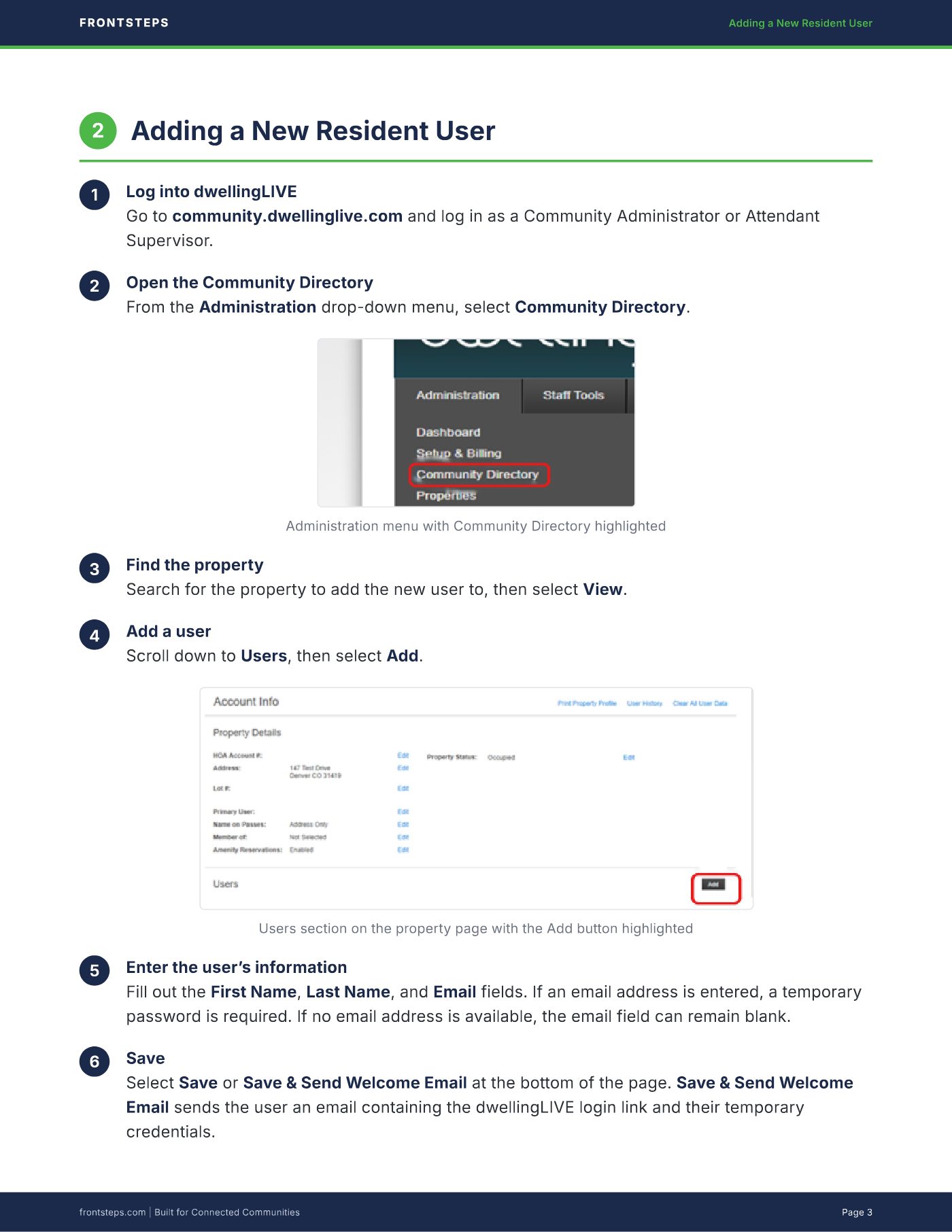
2 Open the Community Directory
From the Administration drop-down menu, select Community Directory.
Administration menu with Community Directory highlighted
3 Find the property
Search for the property to add the new user to, then select View.
4 Add a user
Scroll down to Users, then select Add.
Users section on the property page with the Add button highlighted
5 Enter the userʼs information
Fill out the First Name, Last Name, and Email fields. If an email address is entered, a temporary
password is required. If no email address is available, the email field can remain blank.
6 Save
Select Save or Save & Send Welcome Email at the bottom of the page. Save & Send Welcome
Email sends the user an email containing the dwellingLIVE login link and their temporary
credentials.
FRONTSTEPS Adding a New Resident User
frontsteps.com | Built for Connected Communities Page 3
3 Finding the Registration Code
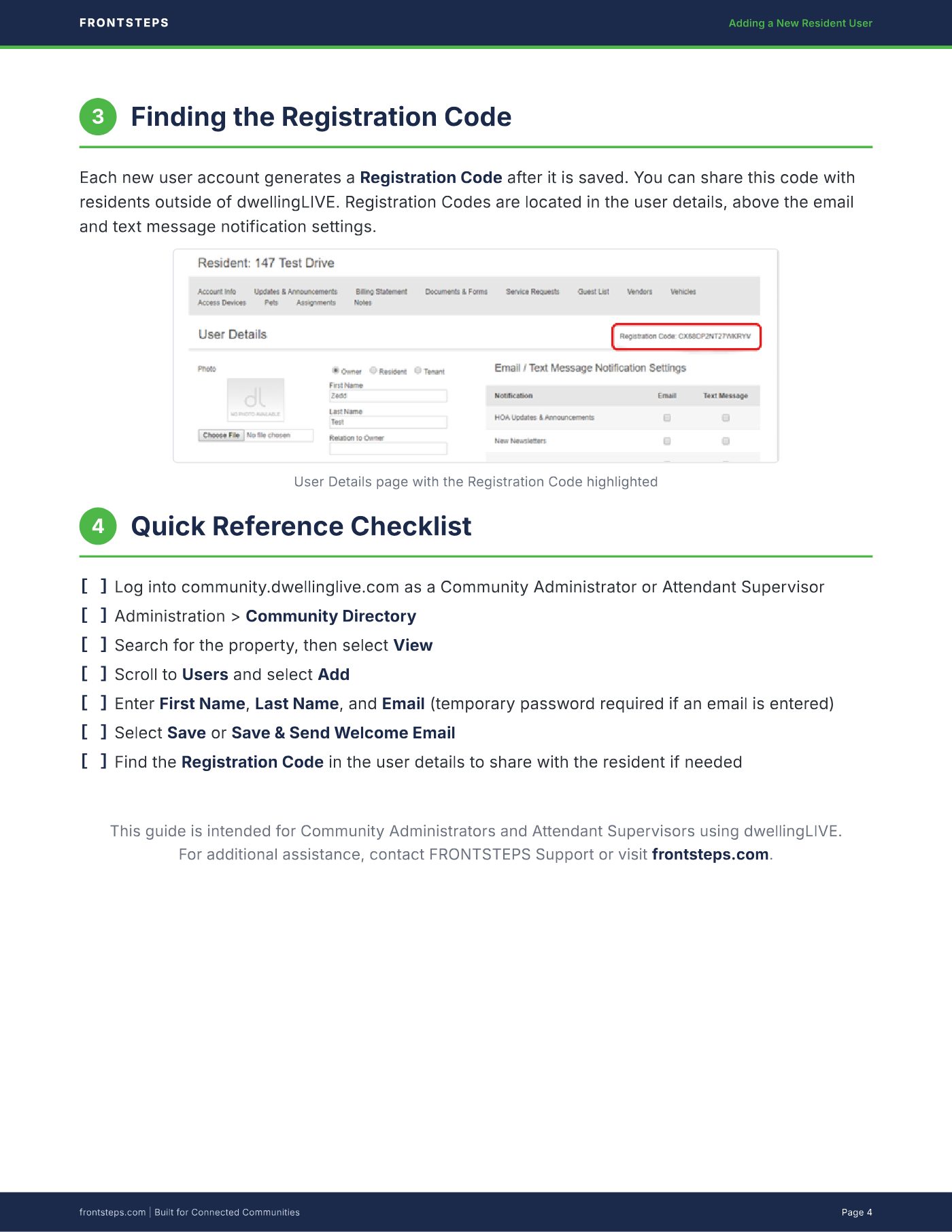
Each new user account generates a Registration Code after it is saved. You can share this code with
residents outside of dwellingLIVE. Registration Codes are located in the user details, above the email
and text message notification settings.
User Details page with the Registration Code highlighted
4 Quick Reference Checklist
This guide is intended for Community Administrators and Attendant Supervisors using dwellingLIVE.
For additional assistance, contact FRONTSTEPS Support or visit frontsteps.com.
Log into community.dwellinglive.com as a Community Administrator or Attendant Supervisor[ ]
Administration > Community Directory[ ]
Search for the property, then select View[ ]
Scroll to Users and select Add[ ]
Enter First Name, Last Name, and Email (temporary password required if an email is entered)[ ]
Select Save or Save & Send Welcome Email[ ]
Find the Registration Code in the user details to share with the resident if needed[ ]
FRONTSTEPS Adding a New Resident User
frontsteps.com | Built for Connected Communities Page 4