
Manager - Addition of Hyperlink Field to Notification Banner
We’re updating this article. Some screenshots or names may look older than what you see in the product.
Background
Customers requested the ability to add a hyperlink field to the newly released Notification Banner. The purpose of the hyperlink is to share links to outside information with Community members. For example, a Notification Banner announcing hurricane resources for the Community may include a hyperlink to a hurricane notification center.
Note: Valid hyperlinks can include hyperlinks to outside websites, as well as hyperlinks to Community internal documents folders.
Notification Banner Hyperlink Field
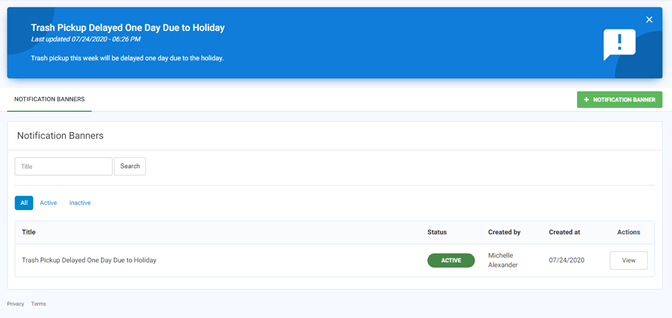
From the Manager Dashboard, Community Communications Menu, select Notification Banners.
Customers requested the ability to add a hyperlink field to the newly released Notification Banner. The purpose of the hyperlink is to share links to outside information with Community members. For example, a Notification Banner announcing hurricane resources for the Community may include a hyperlink to a hurricane notification center.
Note: Valid hyperlinks can include hyperlinks to outside websites, as well as hyperlinks to Community internal documents folders.
Notification Banner Hyperlink Field
From the Manager Dashboard, Community Communications Menu, select Notification Banners.
- To add a new Notification Banner, select +Notification Banner.
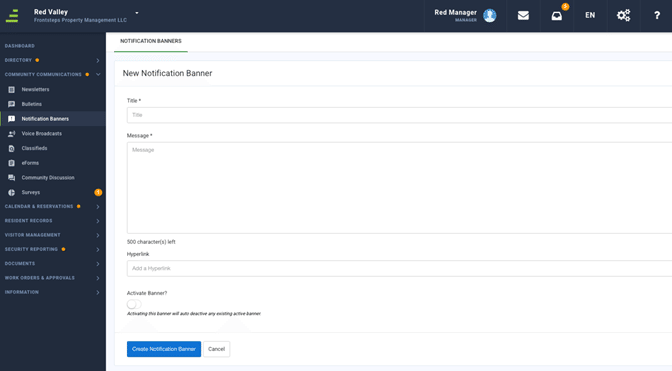
- Complete the Title and Message fields.
- Add a hyperlink in the Hyperlink field. Hyperlinks can also be copied and pasted into the Hyperlink field.
- Select the option to Activate the Banner.
- Select Create Notification Banner. The new banner will now display on all pages of the FRONTSTEPS portal.