
Resident - Adding Photos to a Photo Gallery
Add Group Page Photos by creating a Group photo gallery. Once created, simply upload images to view and manage photos.
To add photos to a photo gallery:
To add photos to a photo gallery:
- Click on a Group Page

- In the Photos section of the Group Page, Click the Add New Photos (+) button to the right of the gallery.
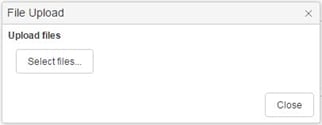
- In the File Upload dialog box, Click the Select Files button
- Browse the computer for photos and select the photo(s) to upload then Click Open
- In the File Upload window, Click Upload files button to upload the photo(s) to the website
- Click Close when finished