
Adding a Payment Method
Adding a Payment Method
How to add the ACH Payment Method:
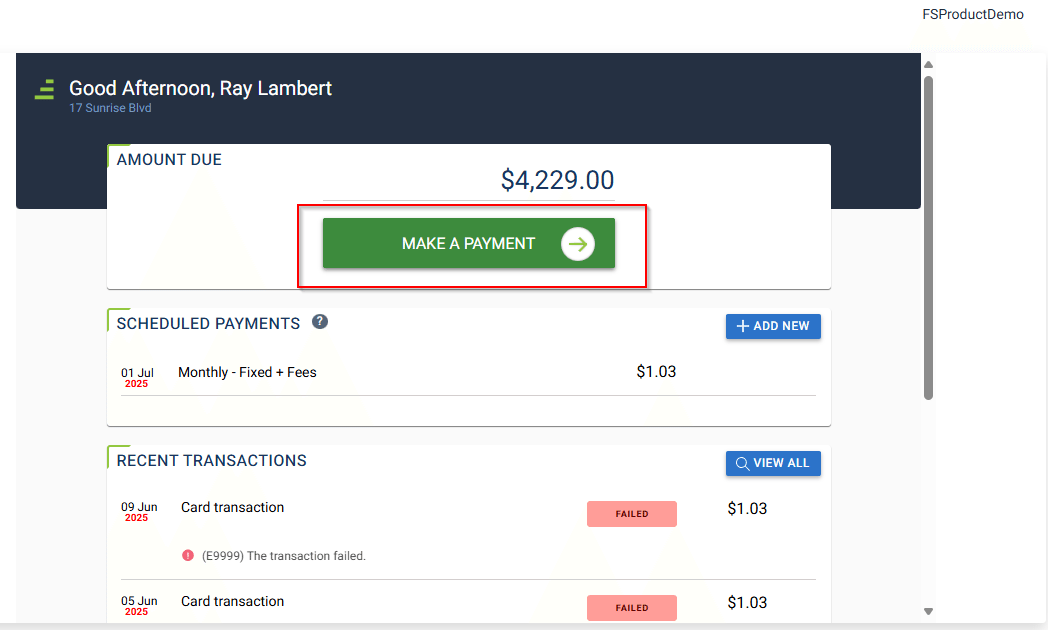
- Click on Make A Payment button
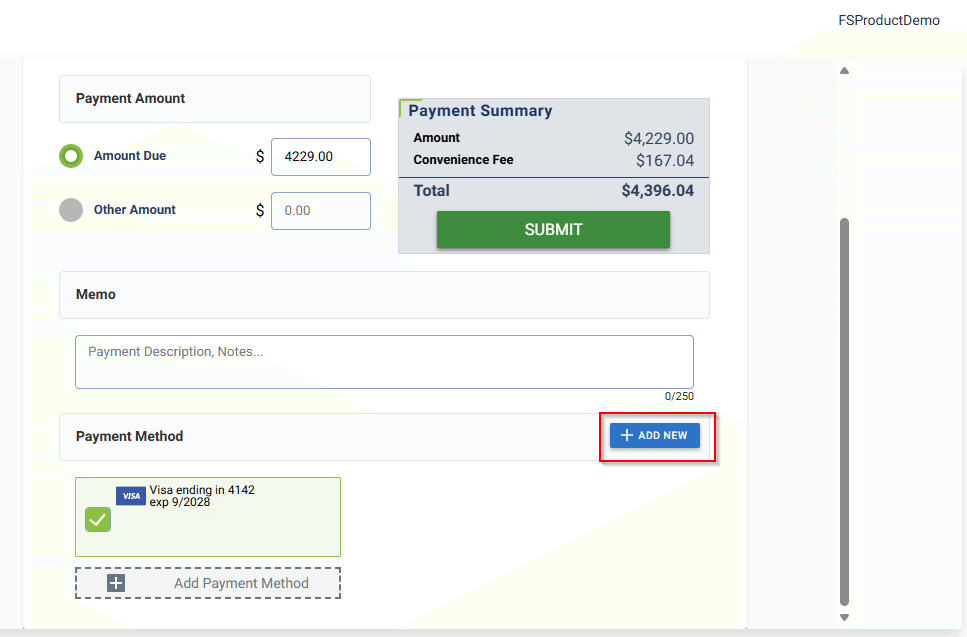
- Scroll Down to Payment Method section and Click on Add New button
- Add Payment Method screen appears on the Right side of the user interface.
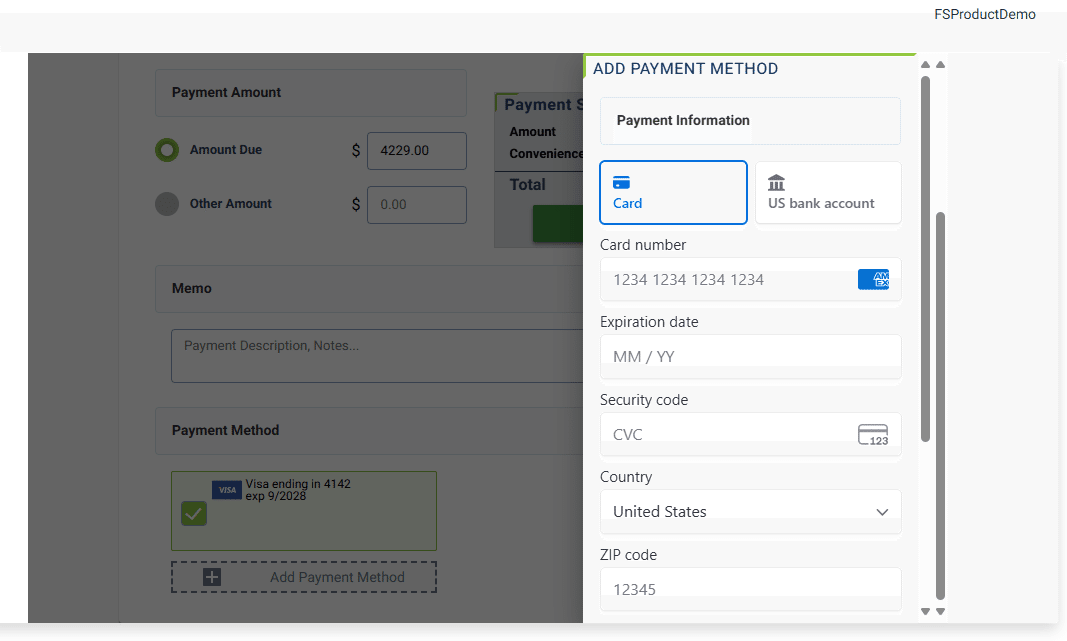
To add card payment method, Click on Card and enter all the following details and click on ADD button:
-
-
- Card Number
- Expiration Date (MM/YY)
- CVC
- Country (set to United States by default)
- Zip code
- Name on Card
- By checking the Default Payment Method checkbox, the payment method becomes the default one for making payments.
-
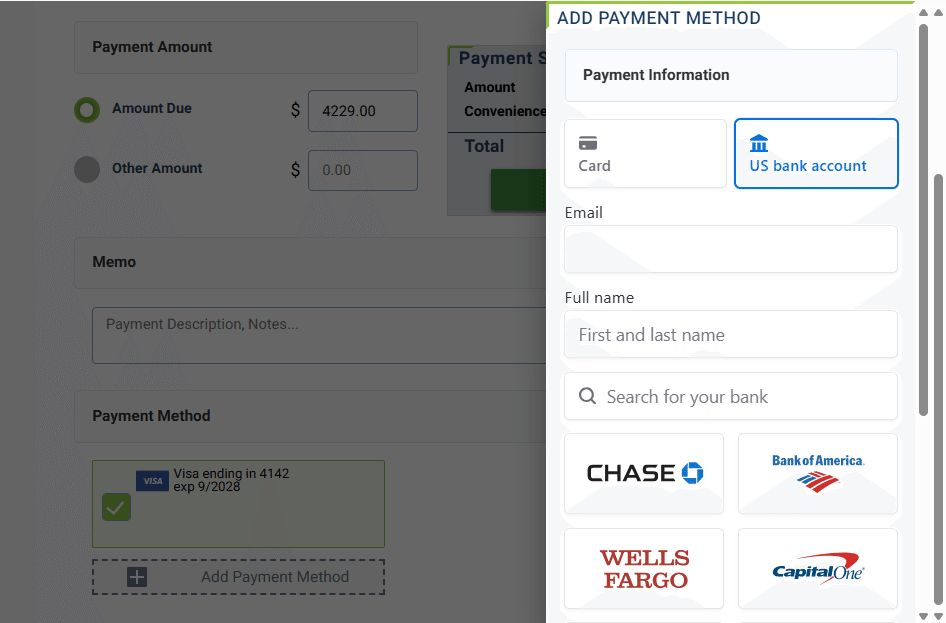
To add bank account for ACH payments, Click on US bank account. Add the following details:
-
-
- Full Name
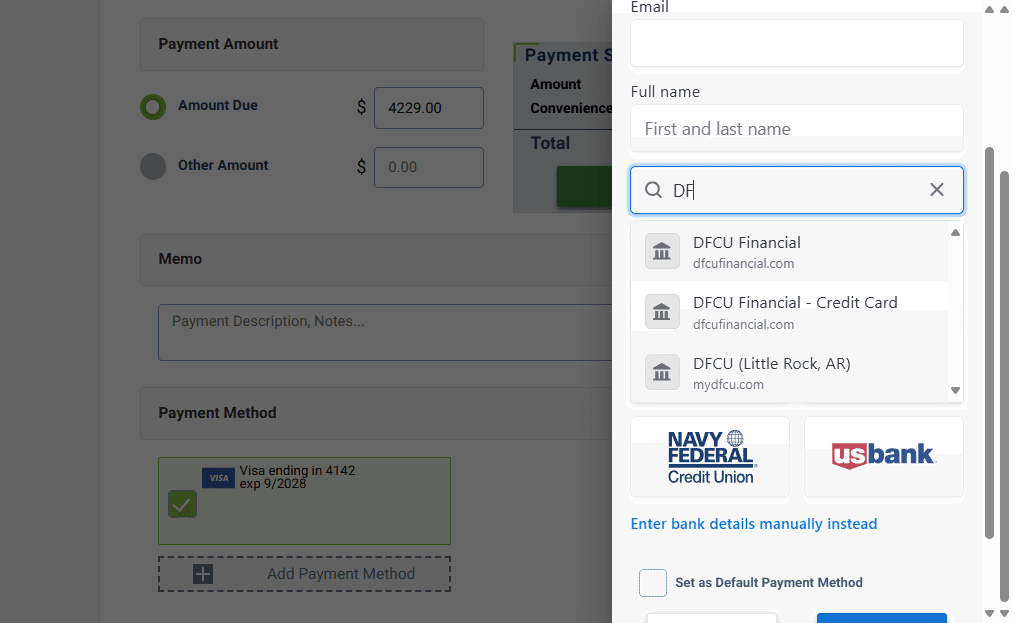
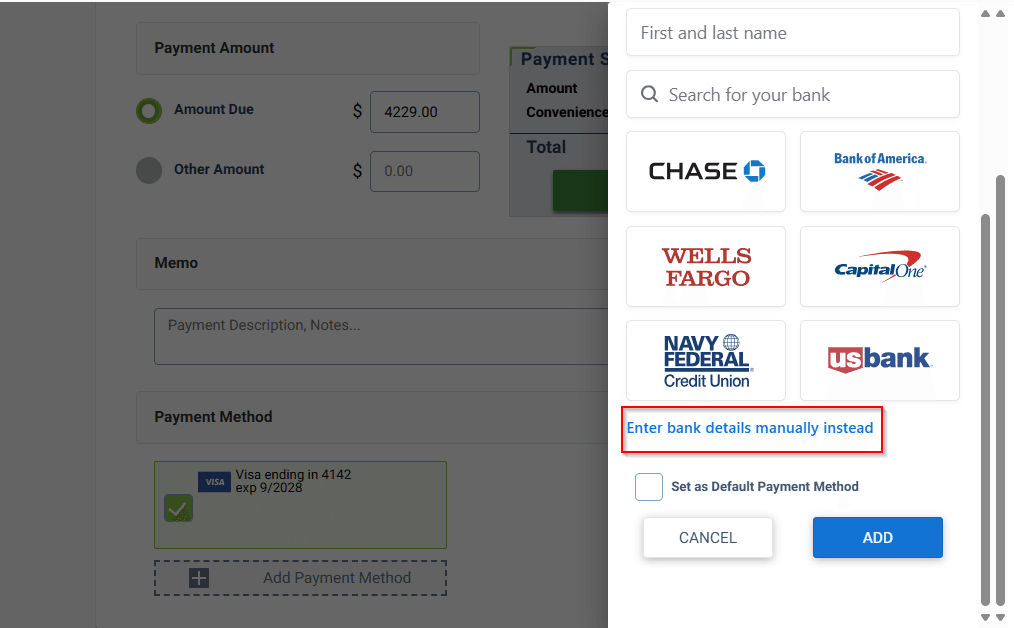
- Select a bank name from the pre-populated tiles of popular US banks.
-
-
-
- If your Bank name is pre-populated in the available tiles, enter the bank name in the Search for your bank search field.
-
-
-
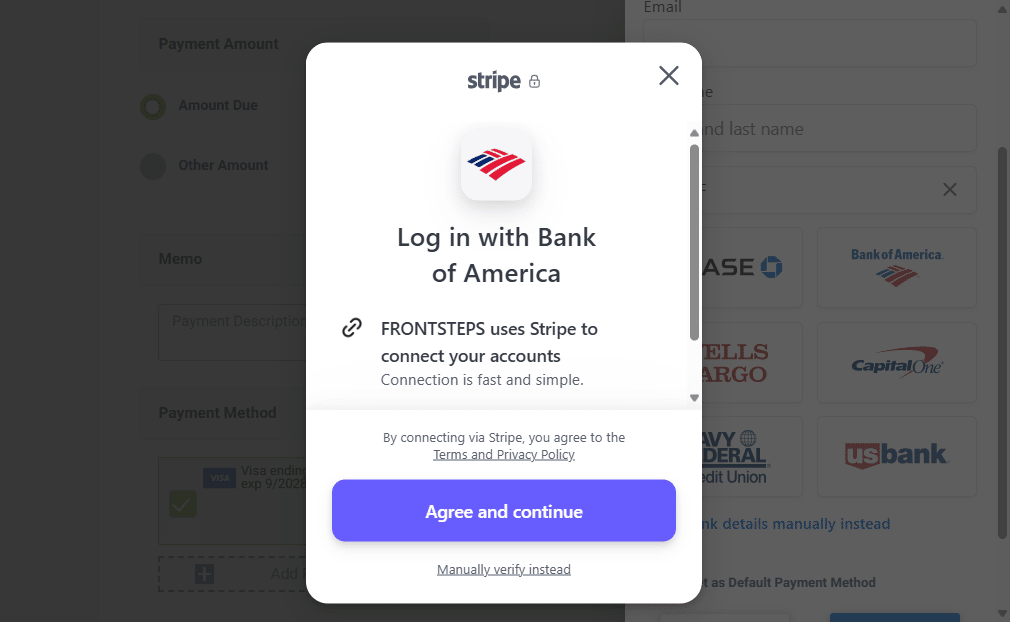
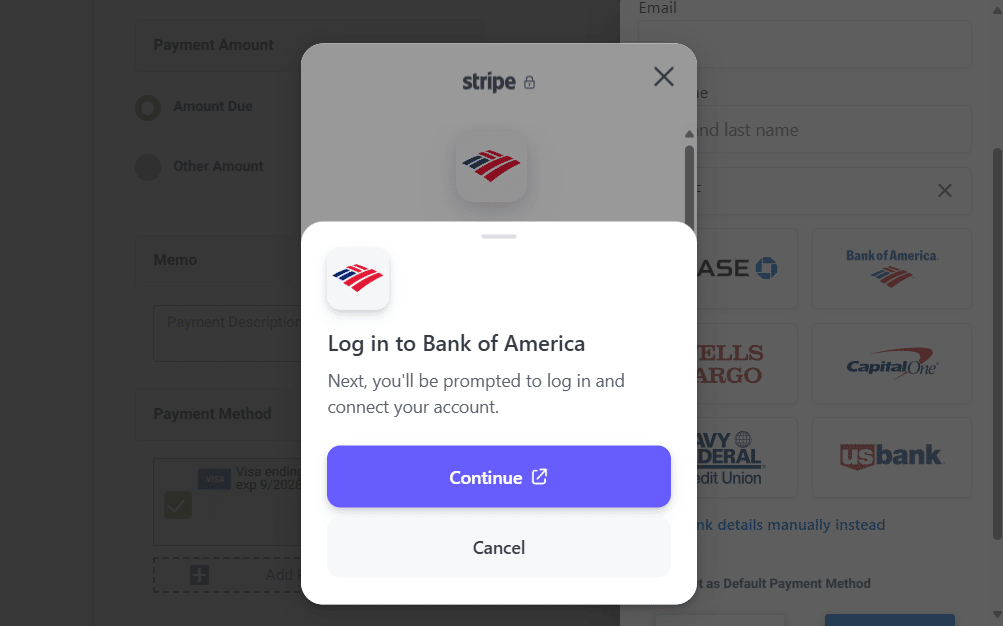
- Click on Agree and Continue on the next screen.
-
-
-
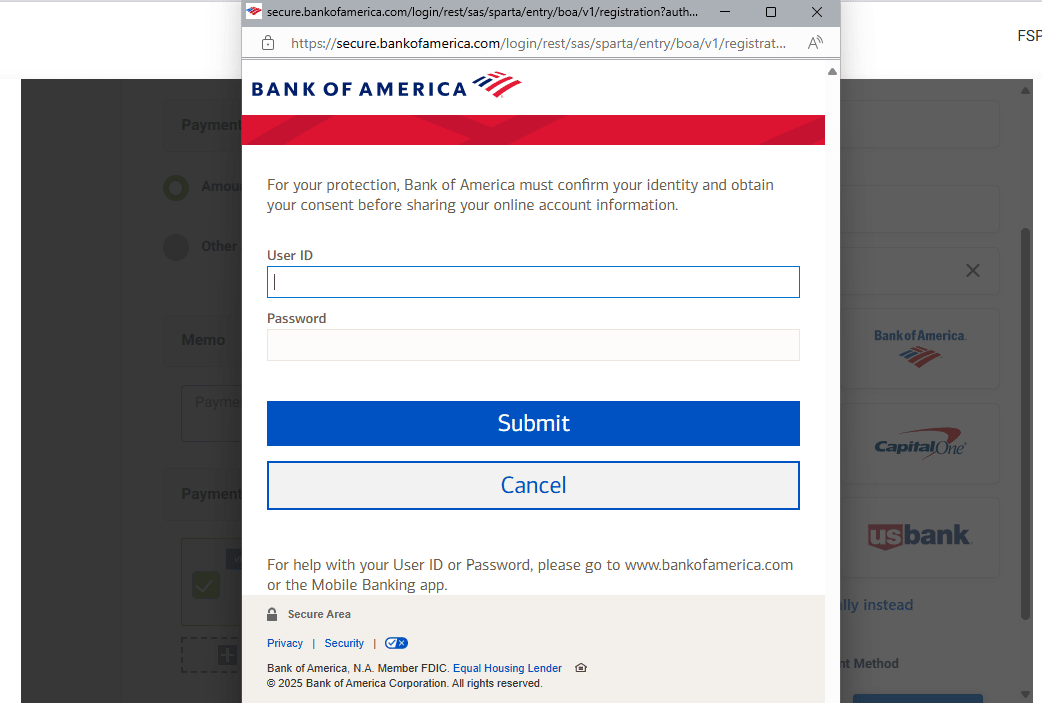
- Login to your bank account using your User Id and Password and click on Submit.
-
-
-
- Alternatively, you can enter bank details manually by clicking on the link “Enter Bank details manually instead"
-
-
-
- Set the Payment method as default if desired and click ADD button.
-