
Manager - Adding an Event to the Calendar
We’re updating this article. Some screenshots or names may look older than what you see in the product.
Community events encompass activities such as a community barbecue or community meeting. Community events are also displayed on the Community Calendar. Events can only be created and posted to the calendar by Managers, as well as Directors if that permission is enabled.
Steps
1. From the Manager Dashboard menu, select Community Events.
2. Select +Community Event.
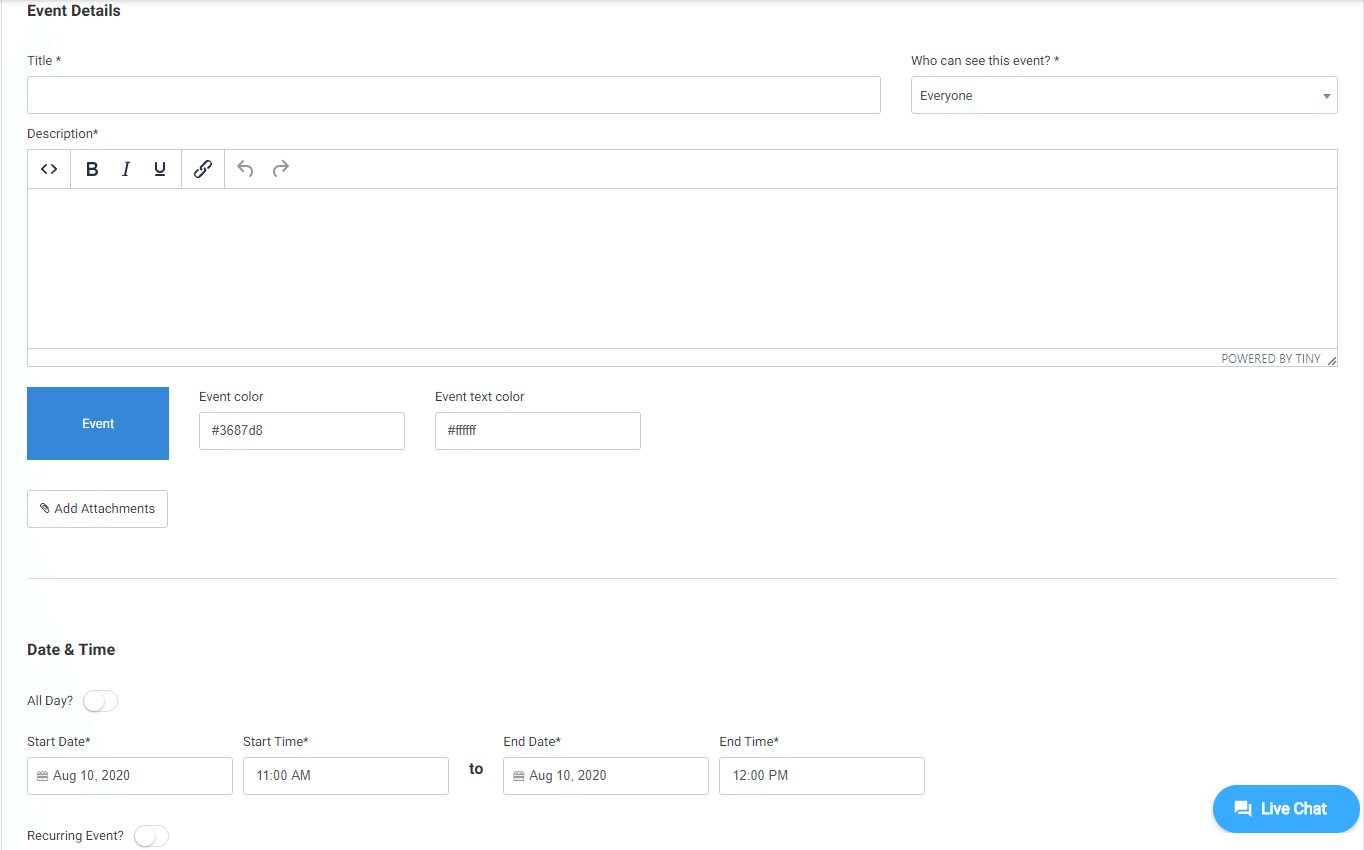
3. Add a title and description.
4. Select which users can see the event on the calendar.
5. Select an Event Color or Event Text Color from the associated color palettes.
6. Select "Starts At" date and time, and "Ends At" date and time.
7. If the event is an all day event, select the "All Day" button.
8. If the event is a recurring event, such as a Board meeting, select the "Recurring Event" button.
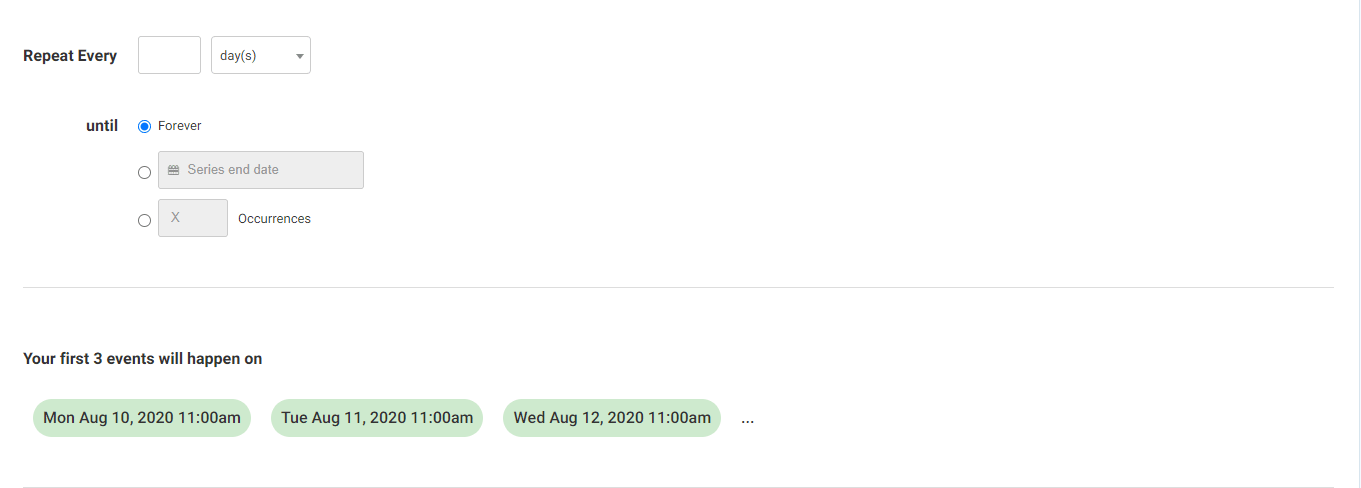
a Indicate if the event recurs Daily, Weekly, Monthly or Yearly, and the number of times it repeats.
b. Select when the event ends, or the number of occurrences.
9. Select Create Event.
Your event has been added to the community calendar.
Steps
1. From the Manager Dashboard menu, select Community Events.
2. Select +Community Event.
3. Add a title and description.
4. Select which users can see the event on the calendar.
5. Select an Event Color or Event Text Color from the associated color palettes.
6. Select "Starts At" date and time, and "Ends At" date and time.
7. If the event is an all day event, select the "All Day" button.
8. If the event is a recurring event, such as a Board meeting, select the "Recurring Event" button.
a Indicate if the event recurs Daily, Weekly, Monthly or Yearly, and the number of times it repeats.
b. Select when the event ends, or the number of occurrences.
9. Select Create Event.
Your event has been added to the community calendar.