
Admin/Dealer - Adding Access Devices to dwellingLIVE
We’re updating this article. Some screenshots or names may look older than what you see in the product.
Access devices are key components in dwellingLIVE’s credentialed access system. Access devices can be added individually or in bulk.
Note: Access Device Credits are required to add new access devices. See the Adding Access Device Credits article for more details.
Steps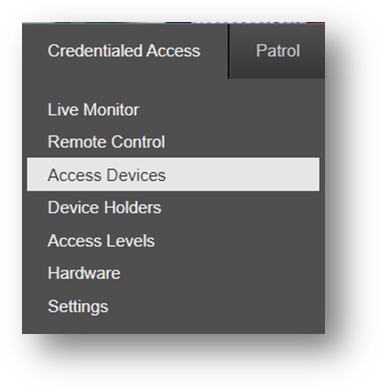
Note: Access Device Credits are required to add new access devices. See the Adding Access Device Credits article for more details.
Steps
- Log into community.dwellinglive.com as a Dealer, Community Administrator, Attendant Supervisor, or Lobby Attendant.
- Select Access Devices from the Credentialed Access drop-down menu.
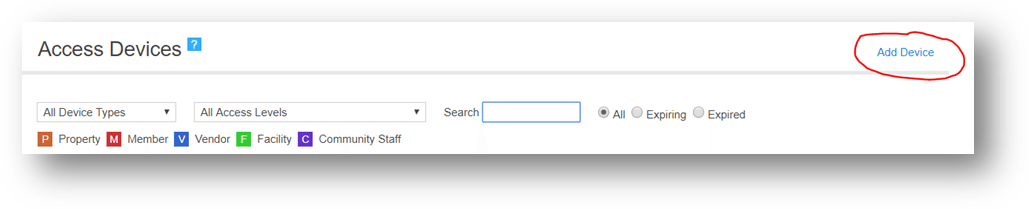
- Select “Add Device” in the upper right corner.
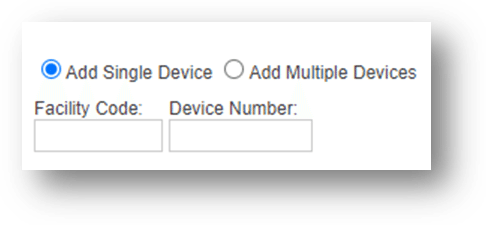
- Select “Add Single Device”, then enter the facility code and device number of the access device.
-
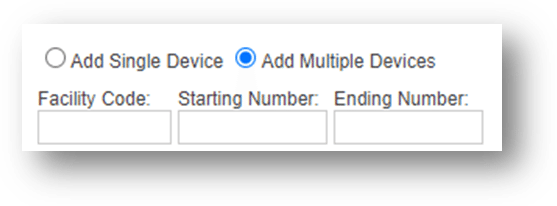
- To add devices in bulk, select “Add Multiple Devices”, then enter the starting number and ending number of the device range.
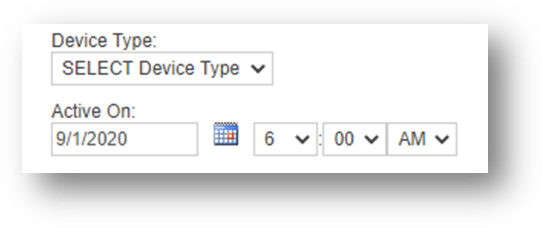
- Use the drop-down to select the device type, then set the activation date and time under Active On.
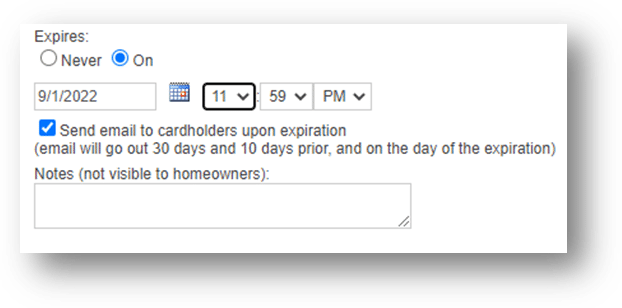
- Under Expires, determine whether the device(s) will expire.
- To prevent expiration, select “Never”.
- If the device will expire, select “On”. Then set the date and time of expiration and select “Send email to cardholders…” (optional).
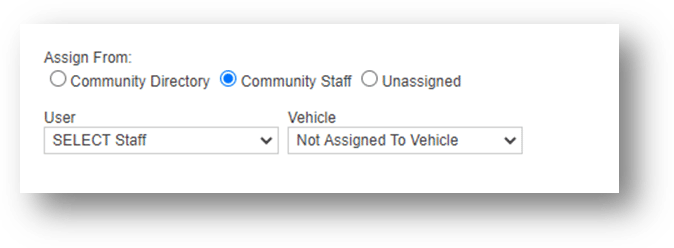
- Set the device assignment by using the radio buttons under Assign From.
- Select “Community Directory” to assign the access device(s) to a specific property.
- Select “Community Staff” to assign to a staff member.
- Select “Unassigned” to add to the access device inventory. The device(s) can be assigned in the future.
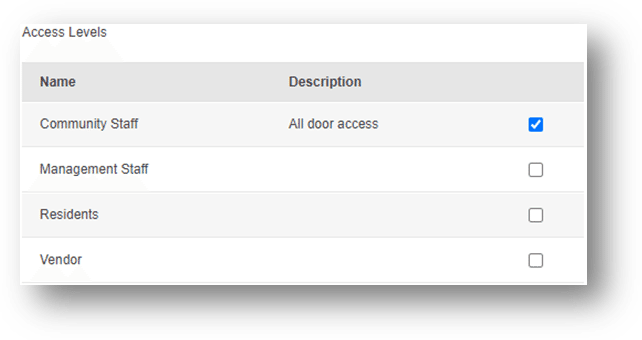
- Lastly, select the access level, then select “Save”.