
ACH for Accounts Receivable (Owner Payments)
 ACH for AR in Caliber
 Caliber allows for the use of ACH to withdraw amounts from owner bank accounts as payment for their outstanding Accounts Receivable (‘AR’) balance. This is often called ‘auto-withdrawal’ or ‘autopay.’
This document applies only when the owner has supplied the customer with their bank account information, and the NACHA file is being generated directly out of Caliber before being submitted to the bank
Some things to know:
• ACH information can be imported using the Caliber ACH Import Spreadsheet.
• Each owner can have as many separate ACH records as needed.
 Customer Setup
NACHA Rules & Regulations state that if an owner is able to sign-up for ACH through the internet, a web portal, or an API connection, a special ‘WEB’ code must be used in the NACHA file for that item. Currently, this code is defaulted in Caliber to unenabled.
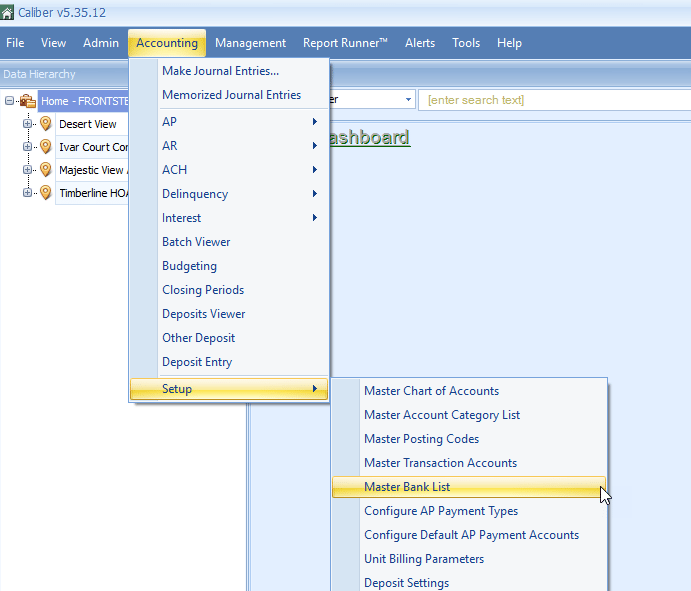
To enable use of the code, the user must go to Accounting > Setup > Master Bank List.
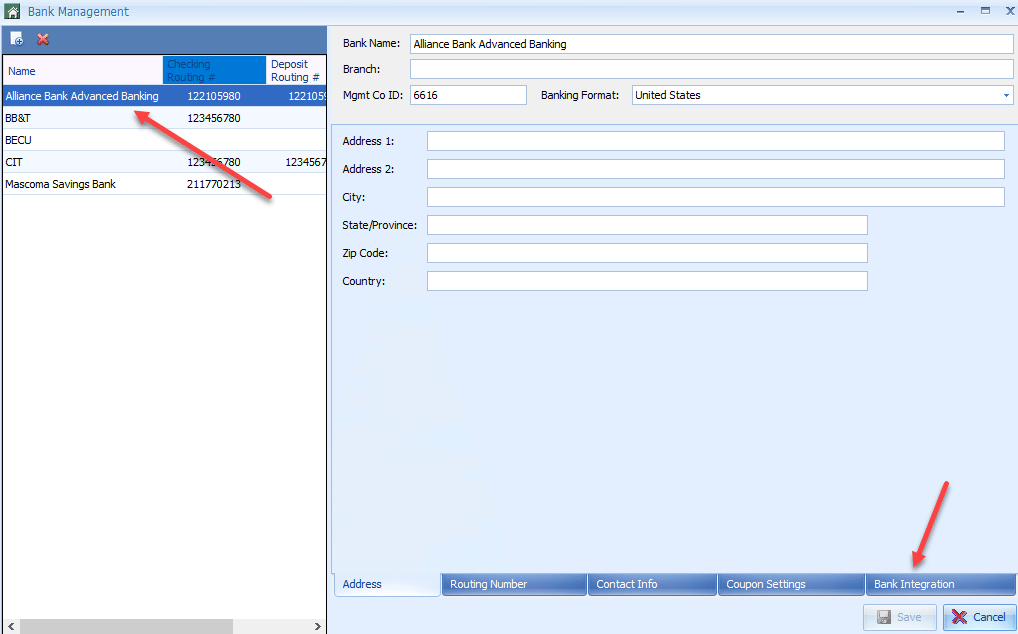
Once there, select the bank from the list, and go to the Bank Integration tab.
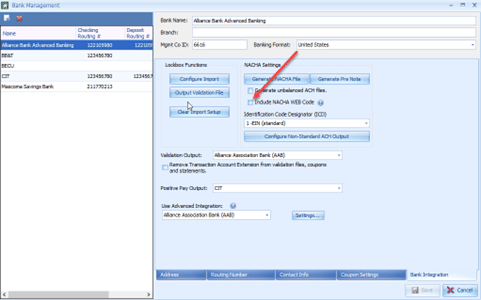
In the NACHA settings area, check the box marked ‘Include NACHA WEB Code’, then ‘Save.’
 Before using the WEB code, the customer must first contact their bank to coordinate the implementation. Not doing so could result in ACH files being rejected by the bank.
 This option should be remain checked at all times unless every owner will be required to sign-up for ACH in writing.
 Client Setup
Before the first NACHA file (‘file’) can be generated, several things must be completed by the user.
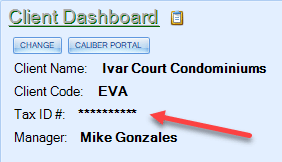
First, at the Client Dashboard, the client’s Federal Tax ID must be entered in the appropriate field. The Tax ID will be displayed in a secure manner for all but authorized users.
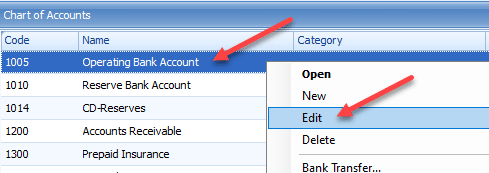
Second, the bank that the file will be sent to must be marked as the Primary Bank Link. Go to the client’s Chart of Accounts, choose the account, right click, and select ‘Edit.’
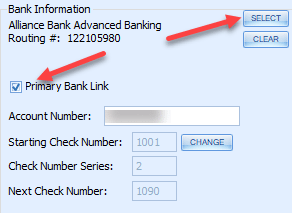
The Account Information Toolbox for that account will appear. Make sure that the correct bank has been selected from the Master Bank List, and that the account is marked as the Primary Bank Link. When that has been done, ‘Save.’
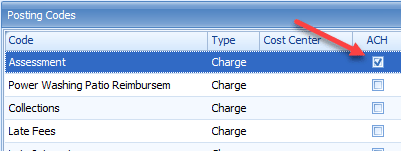
Next, go to the client’s Posting Codes Toolbox and make sure that the Posting Codes for all charges that are to be paid by ACH are enabled for ACH.
If a Posting Code is not enabled for ACH and it should be, choose the Posting Code and click on the ‘Edit’ icon at the bottom of the Toolbox.
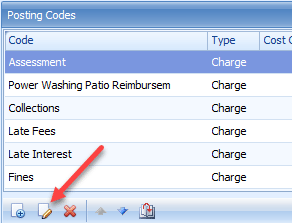
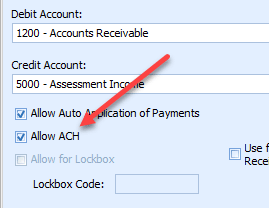
The Posting Code Detail will open. Check the box marked ‘Allow ACH’ and ‘Save.’
 Owner Setup
An owner ACH payment plan (‘plan’) can be either recurring or one-time.
A recurring plan will automatically be included in the file every time one is generated for the client, provided the owner has an outstanding balance of ACH eligible charges, or the plan is for a manual amount.
A one-time plan will be included in a file one time only, and will not be included in any additional files.
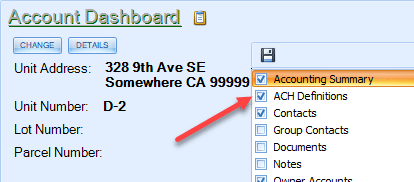
Before creating any plan can be created, the ACH Definitions Toolbox must be active. Go to the Account Dashboard, right click, and select ‘ACH Definitions.’
Recurring ACH Plans
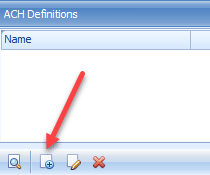
To setup a recurring plan, go to the Owner Account > ACH Definitions, and click on the ‘Add New ACH Definition’ icon.
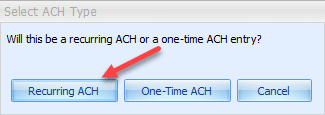
Select ‘Recurring ACH.’
In the ACH Definition Toolbox, make sure the owner’s name is selected from the pulldown, enter at least the Routing Number and Account Number, then ‘Save.’
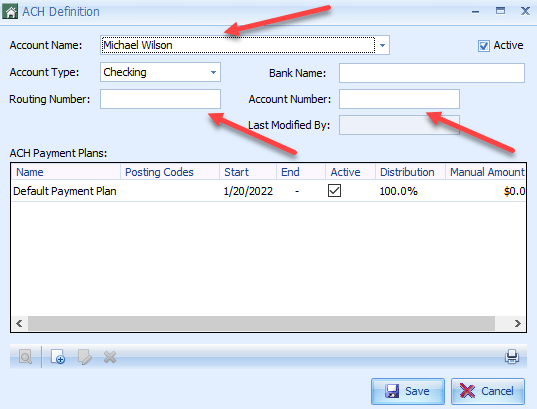
The Routing Number and Account Number are required fields. The routing number entered is not checked against a routing number database, but it must have certain characteristics that are validated. It must be 9 digits long and the final digit is a check digit that validates the number in general. The Bank Name is not required.
Double click on the Default Payment Plan to enter details. Caliber defaults the ACH Payment Plan Name to ‘Default Payment Plan’, but it can be modified in the ACH Payment Plan Toolbox that opens.
Select either ‘Distribution’ or ‘Manual Amount,’ enter Start and End dates, and ‘Save’ when ready.
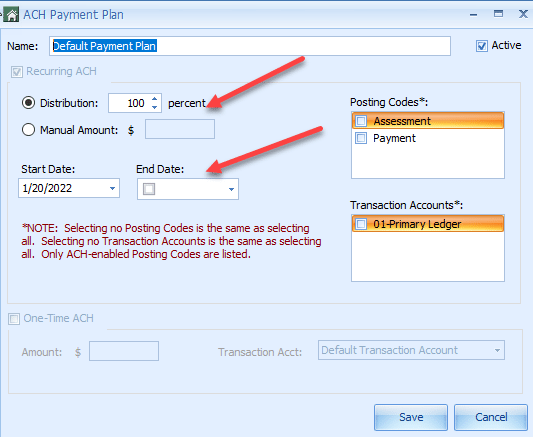
The ‘Distribution’ option will pull the selected percentage of the outstanding balance for all ACH enabled charges on the owner’s account. If a charge is partially paid, only the outstanding amount will be pulled.
Caliber defaults to a 100% distribution. However, this can be changed if the amount is to be split between multiple owners of a unit. For example, an ACH Definition can be created for one owner at 50%, and a second ACH Definition created for a different owner for the remaining 50%.
In a similar way, payments can be drawn from multiple bank accounts belonging to the same owner.
The ‘Manual Amount’ option will pull the indicated amount every time a file is generated, regardless of the amount actually outstanding on the owner’s account at the time.
The Start Date must be the same as or prior to the posting date of the first charges to be pulled by ACH. If charges are outstanding prior to the Start Date, their balance will not be pulled by ACH. For example, if the start date entered is January 20th, any charges posted as of January 1st will not be pulled. The Start Date must be changed to January 1st or earlier for those charges to be pulled.
If an End Date is entered, any charges posted using a date after the End Date will not be pulled by ACH.
The list of Posting Codes includes all Posting Codes that have been enabled for ACH for that client. If only certain ones are to be paid with this Payment Plan, only those Posting Codes should be selected.
If no Posting Code is selected, Caliber defaults to all of them being selected automatically.
Transaction Accounts work the same way.
One-Time ACH Plans
To setup a new one-time plan, go to the Owner Account > ACH Definitions, and click on the ‘Add New ACH Definition’ icon.
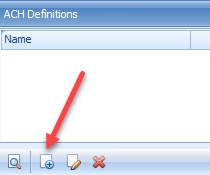
Select ‘One-Time ACH.’
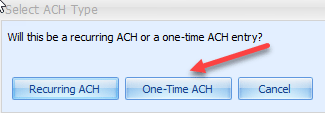
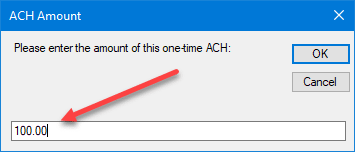
Enter the amount and click ‘OK.’
In the ACH Definition Toolbox, make sure the owner’s name is selected from the pulldown, enter at least the Routing Number and Account Number, then ‘Save.’
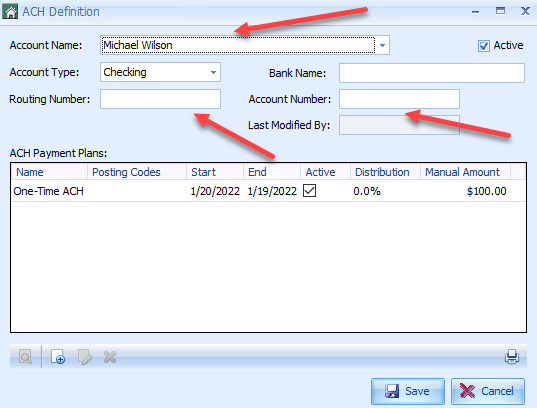
The Routing Number and Account Number are required fields. The routing number entered is not checked against a routing number database, but it must have certain characteristics that are validated. It must be 9 digits long and the final digit is a check digit that validates the number in general. The Bank Name is not required.
The End Date is automatically entered using the day prior to the Start Date. This is to ensure that the one-time plan is not included in any additional files.
One-Time ACH Plans with an Existing ACH Definition
To setup a one-time plan for an owner that has an existing ACH Definition, go to the Owner Account > ACH Definitions, and double click on the owner’s name.
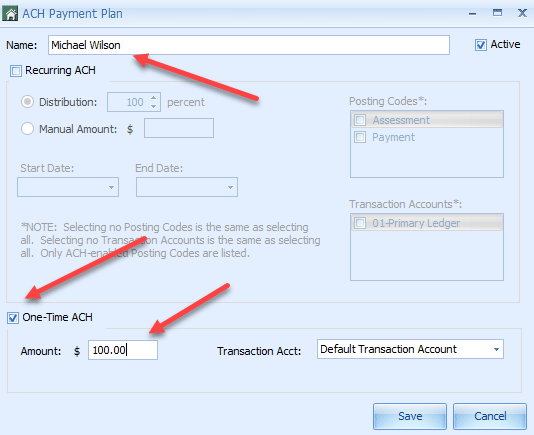
Enter the owner’s name, check the box for ‘One-Time ACH’, and enter the amount. The Transaction Account will default to the client’s Default Transaction Account, but it can be changed using the pull-down menu, if needed. When done, ‘Save.’
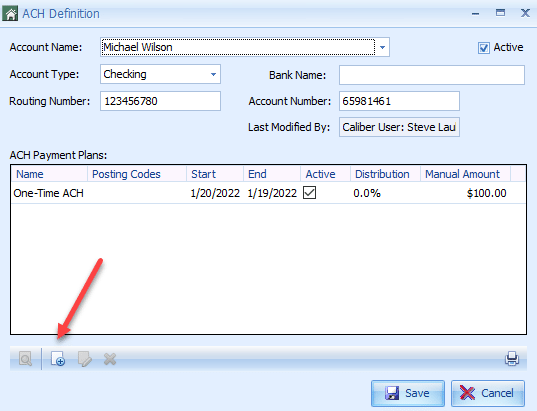
The owner’s ACH Definition Toolbox will now display the new on-time ACH payment.
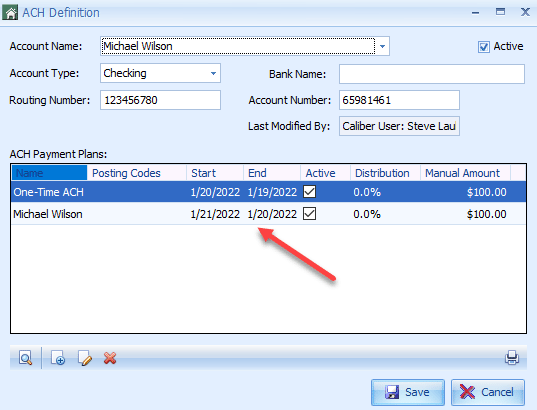
The End Date is automatically entered using the day prior to the Start Date. This is to ensure that the one-time plan is not included in any additional files.
 ACH Payment Plan Report
After the setup has been completed, an ACH Payment Plan Report can be generated using the Reporting Toolbox at either the Home Dashboard or the Client Dashboard. Various options are available to define the report’s parameters.
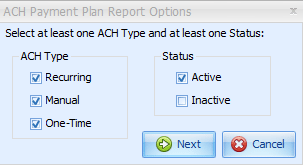
The report provides an opportunity to review everything before the file is generated.
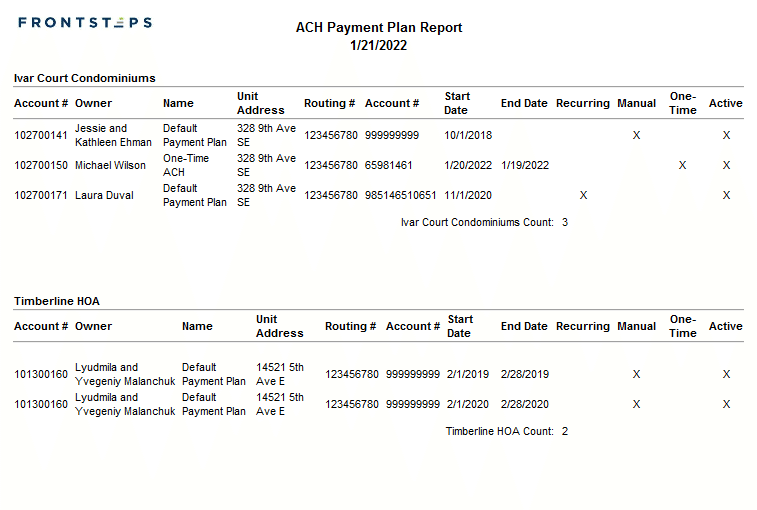
When a file is generated, it will include the balances of the charges specified in the ACH payment plans.
If a payment has been applied against a charge that is eligible for ACH, leaving a balance, only the outstanding balance of the charge will be included in the file, unless the plan was setup as a manual amount.
If there are no outstanding charge when the file is run, no balance will be included in the file.
For manual amounts, the file will include the fixed amount every time one generated, regardless of the outstanding balance.
 Generating ACH Files
ACH files for recurring payments and one-time payments are generated separately. This another way Caliber ensures that a one-time plan is not included in any additional files.
Generating Files for Recurring Payments
To generate a file for recurring payments, go to Accounting > ACH > Generate ACH file – For Recurring ACH items.
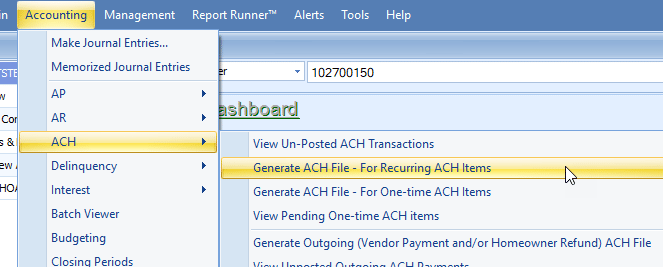
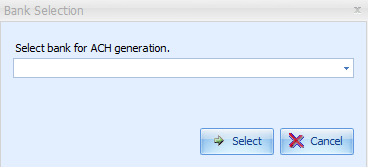
Use the pull-down menu to select the bank that the file is to be generated for and click ‘Select.’
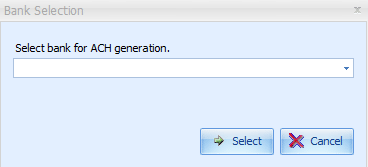
The bank the file is to be generated for will be the bank attached to the account marked as the ‘Primary Bank Link’ for the client. If other clients use a different bank, a separate file will have to be generated for that bank.
In the ACH Options Toolbox, select which charges are to be included in the file, the effective date of the file, and the Country Format the file is to be generated in. Click ‘Continue’ when ready.
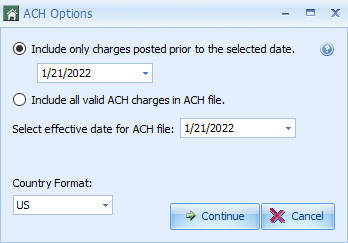
The ‘Include only charges prior to the selected date’ option causes only eligible charges posted to an owner’s account with an effective date that is equal to or prior to the date entered to be included in the file. Any charges with an effective date after the selected date will be ignored.
The ‘Include all valid ACH charges in the ACH file’ option causes all ACH eligible charges posted to an owner’s account to be included in the file, regardless of the effective date. This includes any charges that are posted using future dates.
The effective date for the ACH file will be either the current day or the following day. Which one depends upon the bank that the file is being generated for. The bank will have to be contacted for instructions.
In the next Toolbox, all clients with applicable owner plans will be shown. If a specific client is not shown, it is because the account marked as the Primary Bank Link is attached to a different bank, or there are no owners with plans for that client.
Select all clients and units accounts that are to be included in the file. Individual units or entire clients can be selected or deselected as needed. Click ‘OK’ when ready’
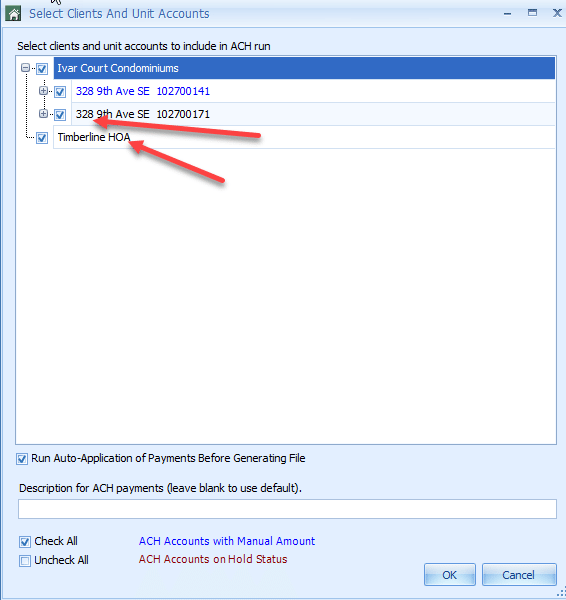
‘Run Auto-Application of Payments’ defaults to being checked, but can be unchecked if desired. Leaving it checked adds an additional step to the ACH process, so the file will take a little longer to generate. However, it ensures that any unapplied payments are first applied against outstanding charges, preventing a larger balance than necessary being included in the file for an owner.
A custom description can be entered, if desired. If not, the description from the payment Posting Code will be used.
Some units may be displayed in a different color. This is to highlight those owners that are setup with a manual amount, or those owners whose accounts have had an AR processing hold placed on them.
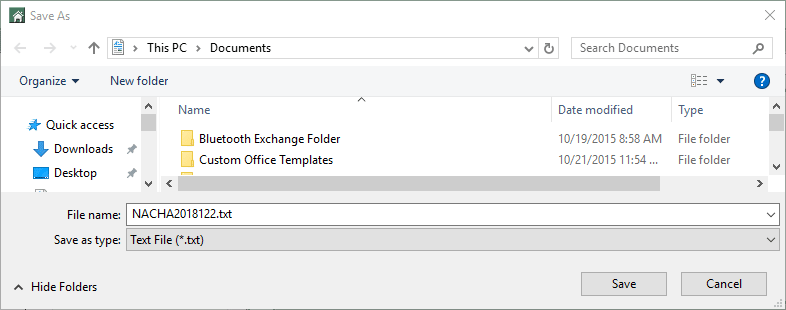
Caliber now asks where the file is to be saved when it has been generated.
After that, a message will appear.
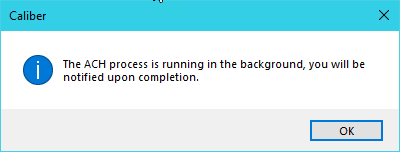
Work in Caliber can continue as normal while the file is being generated. A message will appear when the file has finished generating. Clicking ‘OK’ in that message will bring up a preview of the ACH file for review.
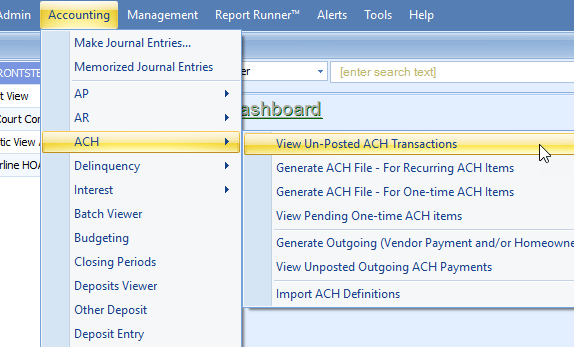
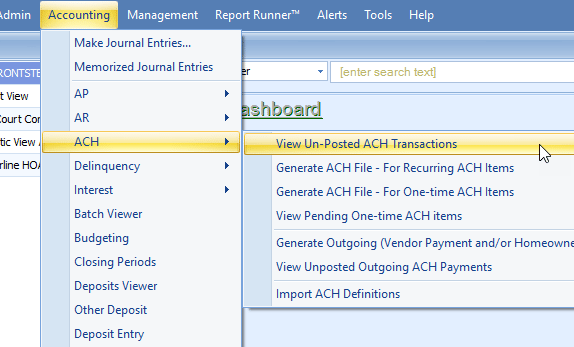
A more user friendly version of the report can be found by going to Accounting > ACH > View Un-Posted ACH Transactions.
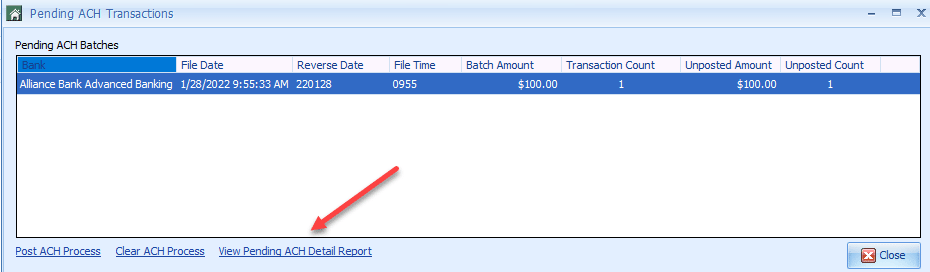
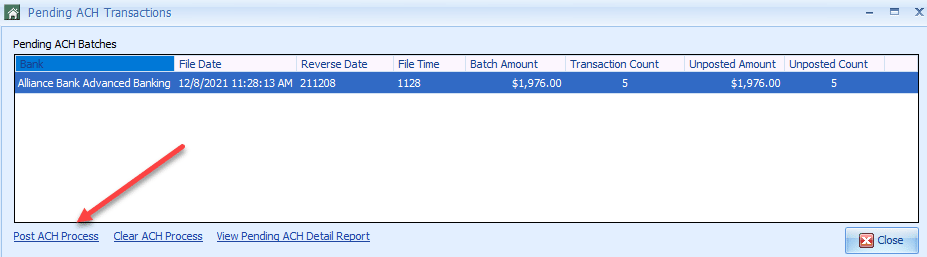
A list of all Pending ACH Batches will be displayed, along with details of the batch. Select the batch or batches to be reviewed and select ‘View Pending ACH Detail Report.’
The file can now be submitted to the bank according to their instructions.
Caliber strongly recommends that the payment batch be carefully reviewed for accuracy before it is submitted to the bank.
One Time ACH Report
A report can be run prior to generating a one-time file. The report lists all clients and owners that have a one-time payment that needs to be included in a file
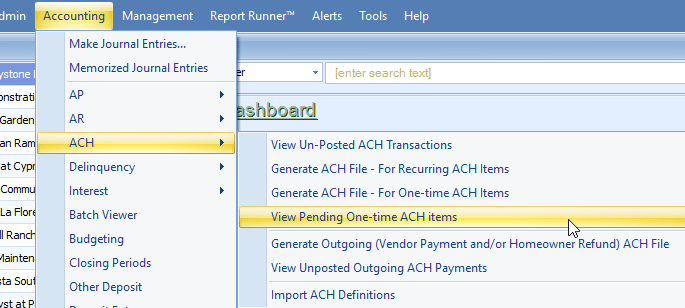
Go to Accounting > ACH > View Pending One-time ACH items.
Use the pull-down menu to select the bank that the file is to be generated for and click ‘Select.’
Generating Files for One-Time Payments
To generate a file for one-time payments, go to Accounting > ACH > Generate ACH File – For One-time ACH Items.
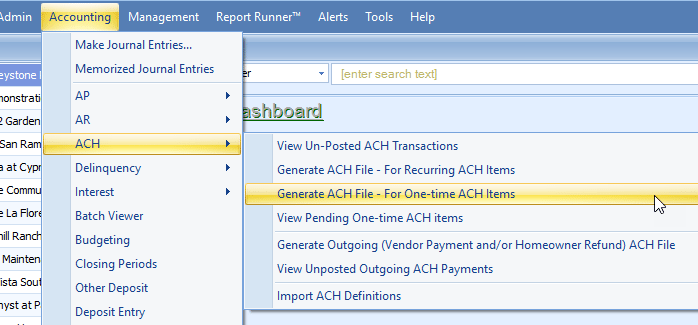
Once that has been selected, the process is exactly the same as when generating a file for recurring payments.
 Posting the ACH File
Although the file has been generated, the payments still have to be posted to the owner accounts.
Caliber strongly recommends that the payment batch not be posted until the following business day.
This delay allows the bank time to review the file and contact the customer if there are any issues with the file. If the bank needs the file to be regenerated, and the payments have already been posted, the entire batch will have to be reversed from the owner ledgers first.
To post the payments, go to Accounting > ACH > View Un-Posted ACH Transactions.
A list of all Pending ACH Batches will be displayed, along with details of the batch. Select the batch or batches to be posted and select ‘Post ACH Process.’
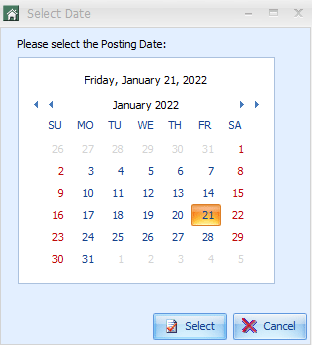
Choose the Posting Date for the Payments and click ‘Select.’
When the batch has finished posting, it will be removed from the list of Pending ACH Batches.
The ACH process is complete and the Toolbox closed.