
ACH for Accounts Payable (Vendor Payments)
 ACH for AP in Caliber
 Caliber allows for the use of ACH to deposit funds directly into vendor bank accounts as payment for their Accounts Payable (‘AP’) invoices. This is often called ‘auto-deposit’ or ‘autopay.’
This document applies only when the vendor has supplied the customer with their bank account information, and the NACHA file is being generated directly out of Caliber before being submitted to the bank for processing.
 Customer Setup
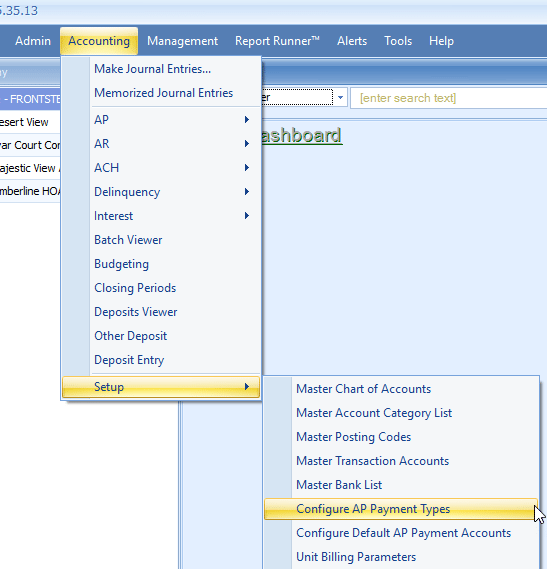
Go to Accounting > Setup > Configure AP Payment Types.
Check the box for ‘ACH’ and ‘Save.’
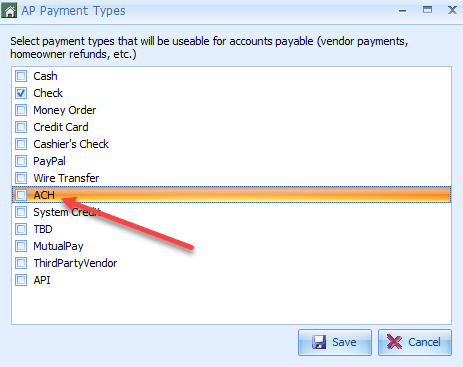
Customer setup is complete.
 Vendor Setup
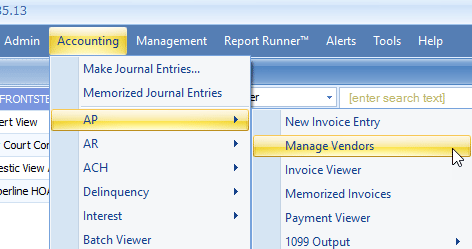
Go to Accounting > AP > Manage Vendors.
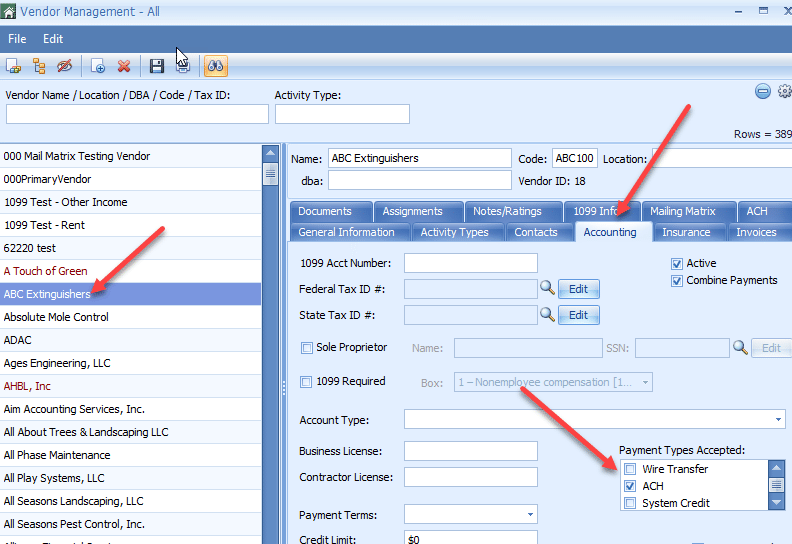
Select the vendor that is to be setup for ACH, and go to the ‘Accounting’ tab. Once there, go to the Payment Types Accepted list, scroll through it until the ACH option is located, and check it.
Next, go to the ‘ACH’ tab for the vendor. Enter the bank account information provided by the vendor, check ‘Active,’ then ‘Save.’
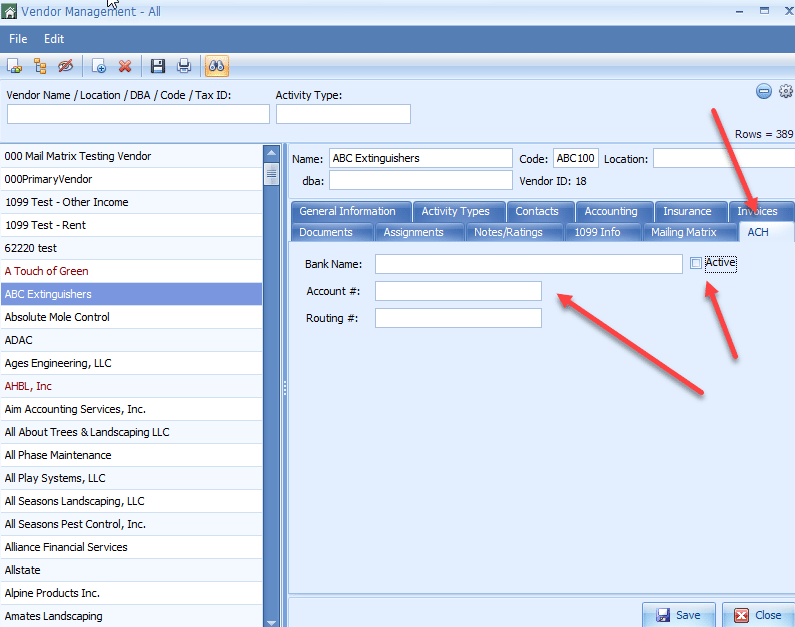
The selected vendor is now setup.
Repeat these steps for all other vendors that will have ACH as an available payment option.
When done, the Vendor Management Toolbox can be closed.
 Invoice Entry
Once the setup steps have been completed, ‘ACH’ will be available in the pull-down menu as a Payment Method when entering invoices from that vendor. ACH must be selected here if the invoice is to be paid that way.
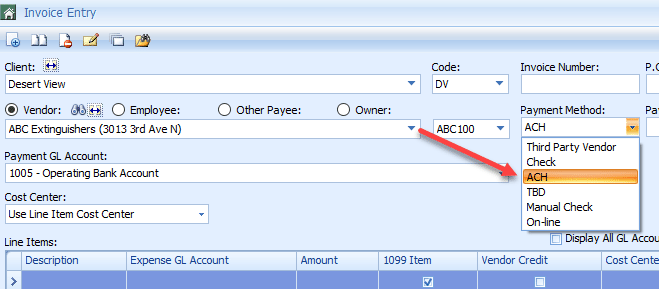
All other steps for entering and approving invoices remain the same. The invoice will follow the same workflow as every other invoice entered for that client.
 Paying the Invoice
Paying an invoice in Caliber via ACH uses the same process that is used for any other invoice.
After the invoice has been paid, the following message will appear. Click ‘OK.’
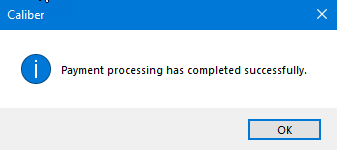
At this time, the invoice will be moved into a paid status.
Please note that this does not mean that the ACH process has been completed. Further steps are required to generate the outgoing ACH payment file (‘file’) that is sent to the bank. If these additional steps are not completed, the vendor will not receive the payment.
 Generating the ACH File
When the invoice has been paid, as described above, Caliber automatically sends the outgoing payment information to a pending ACH queue. This is so that a separate file does not need to be generated for each item.
Go to Accounting > ACH > Generate Outgoing ACH File.
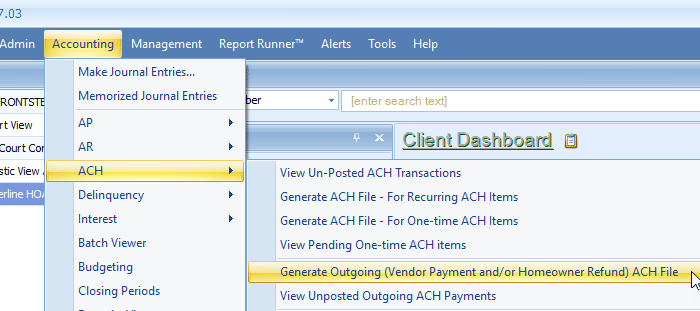
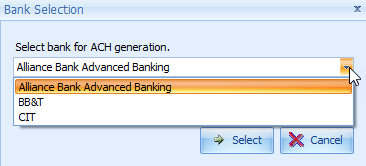
Select the bank that the file is to be sent to for processing from the pulldown menu and click ‘Select.’
Choose the options to be used when generating the file, and click ‘Continue.’
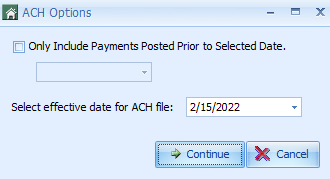
The default is for the file to include all payments in the queue. If desired, the process can exclude payments after a specified date by selecting ‘Only Include Payments Posted Prior to Selected Date,’ and entering the date in question. Any excluded items will remain in the queue until they are included in a future file.
The effective date for the ACH file will be either the current day or the following day. Which one depends upon the bank that the file is being generated for. The bank will have to be contacted for instructions.
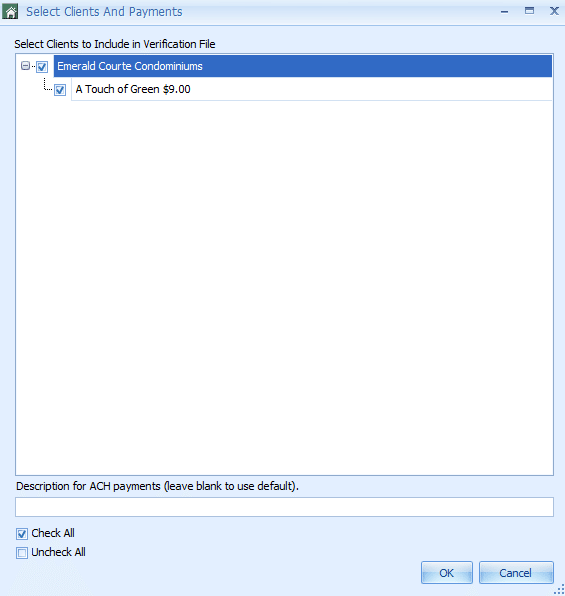
In the next Toolbox, all clients with pending ACH payments will be shown. If a specific client is not shown, it is because the bank selected is not the one that was used when entering the invoice, or there are no pending payments for that client.
Select all clients and vendors that are to be included in the file. Individual vendors or entire clients can be selected or deselected as needed. Click ‘OK’ when ready.
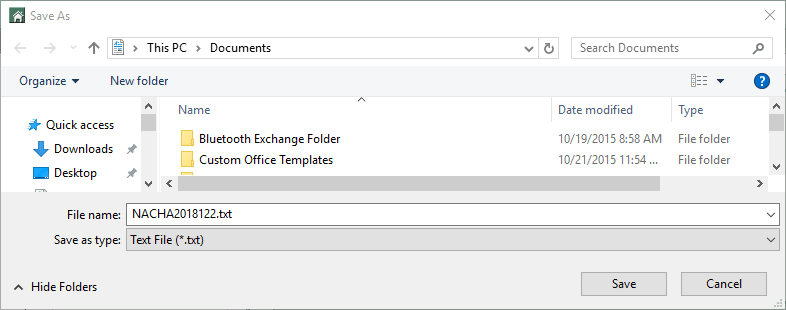
Caliber now asks where the file is to be saved when it has been generated. Choose a location and the file name, then click ‘Save.’
After that, a message will appear. Click ‘OK.’
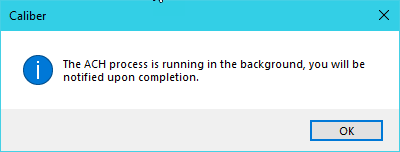
Work in Caliber can continue as normal while the file is being generated. A message will appear when the file has finished generating.
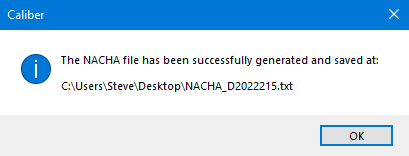
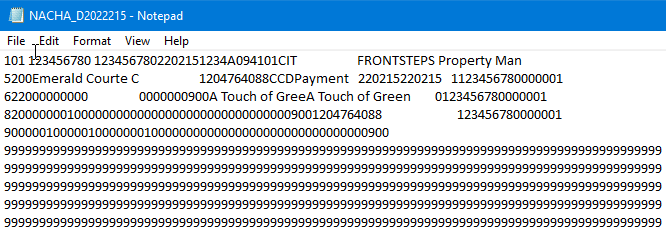
Click ‘OK’ to bring up a preview of the ACH file for review.
A more user-friendly version of the file can be found by going to Accounting > ACH > View Un-Posted Outgoing ACH Payments.
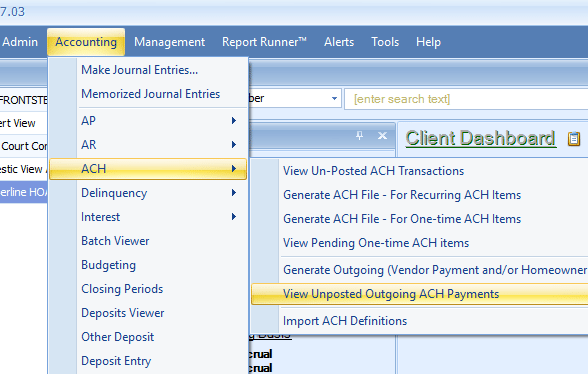
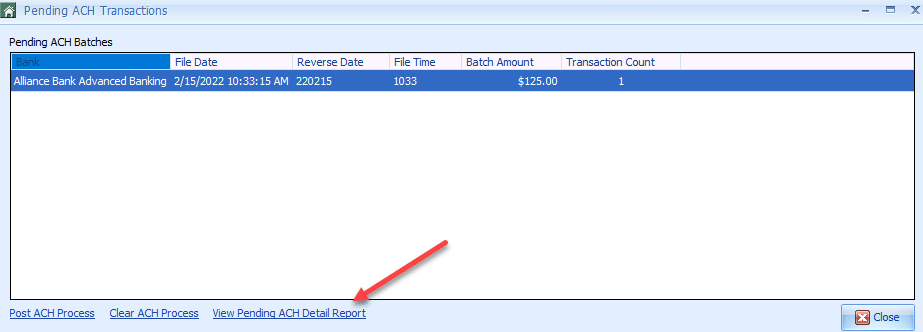
A list of all Pending ACH Batches will be displayed, along with details of the batch. Select the batch or batches to be reviewed and select ‘View Pending ACH Detail Report.’
The file can now be submitted to the bank according to their instructions.
The file should be carefully reviewed before it is submitted to the bank.
 Posting the ACH File
Although the file has been generated, it still needs to be posted to complete the process.
Caliber strongly recommends that the file not be posted until the following business day.
This delay allows the bank time to review the file and contact the customer if there are any issues with it. If the bank needs the file to be regenerated, and it has already been posted, all of the payments in the file will need to be voided and reissued.
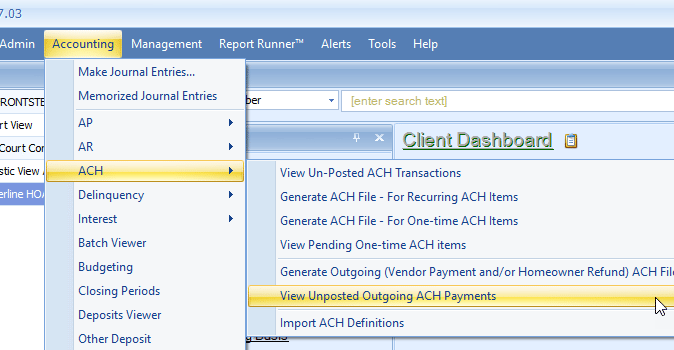
To post the payments, go to Accounting > ACH > View Un-Posted Outgoing ACH Payments
A list of all Pending ACH Batches will be displayed, along with details of the batch. Select the batch to be posted and select ‘Post ACH Process.’
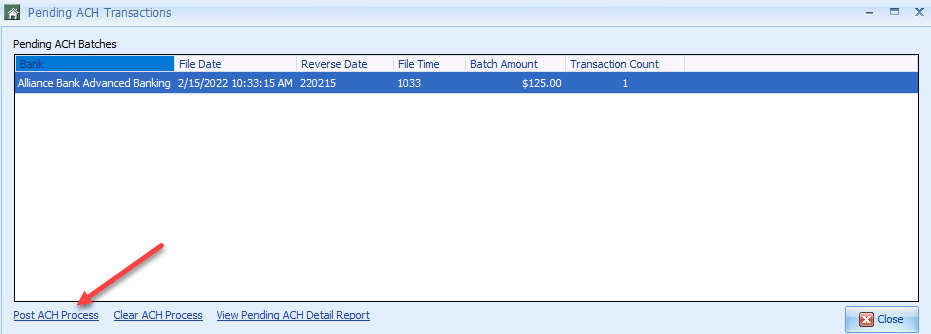
When the batch has finished posting, it will be removed from the list of Pending ACH Batches.
The ACH process is now complete and the Toolbox can be closed.