
Resident - Accessing Your Community Portal
IMPORTANT
To have the best experience with the FRONTSTEPS portal, we recommend using the most up-to-date version of Safari, Chrome, or Firefox as your web browser.
If you use Windows, we recommend Windows 10 or higher.
If you use a mobile device, we recommend Android 9 or above, and iOS 11 or above for Apple products.
Accessing Your Community Portal
There are two ways residents can access their community portal:
1. The community manager can invite the user to join the community portal.
2. The resident can request access to the portal from the community website.
Receiving an Invitation to Join the Community Portal
If the community manager has your email address, they can send you an invitation to join the portal. You’ll receive an email invitation similar to this:
All emails come from [email protected]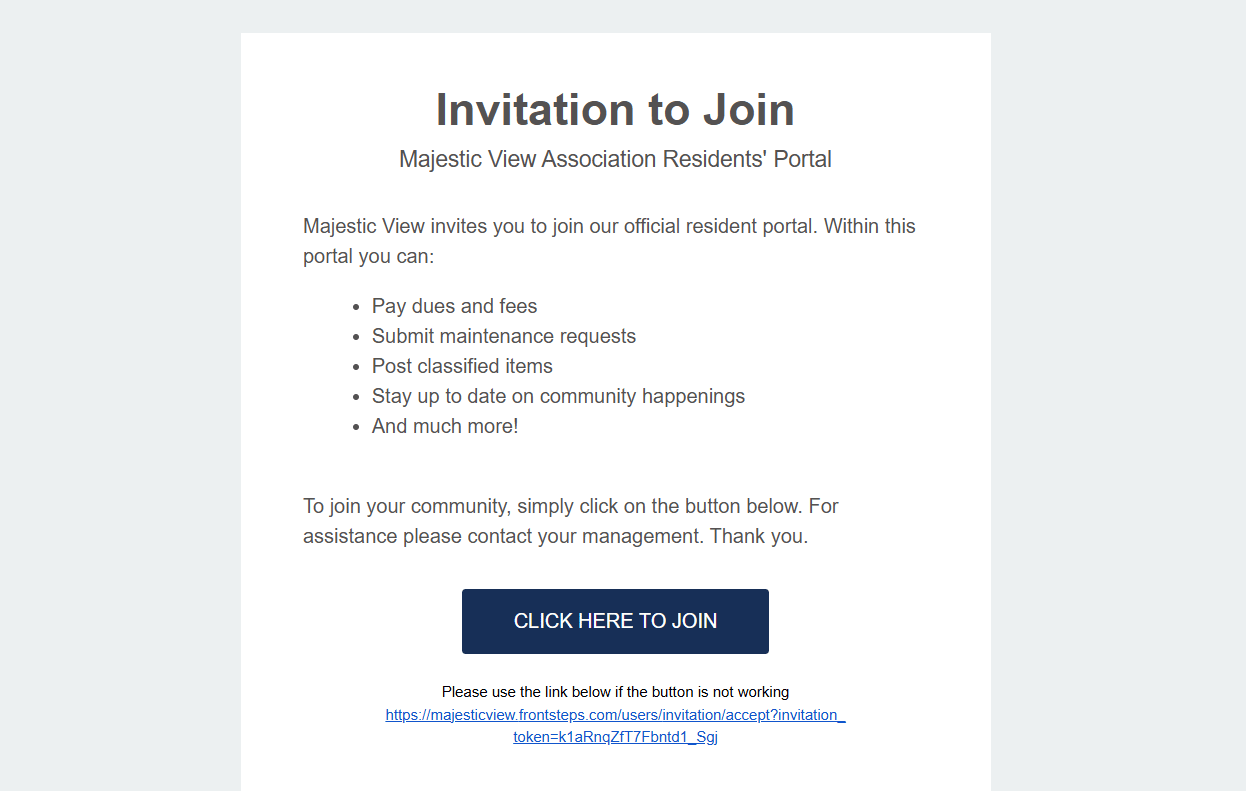
When you select the Click Here to Join option, you’ll be redirected to a registration screen where you will:
1. Create a password
2. Enter your phone number
3. Accept the Terms of Use and Privacy Policy
4. Select Submit Registration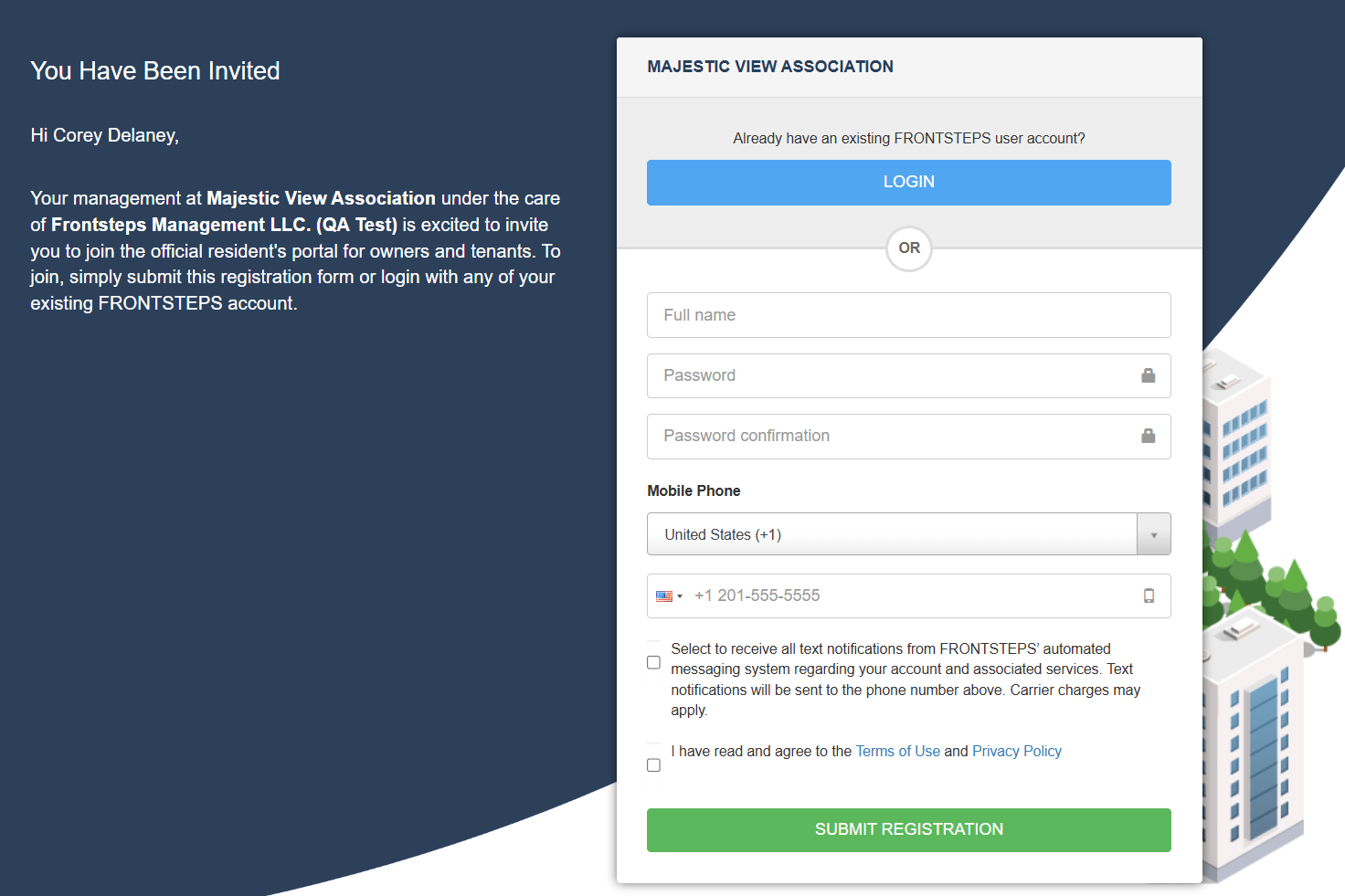
Once submitted, you’ll be redirected to the login page. Use the following credentials to log in:
Email: <Type in the email address you received your invite on>
Password: <Type in the password you created during registration>
You’ll also receive a “Welcome” email with instructions on how to log in, reset your password, and find community-specific help resources.
Requesting Access to the Community Portal*
If your community allows self-registration:
1. Go to your Community Website. (Communtiyname.frontsteps.com) - Please contact your management company for the Exact URL if needed.
2. Select Register Now.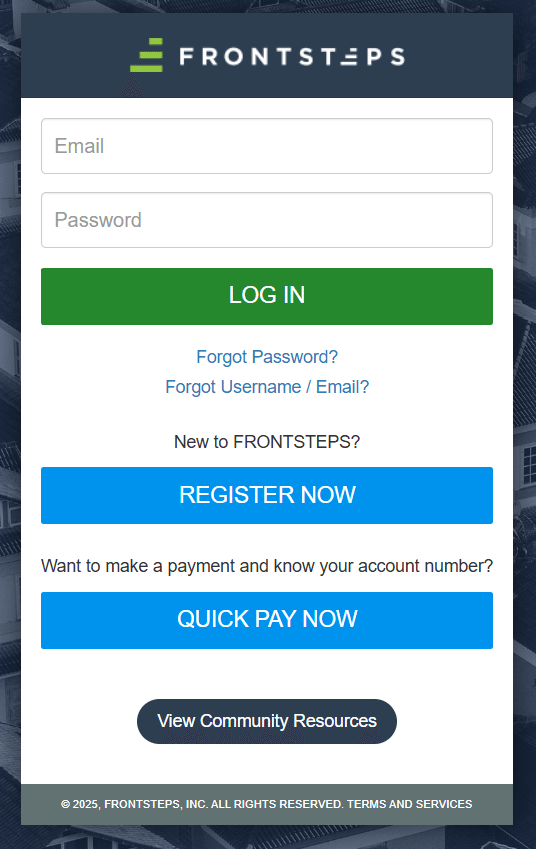
You’ll be redirected to the Registration Form.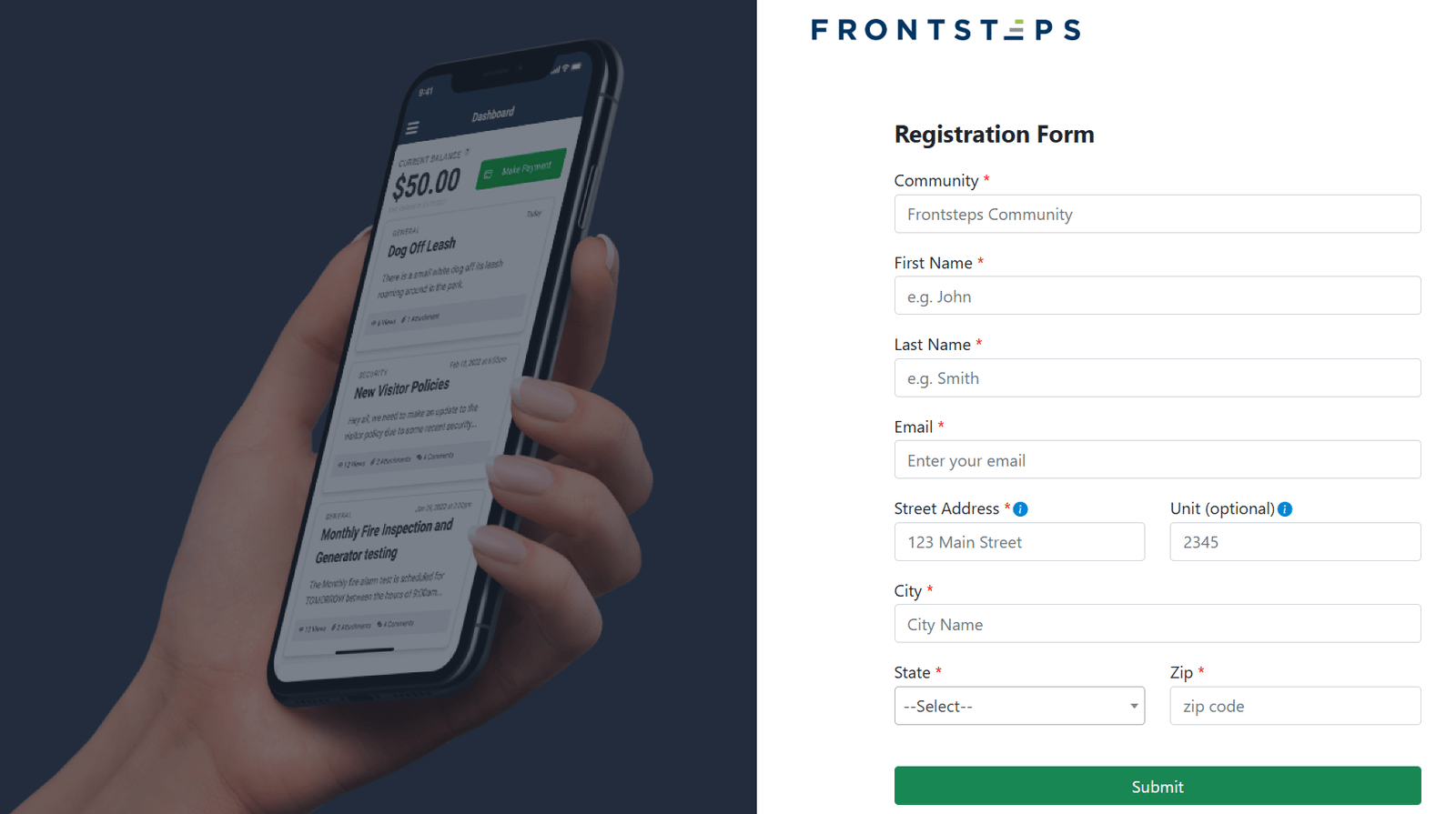
Complete the form to verify your ownership within the community.
Once submitted, you’ll need to:
1. Confirm your email address using the verification link sent to your inbox.
2. Wait for your community manager to approve your registration before you can access the portal.
*Please note: Not all Community Portals allow for self-registration (the “Register Now!” option). If you do not see this option, please contact your Management Company.
Logging Into the Resident Portal
Once your account is set up, log in using your email and password on the same portal login page.
Mobile Access
To access your portal from a mobile device, visit your community website and follow the on-screen instructions to download your community’s mobile app.
The mobile app is required to access your account from a mobile device.