
Site Admin - Attaching a Calendar to the Menu
Once you have created a new calendar, you will need to attach it to your site menu.
-
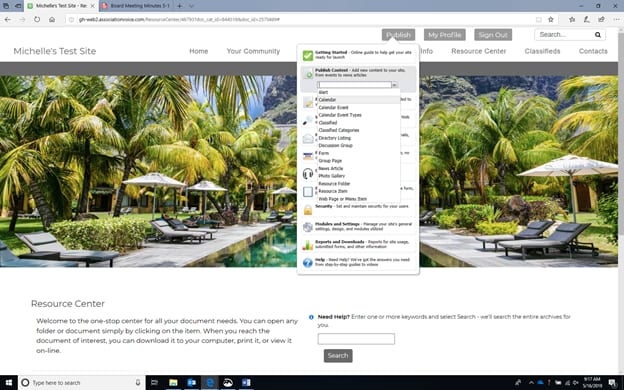
From the top of the screen, select the Publish option.
-
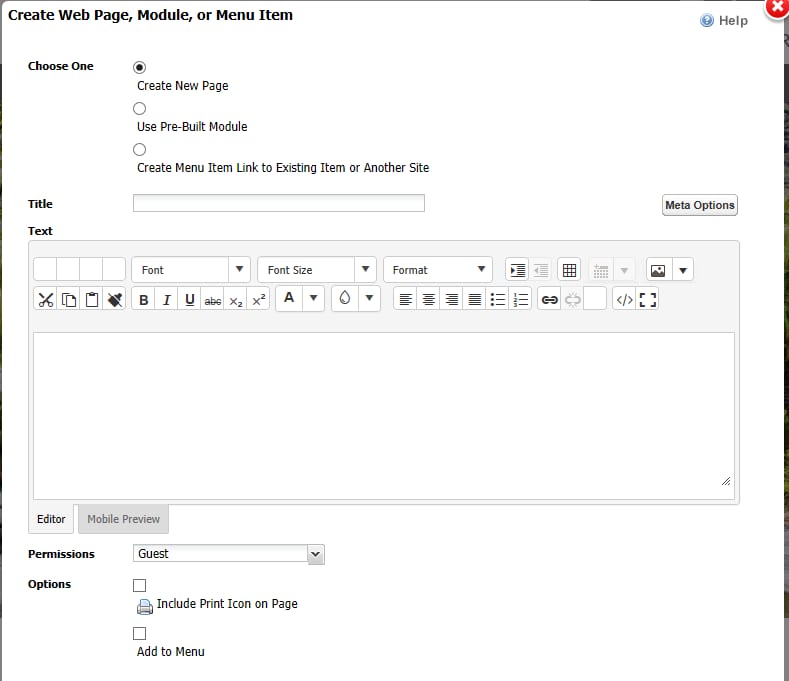
From the drop-down menu, select Publish Content, then select Web Page or Menu Item. The "Create Web Page, Module or Menu Item" screen will display.
-
Select the Create Menu Item Link to Existing Item or Another Site option.
-
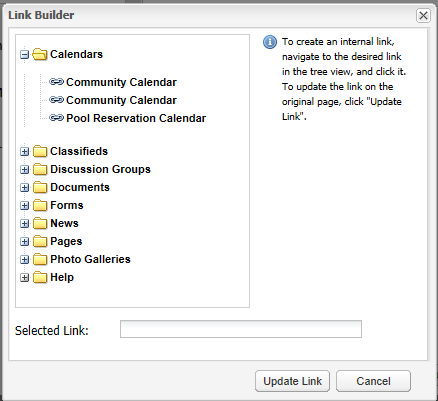
Select Browse. The "Link Builder" window will display.
-
Locate your new calendar within Calendars folder, select your calendar from the list. The calendar name will appear in the Selected Link field. Select Update Link. The "Link URL" field will automatically populate the Link URL field on the "Create Web Page, Module or Menu Item" screen.
-
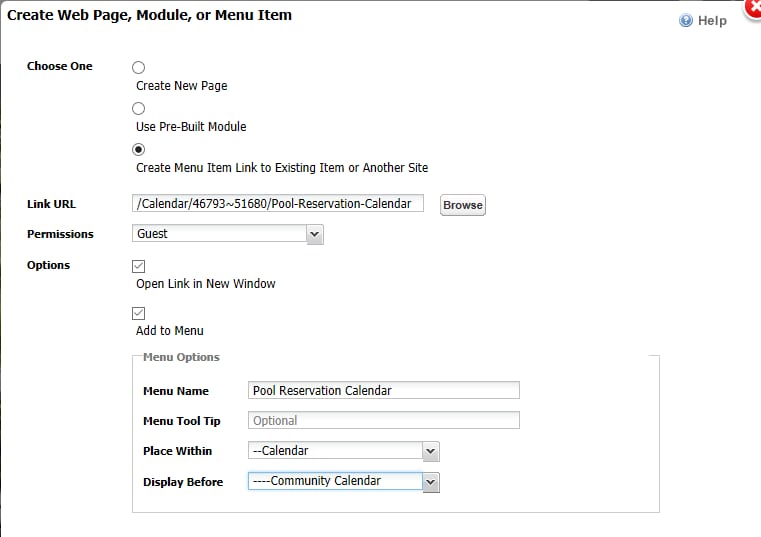
The Permissions you specified when adding your calendar will display. You can change the permissions at this point if you wish.
-
Specify whether you wish for the item to Open Link in New Window. By selecting this option, a new browser window will open on the user's screen when select the Calendar.
-
Click the "Add to Menu" checkbox
-
Enter a Menu Name and Menu Tool tip (not required).
-
In the Place Within option, select where you want the calendar to display on the menu. Then select the order in which you want the calendar to display on the menu in the Display Before option.
-
Select Save. Your new calendar will now appear in the location you specified within your menu.

