
Resident - Adding a Calendar
The calendar allows managers and/or members to schedule meetings, reserve association facilities, and provide detailed information about upcoming events.
Steps
- From the top of the screen, select the Publish option.
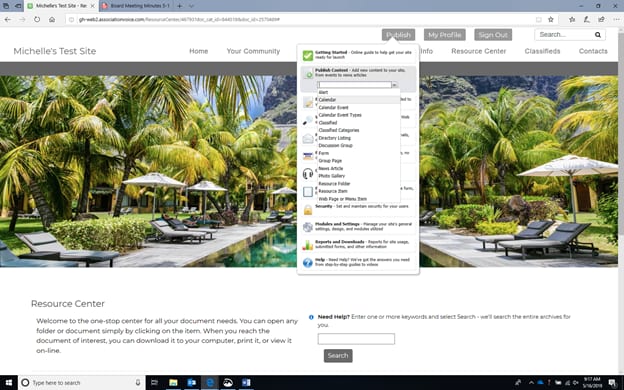
2. From the drop-down menu, select Publish Content, then select Calendar. The “Create Calendar” screen will appear.
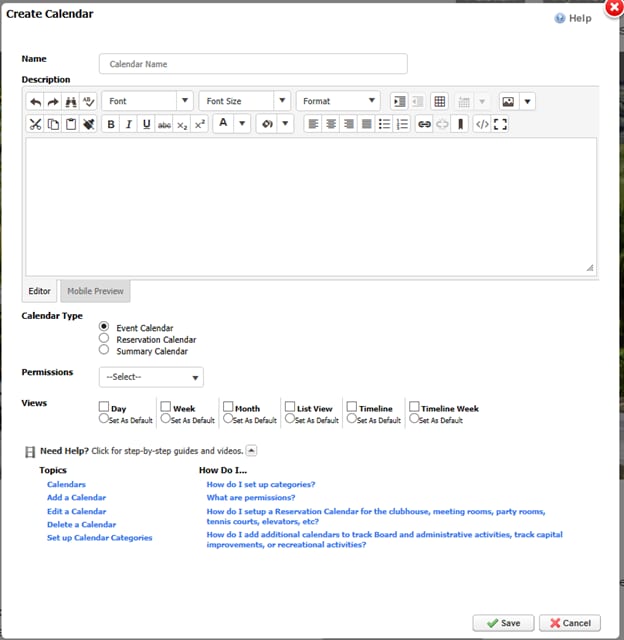
3. Complete the Name and Description.
4. Select the Calendar Type, if applicable. An Event calendar displays upcoming events for the community.
- A Reservationcalendar can be used to reserve amenities such as the clubhouse.
- Select the option if you will require approval for any reservations
- Select the types of requests to Display on the calendar
- Select the form associated with the reservation request
- Summary Calendar Options can be used to add general community calendar events to your new calendar
5. Select the Permissions, which designates which users have access to view the calendar. Note that:
- Permission levels are hierarchical. For example, events for members can be designated by selecting Member/Resident as the permissions level. This will allow users with Member/Resident privileges or higher to view the calendar.
- There are separate permission levels that can be set up for each event on the calendar.
6. Select the type of View you want for the calendar display.
7. Select Save. Your newly created calendar will display on a new screen.
