
Site Admin - Changing a Manager Role to an Owner Role
A Site Administrator can change a Manager’s Role to be an Owner Role at any time.
Steps
- From the top of the screen, select the Publish option.
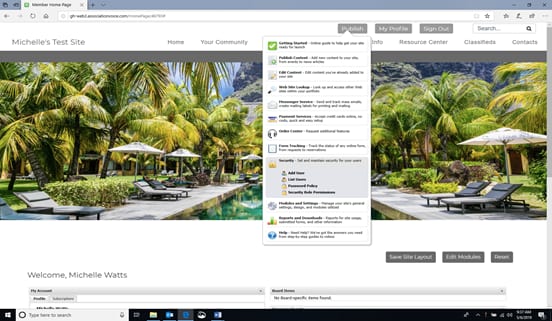
2. From the drop-down menu, select Security, then select List Users. The “List Users” screen will appear.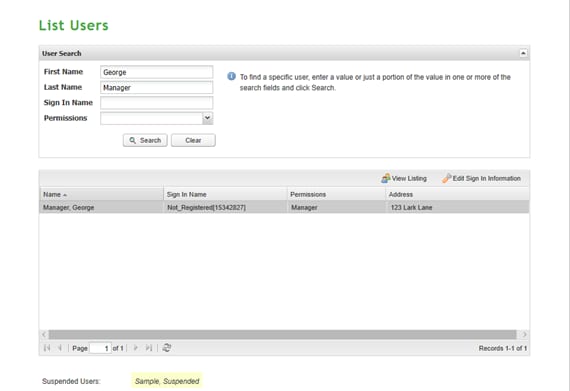
3. In the User Search section, search for the user’s name.
4. Double click the user’s name. A “Sign-In Information” window will appear.
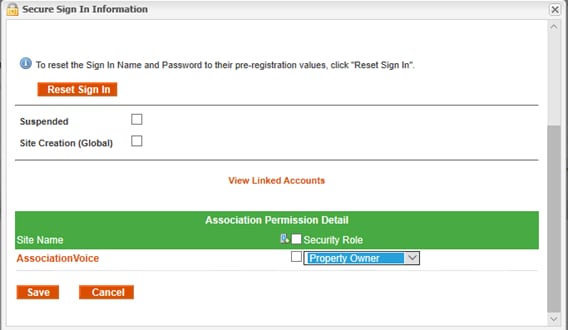
5. Scroll down to the Association Permission Detail section. From the Security Role drop-down list, select Property Owner. Select Save.
