
Site Admin - Adding a Site Administrator
A Site Administrator can be added to your site at any time. Only a user with a role of Site Administrator can add a new Site Administrator.
Steps
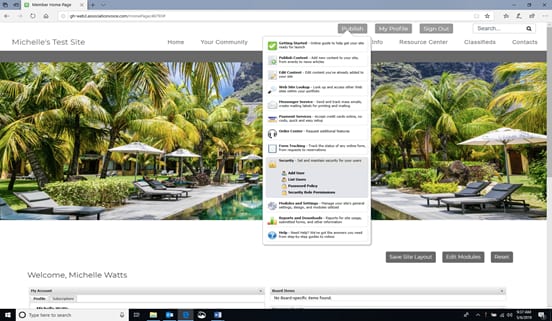
- From the top of the screen, select the Publish option.
- From the drop-down menu, select Security, then select Add User. The "Directory Listing" screen will appear.
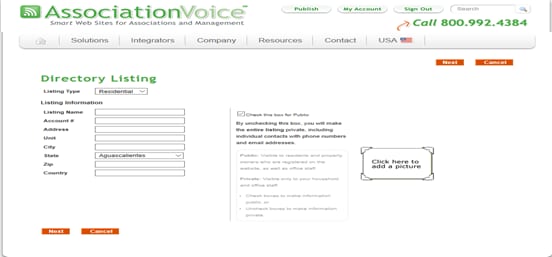
3. Complete the Site Administrator's information and select Next. The "Directory Information" screen will appear.
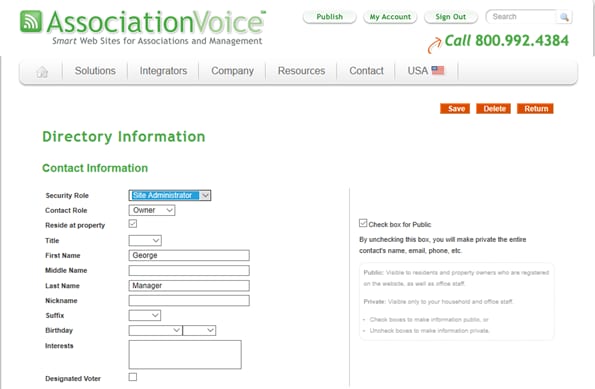
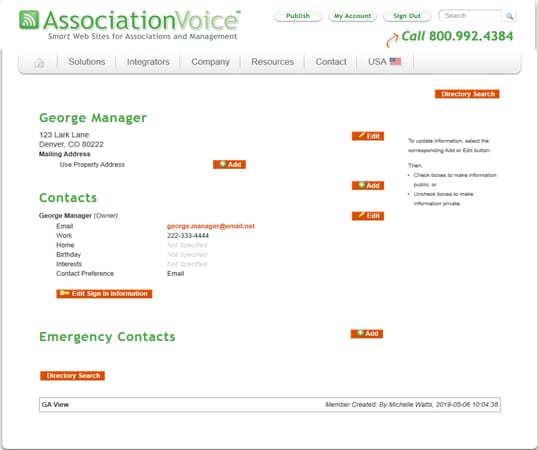

3. Under Contact Information, Select Site Administrator from the Security Role drop-down list, select the appropriate Contact Role, and select the check box if the Site Administrator resides at the property. Complete the Site Administrator's personal information as appropriate.
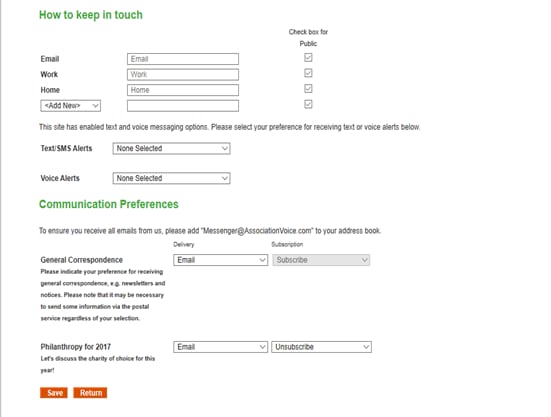
4. Under How to keep in touch, complete the Site Administrator's contact information. If this information is to be shown on the association website, select any checkboxes next to the information as appropriate.
5. Under Communication Preferences, select the Site Administrator's preferred method of receiving communication.
6. Select Save. The Site Administrator's information will display on a summary screen. Review the information and edit from this screen as necessary.