
Resident - Modifying Payment Reminders
We’re updating this article. Some screenshots or names may look older than what you see in the product.
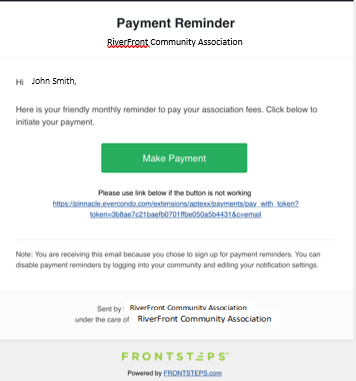
Customizing payment notification on your FRONTSTEPS portal
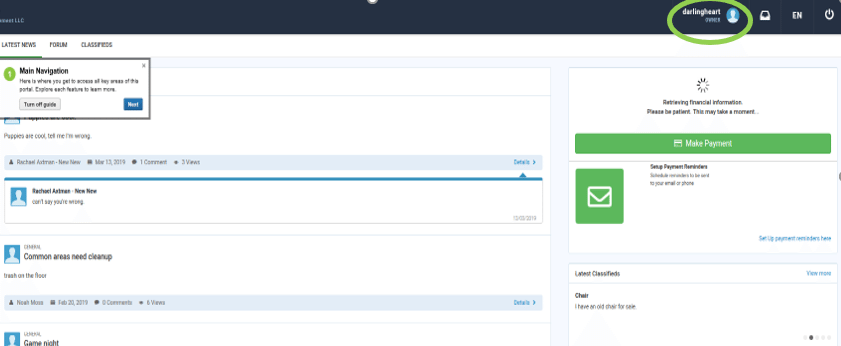
1) Log in to your FRONTSTEPS community portal and click on your name in the upper right-hand corner
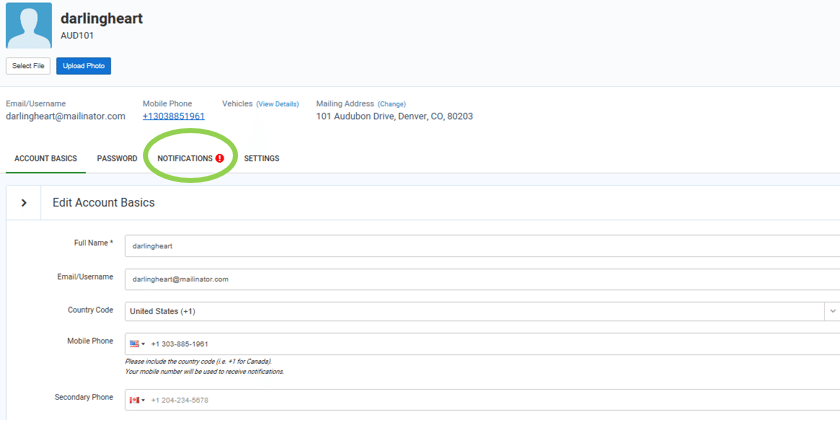
2) Click the “Notifications” tab
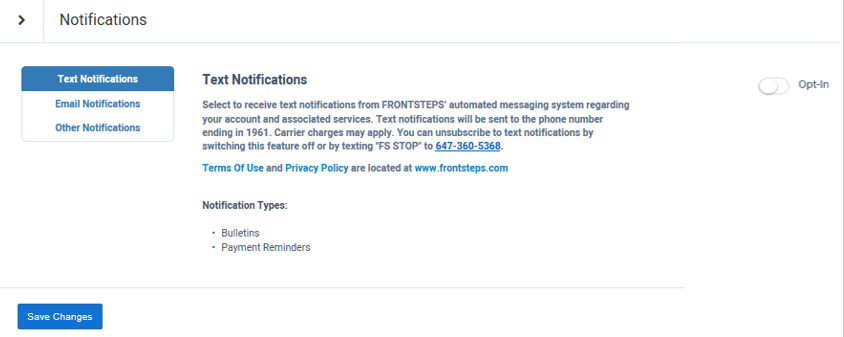
3) Here is where you can modify which notifications that you want on or off
- Text, Email, and Other
Text Notifications – Text messages are sent to the phone number connected to your FRONTSTEPS account regarding Community Bulletins and Upcoming Payment Reminders
Payment Notifications are based upon the date that the payment is due, therefore you may receive a notification even after you have made your payment.
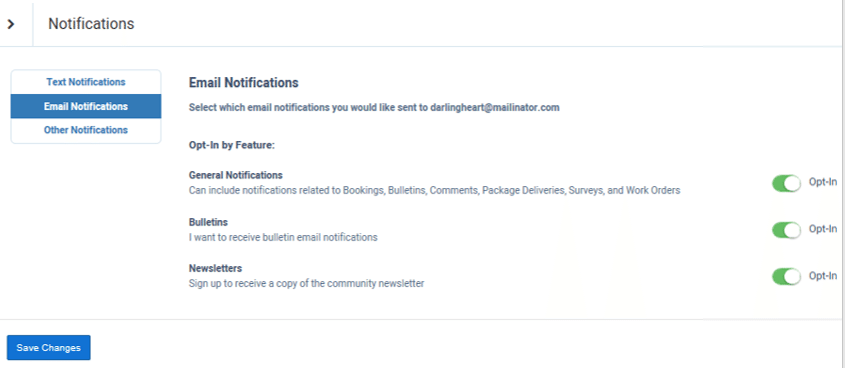
4) Email Notifications – Email notifications are sent to the email address connected to your FRONTSTEPS account. You have the option to opt-in or opt-out of specific features
-General Notifications, Bulletins, and Newsletters
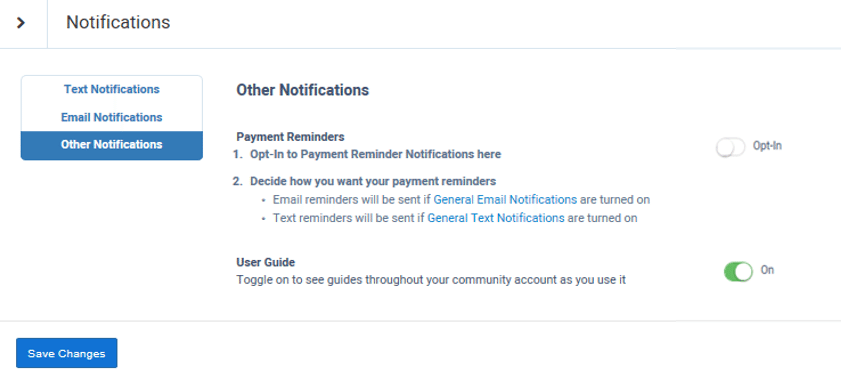
5) Other Notifications – Opt-in or opt-out of Payment Reminder Notifications and Pop-up Guides as you go through the portal
Download the PDF - Modifying Payment Reminders and Notifications.pdf