
Admin - Adding a Manager and Administrator
This Article Covers:
- The difference between an administrator role and manager role.
- How to add a new administrator or manager.
- How to assign an admin/manager to a community portal.
Difference Between an Administrator and Manager Role:
- Admins can generate reports on all communities and request additional communities to be added to their portfolio from within the FS Admin Dashboard.
- Admins can add other admins/managers.
- Managers cannot add other managers or admins.
- Admins can assign the admin permission to a manager or remove the admin permission from other admins.
Important: A new admin/manager must be invited and also assigned to each community portal that they manage.
Follow These Steps:
- Log into the FRONTSTEPS Admin Portal
Note: If you are already logged into a community portal, click the drop-down arrow next to the community name at the top and select Manage Communities. - In the Admin Dashboard, click the Managers menu (on the left):
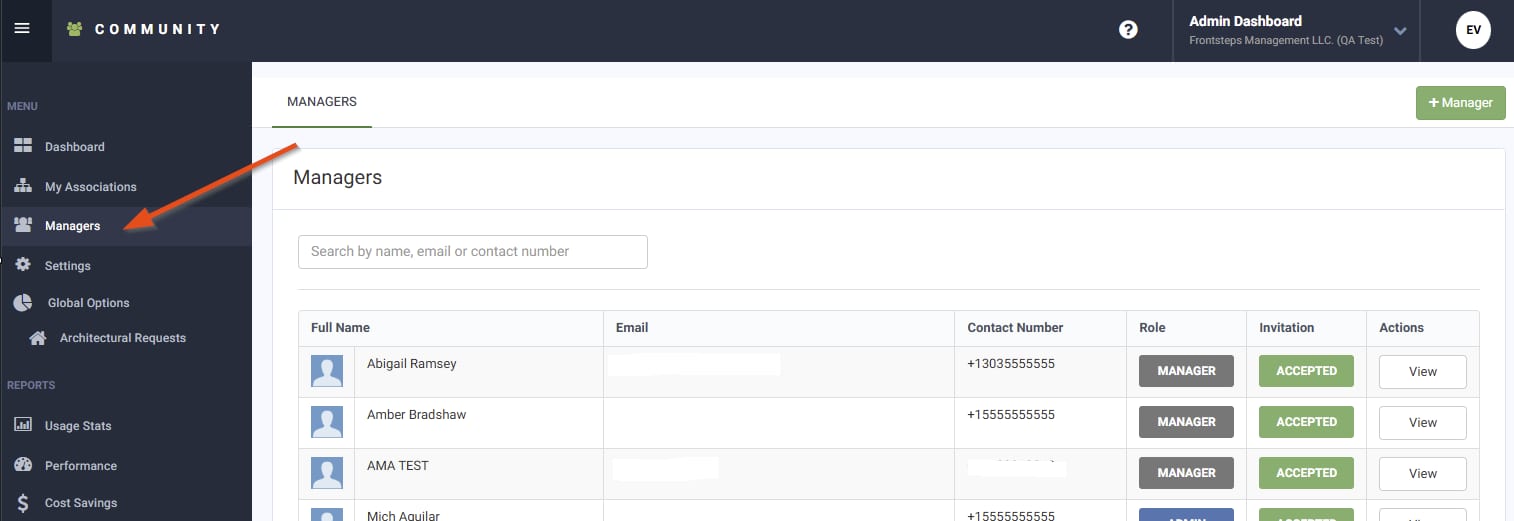
- Click +Manager (upper-right corner) and on the New Manager page:
- Fill out the Notification Email, First Name, Last Name, Country Code, and Mobile Number fields (all required).
- If the new user needs admin level permission, toggle on the Administrator button.
- Click the toggle next to any community that the new user needs to manage/access.
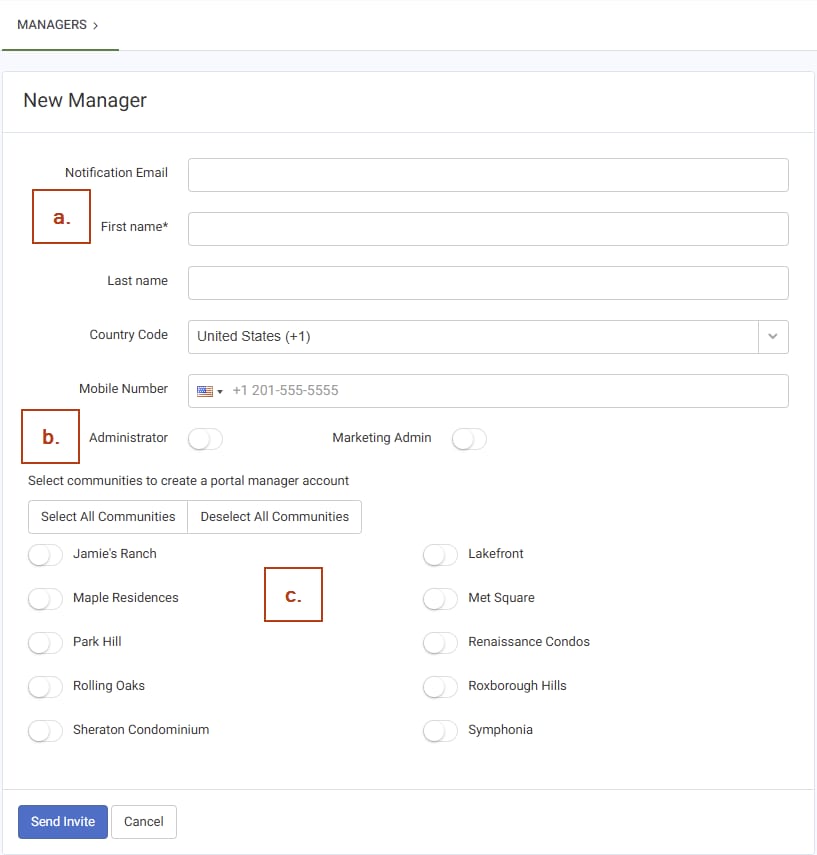
- Click the Send Invite button
Note: The new user will receive an invite that includes a link to activate their account and set up a password.
Additional Information:
- Admins can return to the Managers page (step 2 above) to:
- Grant/revoke admin permissions
- Grant/revoke access to community portals
- Remember to add your admins/managers to new community portals as new communities are onboarded.
- As an alternative to assigning access to an admin/manager via the Managers page, an admin can:
- Click the My Associations menu (instead of Managers menu).
- Locate the community on the Associations page that loads and click the View link next to the community name.
- Select the user to be added from the drop-down menu (upper-right) and click Add.