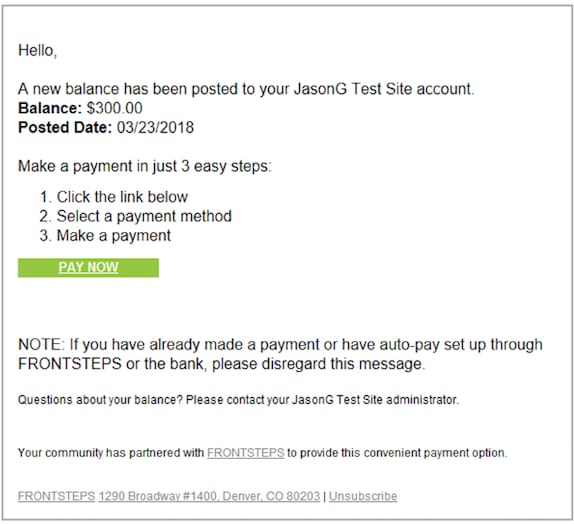
Site Admin - How do I opt-in to Balance Notification Emails?
Turning on balance notification emails is one of the most effective ways to increase online payment adoption. As a resident's balance is increased, there will be an automatic email sent out informing them of their new balance. No additional action is needed on your part once this feature is enabled.
Below are the steps to opt your community into the Balance Notification emails:
- Log in to your community as a Site Admin.
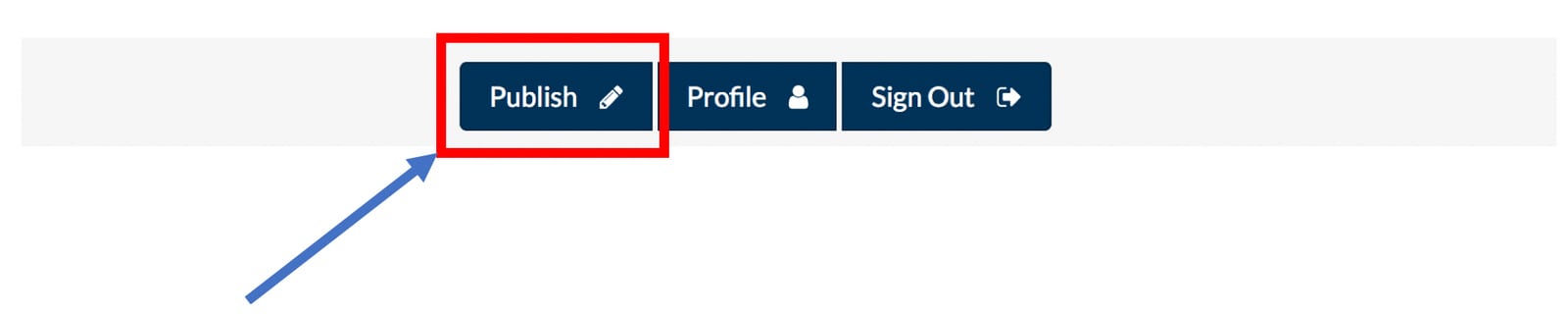
- Click the Publish button
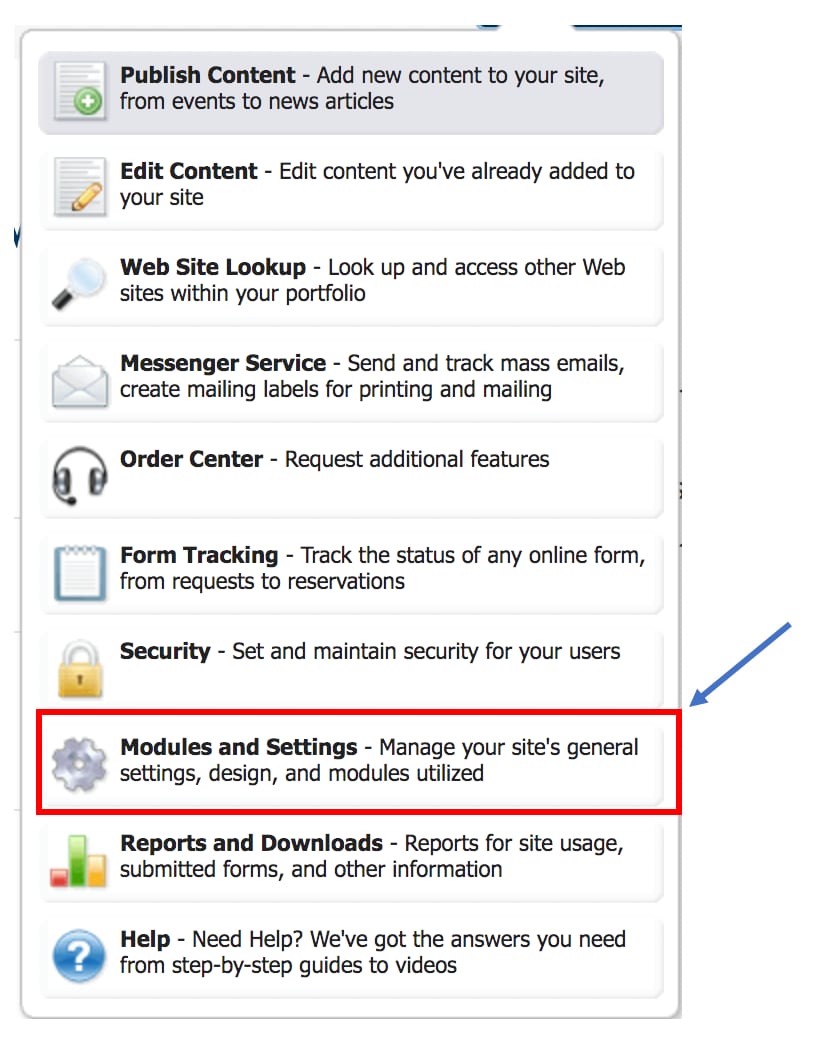
- On the menu, click Modules and Settings
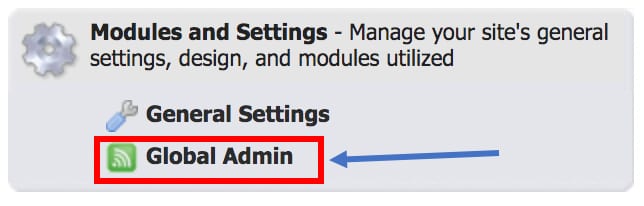
- Then click on the Gobal Admin
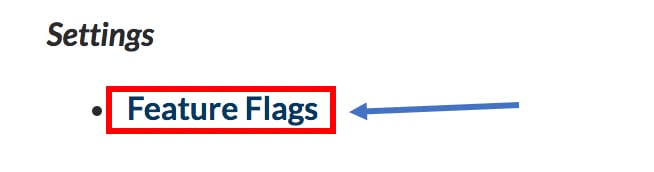
- On the following screen, click Feature Flags under Settings
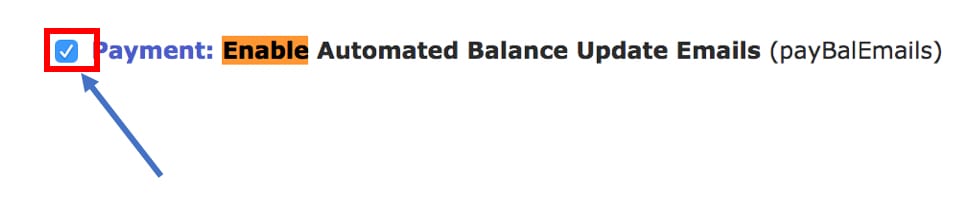
- The next screen will list all features that can be turned on/off, in your browser search for the words "Enable Automated Balance" (for PC Control+F, for Mac Command+F)
- Check the checkbox next to Enable Automated Balance Update Emails
- Scroll to the bottom of the page and click Save Changes
Below is an example of the Balance Notification email that your residents will recieve.