
Admin/Dealer - Setting up a Zebra Pass Printer
We’re updating this article. Some screenshots or names may look older than what you see in the product.
Make sure you have your zebra printer plugged into the computer before starting. If your computer is "kiosked" please call technical support at 303-416-8200.
1. Click the "windows"/"start" button in the bottom left hand corner of your desktop.
2. Type "control panel" and click it when the search returns.
3. Click "devices and printers"
4. Right click on the Zebra Printer > click "Set as Default Printer"
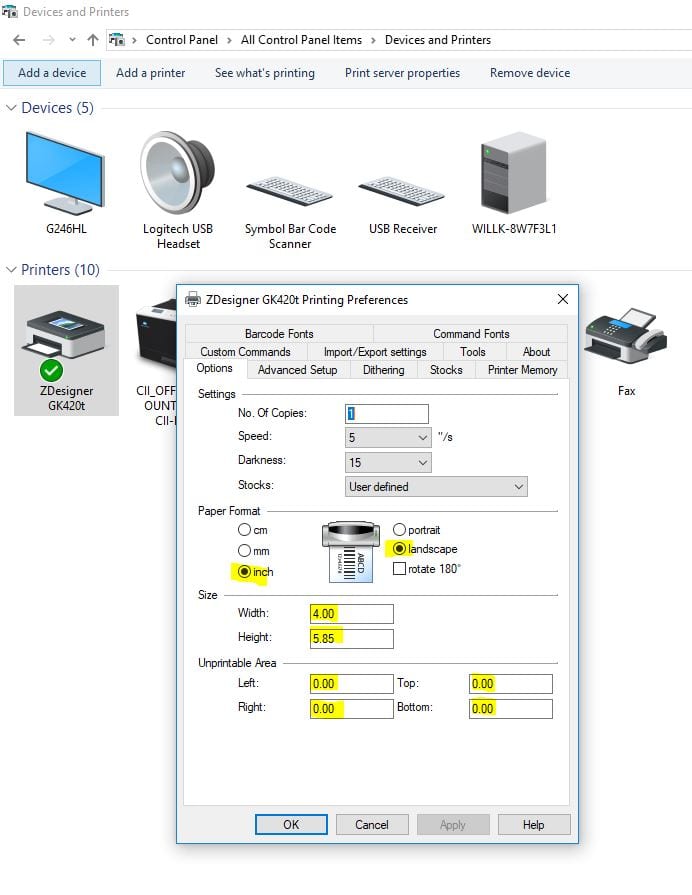
5. Right click on the Zebra Printer > click "Printer Preferences" > see image below for settings reference > click "apply"> click "OK"
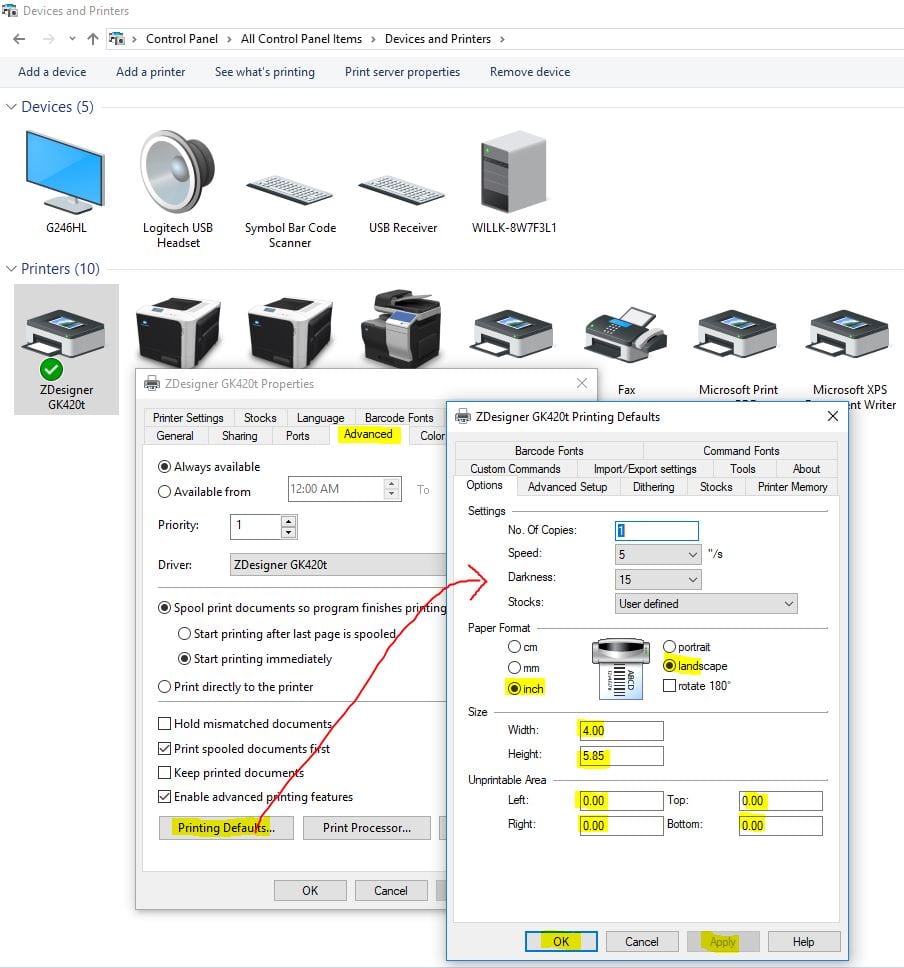
6. Right click on the Zebra Printer > click "Printer Properties" > click "advanced" > click "printing defaults" in the bottom left corner> a new window will open > see image below for settings reference > click "apply" > click "OK" > click "OK" on original window.
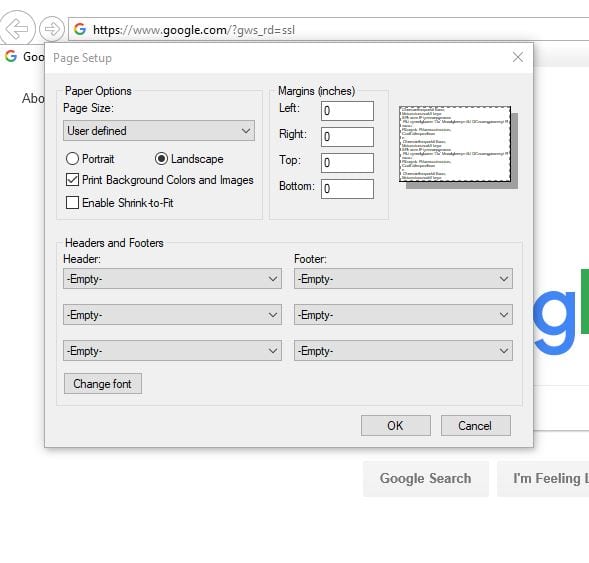
7. Next, open Internet Explorer (has to be this exact browser) > click the cog icon in the top right corner > hover over "Print" > click "page setup" > see image below for settings reference > click "OK".
8. Now login to community.dwellinglive.com on your web station using a gate attendant user account or login to the Gatehouse desktop application to test the printer.