
Admin - Creating a Form or Survey
We’re updating this article. Some screenshots or names may look older than what you see in the product.
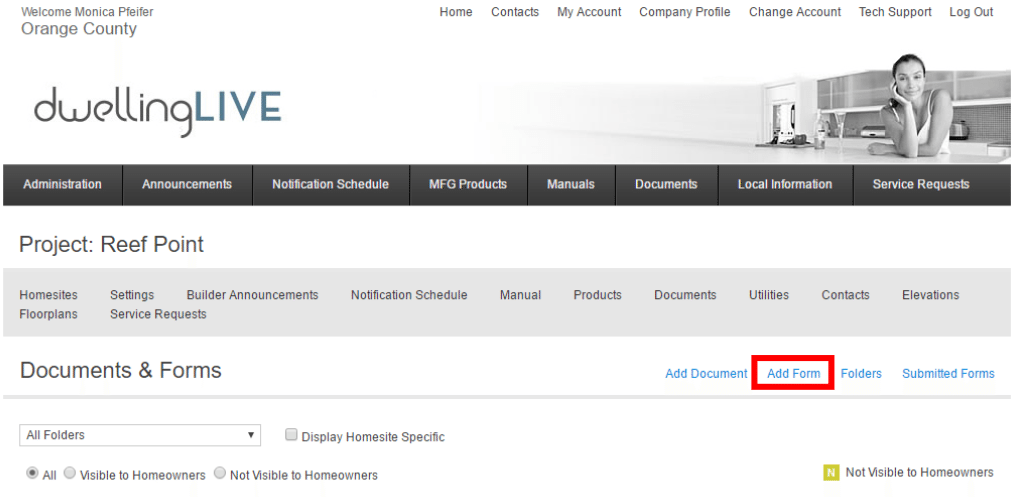
Admin > Documents > Add Forms
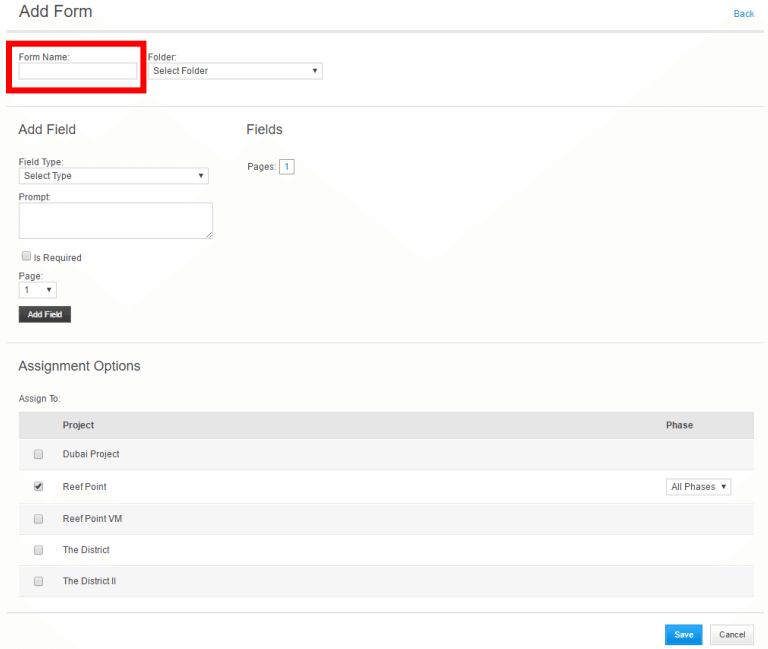
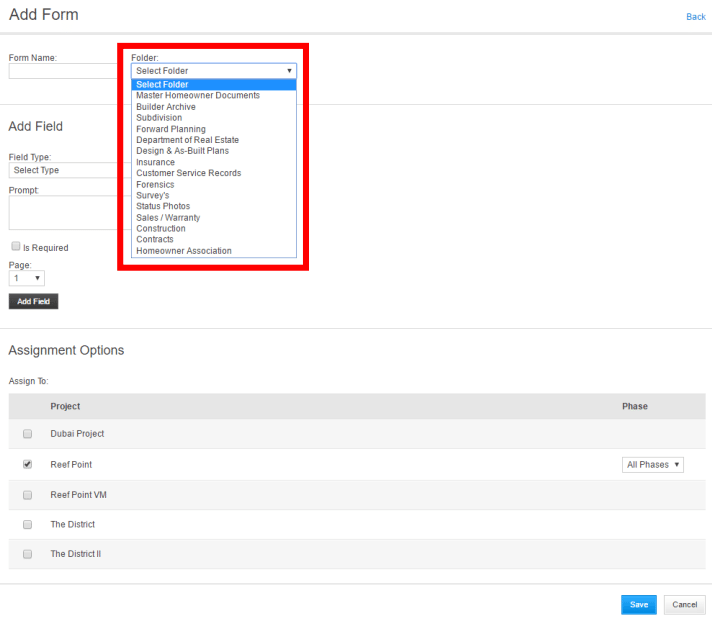
Create a Title for the Form and choose the category it will go into.
Select the type of field you would like to use for the form, you can see below the options available:
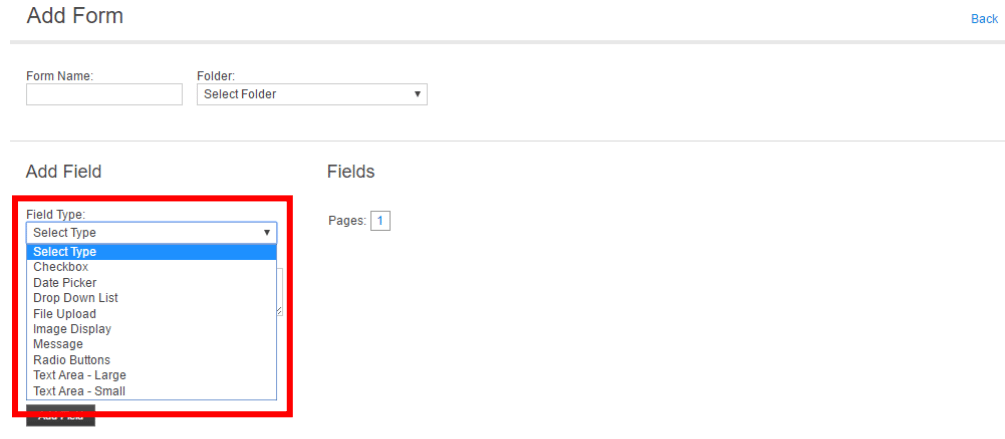
Each field type has their own setup process, below explains each type:
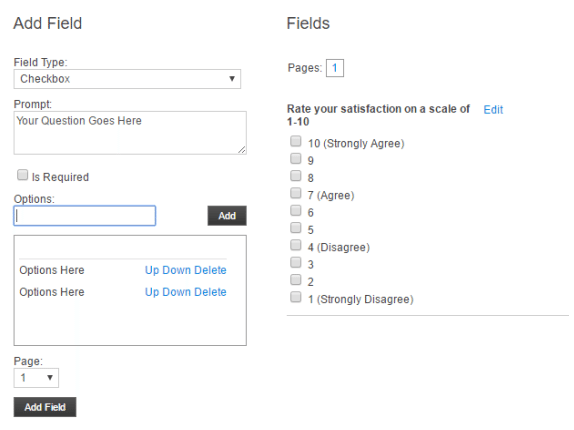
Checkbox –
- Prompt = Text only field to place question
- Is Required = A checkbox that will require the homeowner to fill in the field or select an answer before they are able to submit the form.
- Options = Add one item at a time, these will be the options the homeowner can chose from and mark with a checkbox.
- Page = this will determine what page the question will go on. If there is only question there will only be one page option.
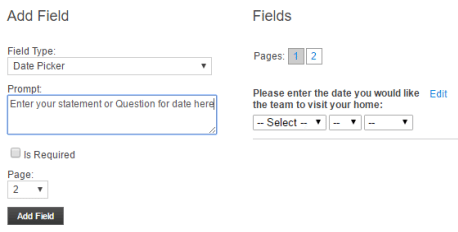
Date Picker –
- Prompt = Text Field only to title the date selection field
- Is Required = A checkbox that will require the homeowner to fill in the field or select an answer before they are able to submit the form.
- Page = this will determine what page the question will go on. If there is only question there will only be one page option.
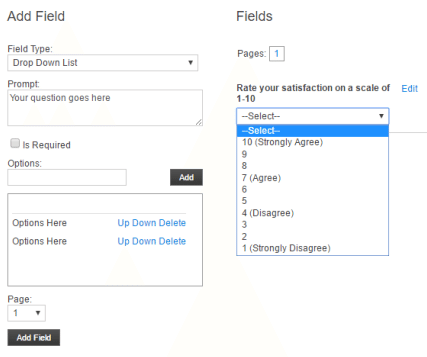
Drop Down List –
• Prompt = Text only field to place question
• Is Required = A checkbox that will require the homeowner to fill in the field or select an answer before they are able to submit the form.
• Options = Add one item at a time, these will be the options the homeowner can chose from a dropdown list as an answer.
• Page = this will determine what page the question will go on. If there is only question there will only be one page option.
File Upload –
- Prompt = Text Field only to title the date selection field
- Is Required = A checkbox that will require the homeowner to fill in the field or select an answer before they are able to submit the form.
- Page = this will determine what page the question will go on. If there is only question there will only be one page option.
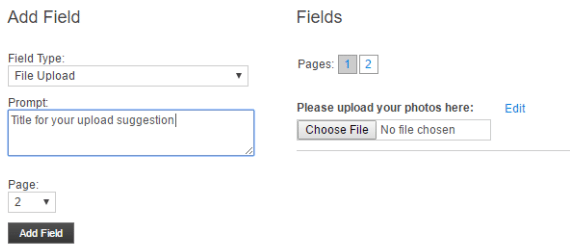
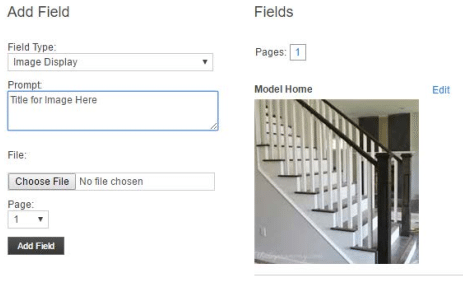
Image Display –
- Prompt = Text Field only to title the date selection field
- Is Required = A checkbox that will require the homeowner to fill in the field or select an answer before they are able to submit the form.
- File = Upload area to add the image you would like displayed in that area on the page
- Page = this will determine what page the question will go on. If there is only question there will only be one page option
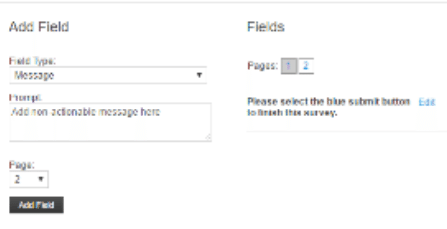
Message –
- Prompt = Text Field only to title the date selection field. For this option it is only a message and not an actionable item for the homeowner.
- Page = this will determine what page the question will go on. If there is only question there will only be one page option.
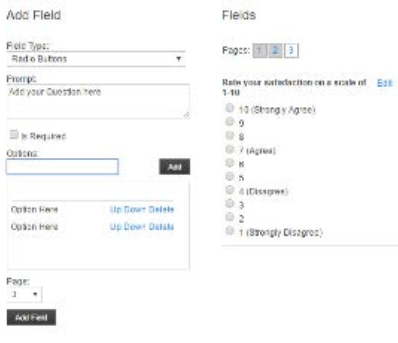
Radio Buttons –
- Prompt = Text only field to place question
- Is Required = A checkbox that will require the homeowner to fill in the field or select an answer before they are able to submit the form.
- Options = Add one item at a time, these will be the options the homeowner can chose from and mark by filling in the bubble.
- Page = this will determine what page the question will go on. If there is only question there will only be one page option.
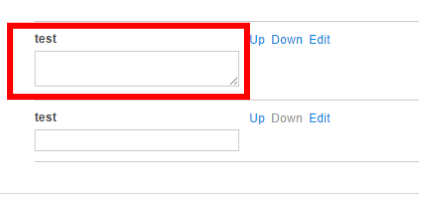
Text Area Large –
- Prompt = Text Field only to title the date selection field. For this option it is only a message and not an actionable item for the homeowner.
- Page = this will determine what page the question will go on. If there is only question there will only be one page option.
- This will create a text box for lengthy comments.
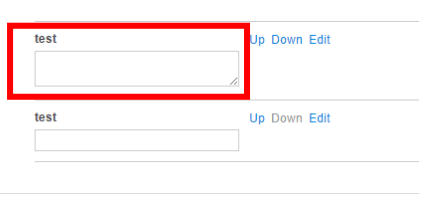
Text Area Small –
- Prompt = Text Field only to title the date selection field. For this option it is only a message and not an actionable item for the homeowner.
- Page = this will determine what page the question will go on. If there is only question there will only be one page option.
- This will create a text box for shorter comments.
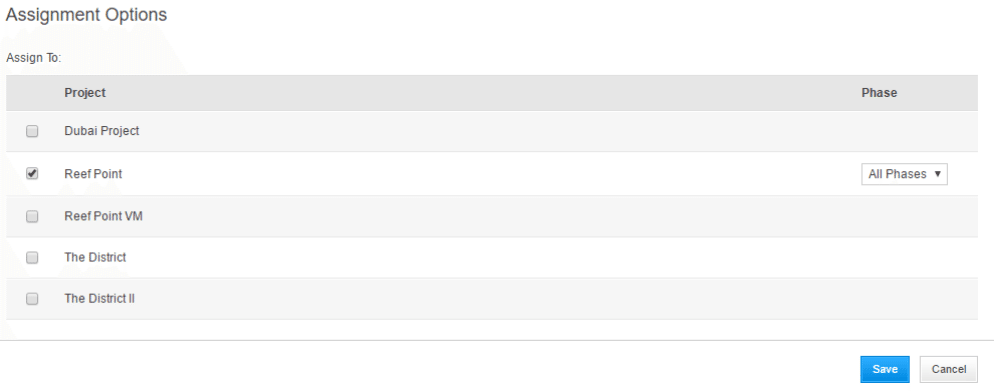
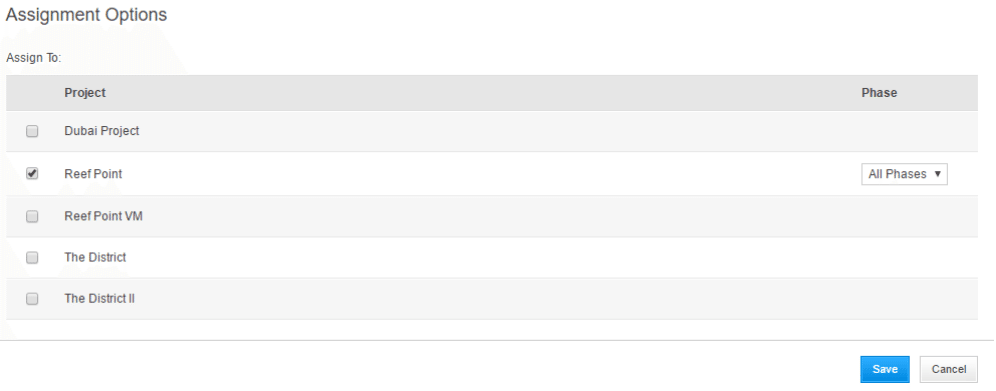
After you have created the questions or comments for the form you will chose which projects can use this form
TIPS:
If you are going to use multiple pages use the message field to prompt the homeowners not to submit without going to each page. Something like: “To answer the next question please choose the next page number on the screen” and on the last page “To finish the survey please select the blue submit button.”