
Admin - Creating a Custom Service Request Link
We’re updating this article. Some screenshots or names may look older than what you see in the product.
Adding a Custom Button – Service Requests
The following contains instructions on how to add a “Custom Link” to the homeowner dashboards. The purpose of this is to enable customers who do not use the dwellingLIVE Service Request Management system a link to their own service request process. There are two types of items this will link to – a URL for their own online system OR a link to a Document (hosted on DL or your own site). This process must be done on a per_project basis.
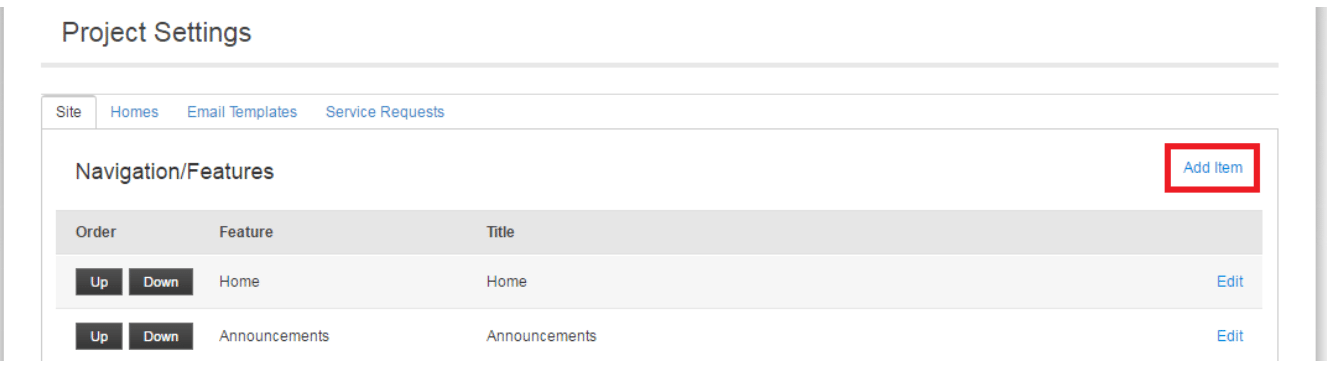
Logged in as the Builder admin, go to the project Settings

Click on Add Item to add a new button
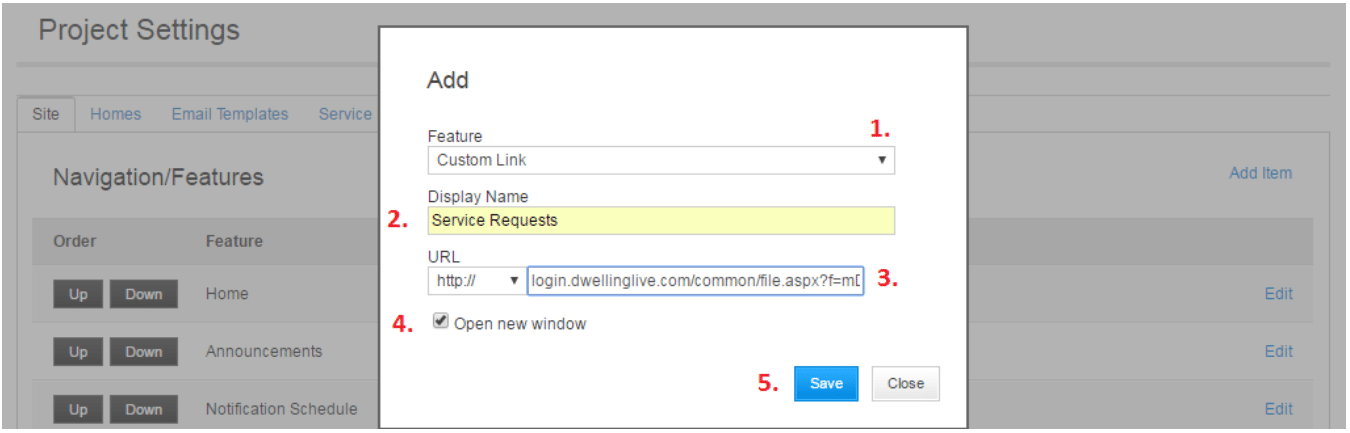
- Select Custom Link from the dropdown menu
- Type in Service Requests
- Paste in the URL, select http:// or https://
- Make sure that “Open new window” is checked
- Click Save
Only the first 8 links appear on the Homeowner Dashboard. Use the Up and Down buttons to arrange your links.
