Admin - Adding Documents to a Project
We’re updating this article. Some screenshots or names may look older than what you see in the product.
Once logged in choose the project you would like to add the documents

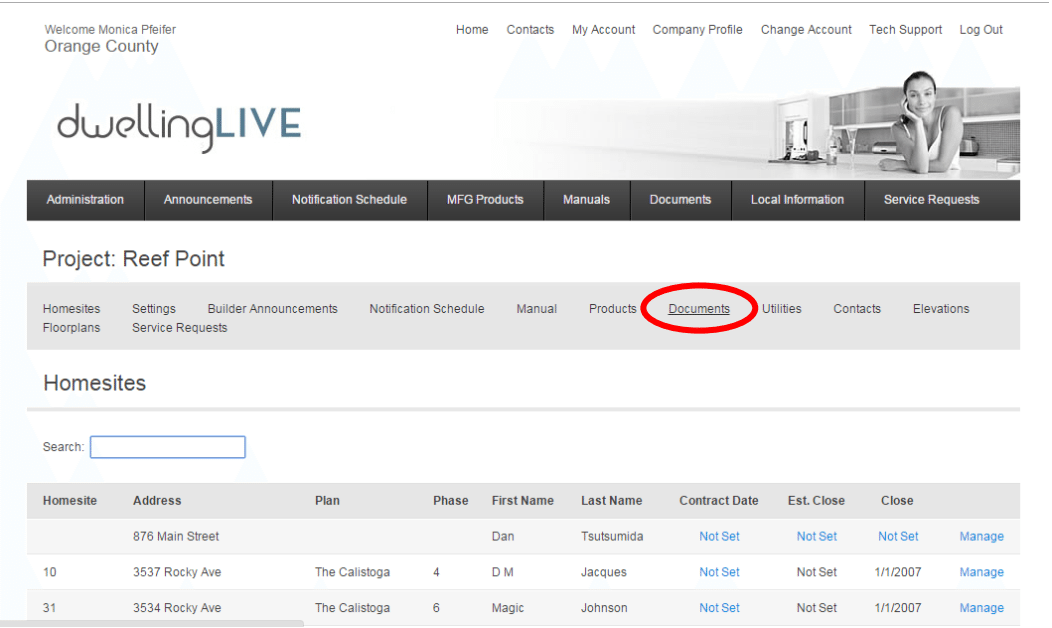
Choose “Documents” from the menu under the Project Heading
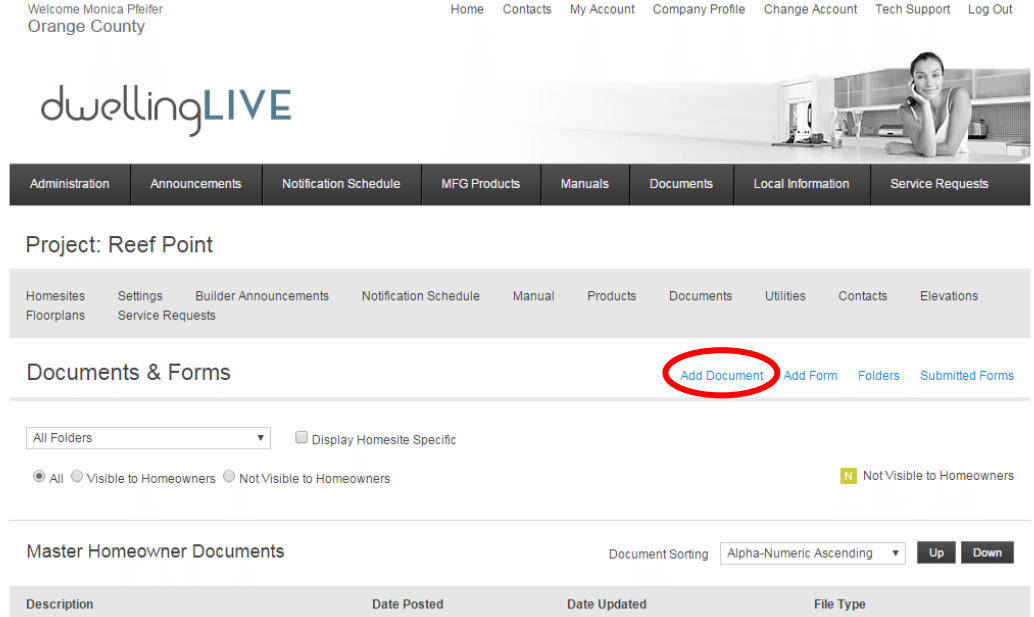
Select the “Add Document” Button
Once you are in the “add documents” area the items you need to fill out are highlighted in Yellow. You will have the option to add this same document to multiple projects even though you are in a specific project. You will also be able to choose a specific phase of a project or a specific homesite from here as well.

Then select the save button

Additional things you can do with the documents:
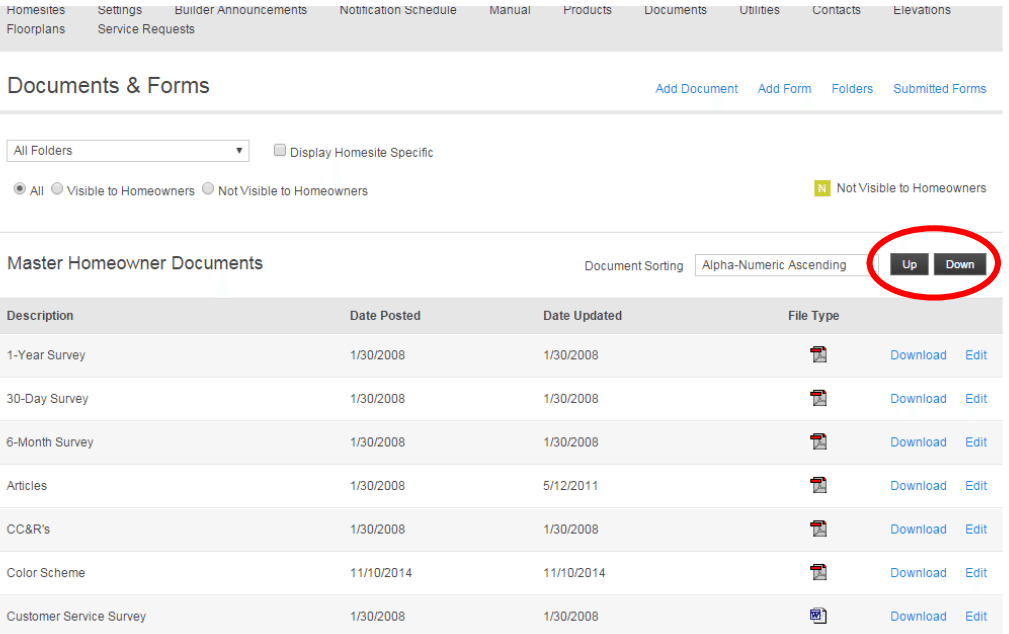
Reorder Documents within a category
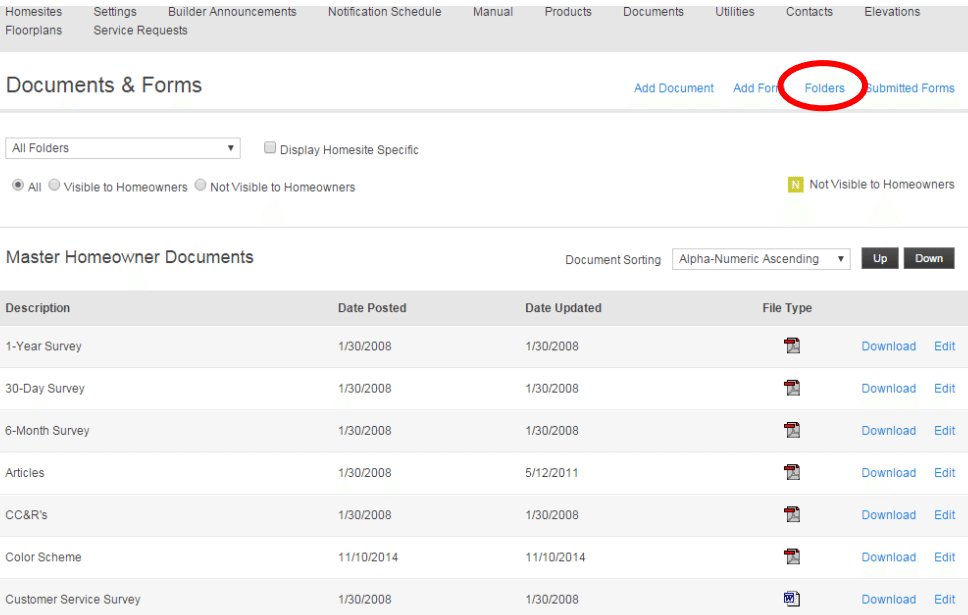
Reorder or Edit Folders – Select the “Folders” button
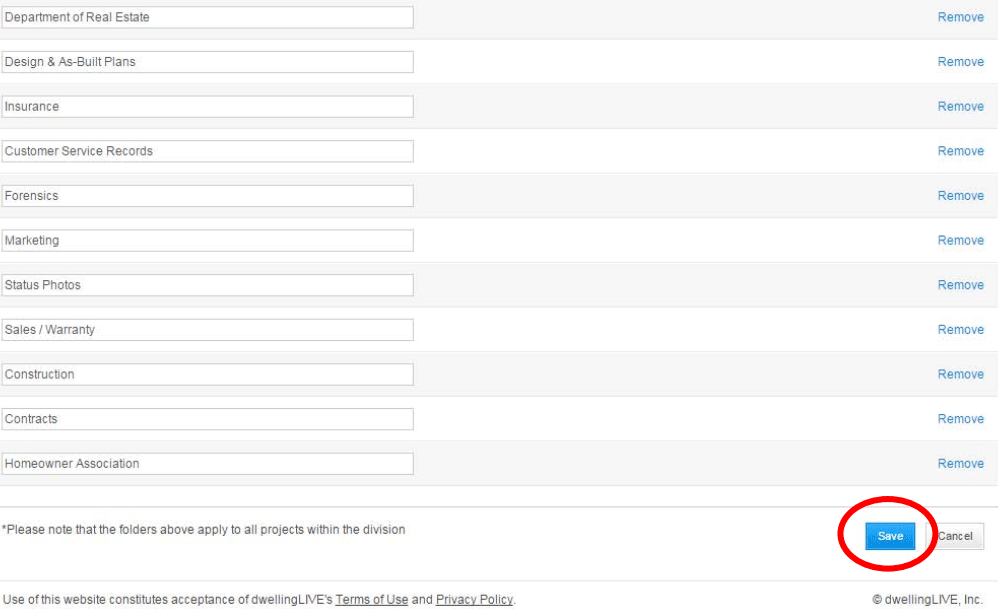
You can add a New Folder or Edit/Remove a current folder
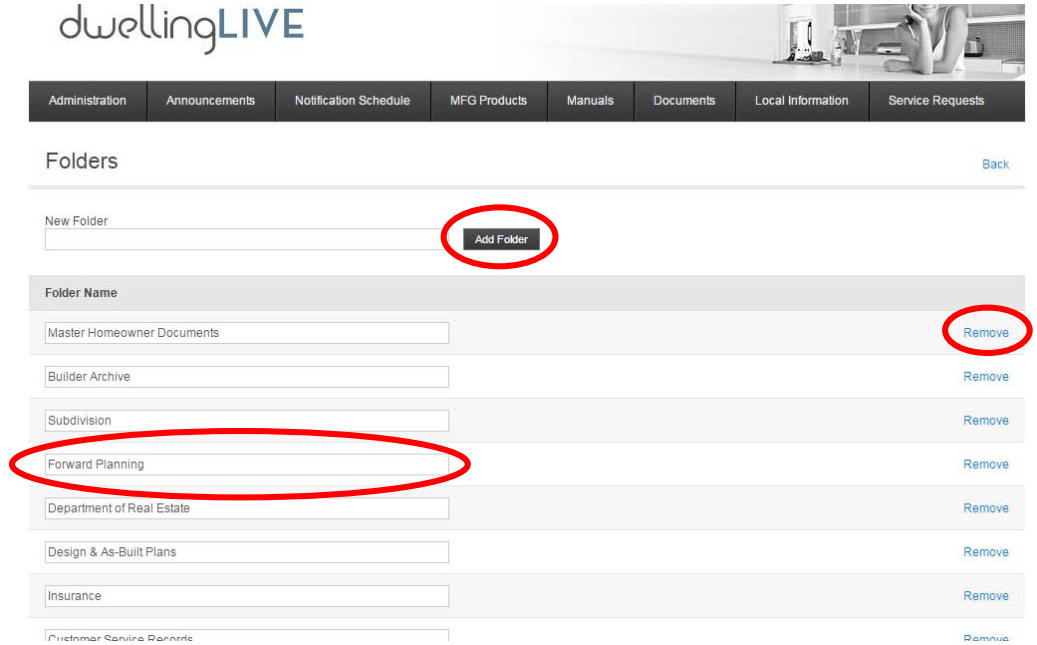
Then select the “Save” Button