
Admin - Delivery Management Instructions
We’re updating this article. Some screenshots or names may look older than what you see in the product.
Delivery Management Instructions
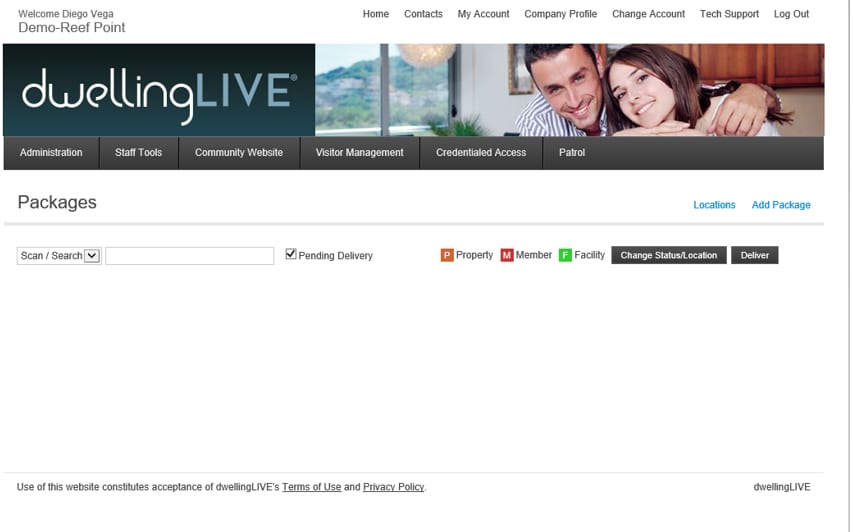
- When you log into your account go the Staff Tools tab and select Delivery Management, this will take you to the screen you see above. From here you will be able to utilize the Delivery Management system to track package information and notify residents when their packages arrive and are ready for pick up.
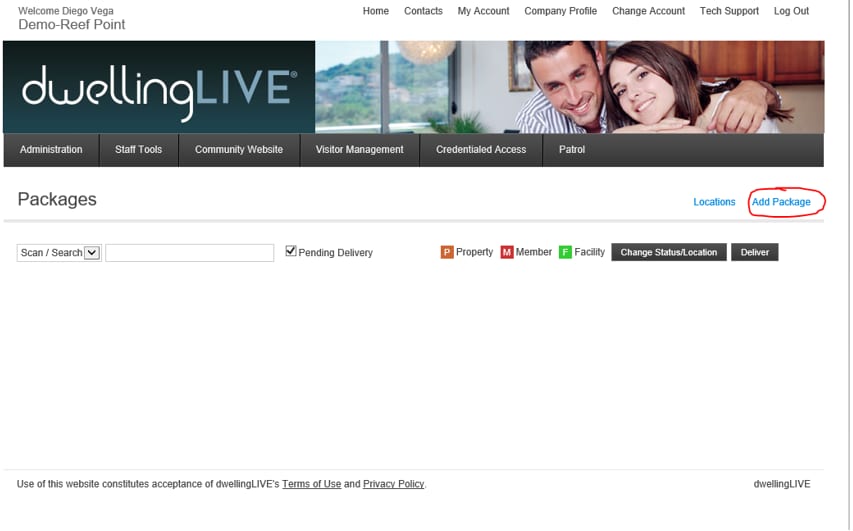
- To add a package you will click on the Add Package link as seen in the image above. From here you will be able to add new packages that get delivered.
- From this window you will be able to enter in the package information. I have created a test package and entered in basic information that you will enter in when your packages arrive. As you can see this information includes the Tracking Number, Carrier, and who the package is Assigned To. This information will allow you sort your various packages they arrive.
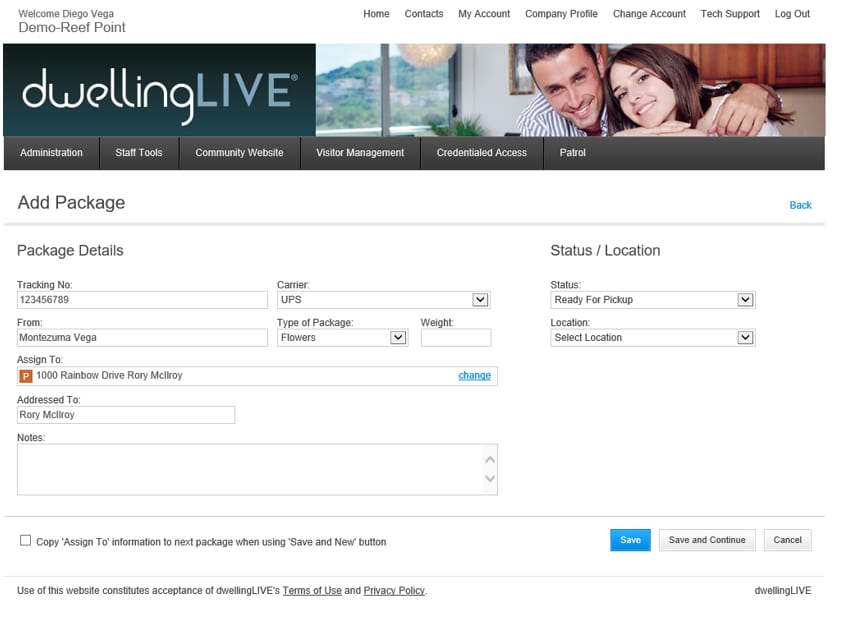
- Once you enter in the package click Save to return to the main Delivery Management screen or Save and Continue to add another package.
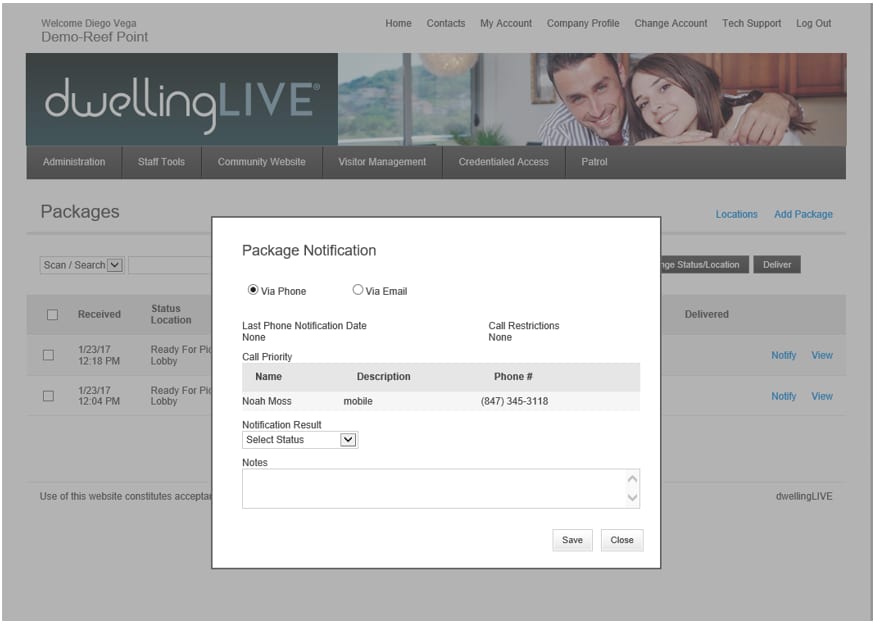
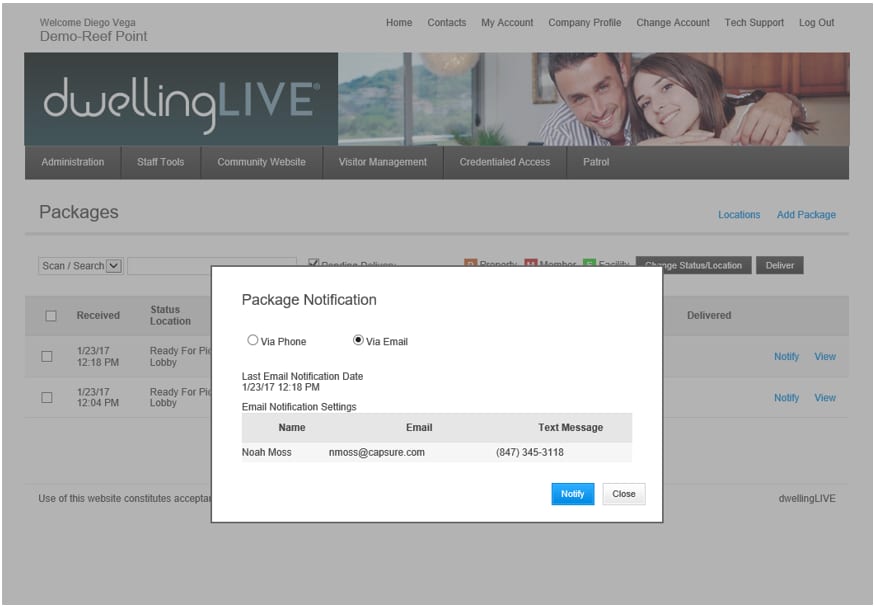
- Now that packages have been added it is time to notify the residents! You can do this by selecting the Notify link at the end of the row of the package you want to work on. Once you click the link it will take you to a window where you can notify the resident their by Phone or Email. Before this can be done each resident must have these notification settings set up under their profile. If this is not set up they will not be able to receive these notifications about their packages. Whichever way you want to notify the resident select it then click theNotify button.
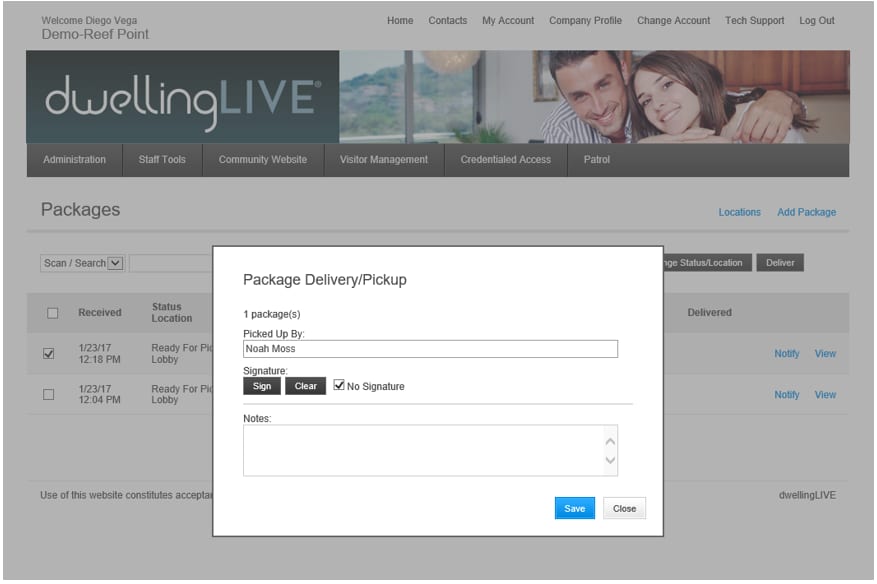
- When a resident comes by to pick up a package you will want to make sure you remove that package from the system so you can confirm it was properly delivered. To do this simply check the box next to the package they are picking up and click the Deliver Button. This will pop up a window where you can enter in who picked up the package and they can either sign for it if your community has a signature pad or check the No Signature box if you do not, then click Save. This will remove the package from your current list of packages.
- Some other options you can use with this system is the Locations link. This will allow you to edit or add a new location where packages can be picked up. The Change Status/Location button will allow you to either change the status of a package or the location of the package that is selected.