Admin/Manager - TEXT EDITOR - Homepage Images
Homepage Images
A short guide to changing homepage images and content for
the AtHomeNet system
To change homepage images you must be an admin on your community's website.
There are two ways to change images on the homepage.
The first way is only available if your website has been updated within the past several years.
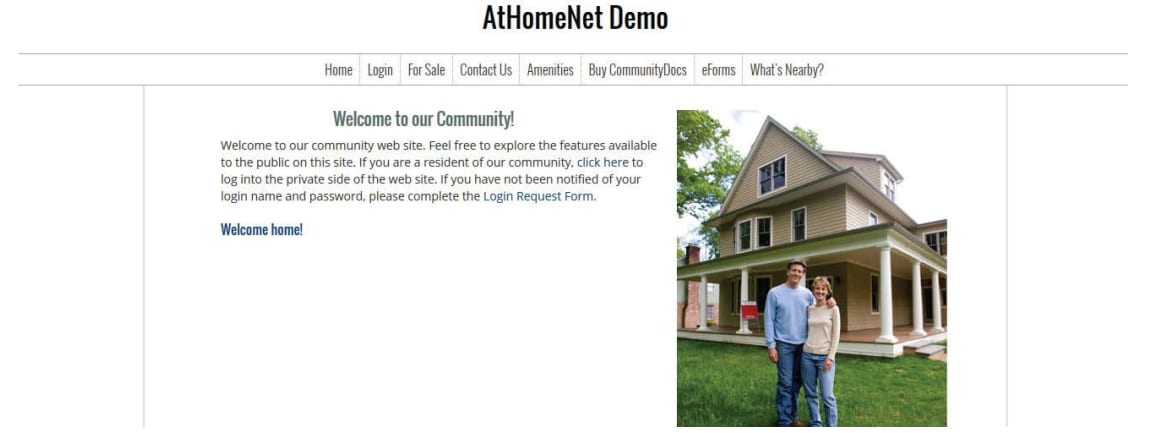
Start by logging in to your community's website.
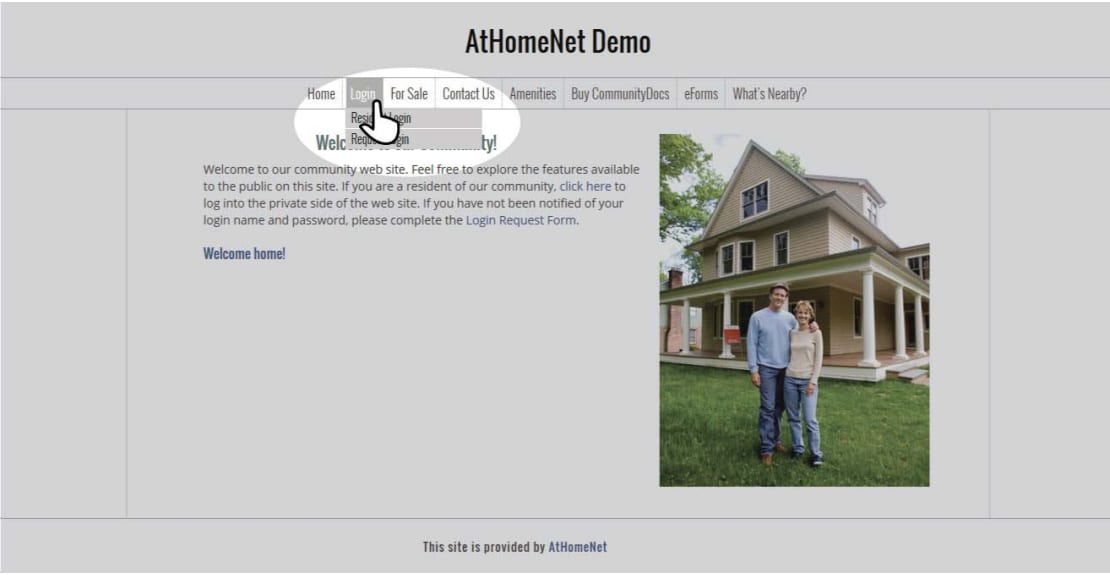
Go to the homepage if it does not automatically take you there. This is the private homepage, that is only visible to people logged in.
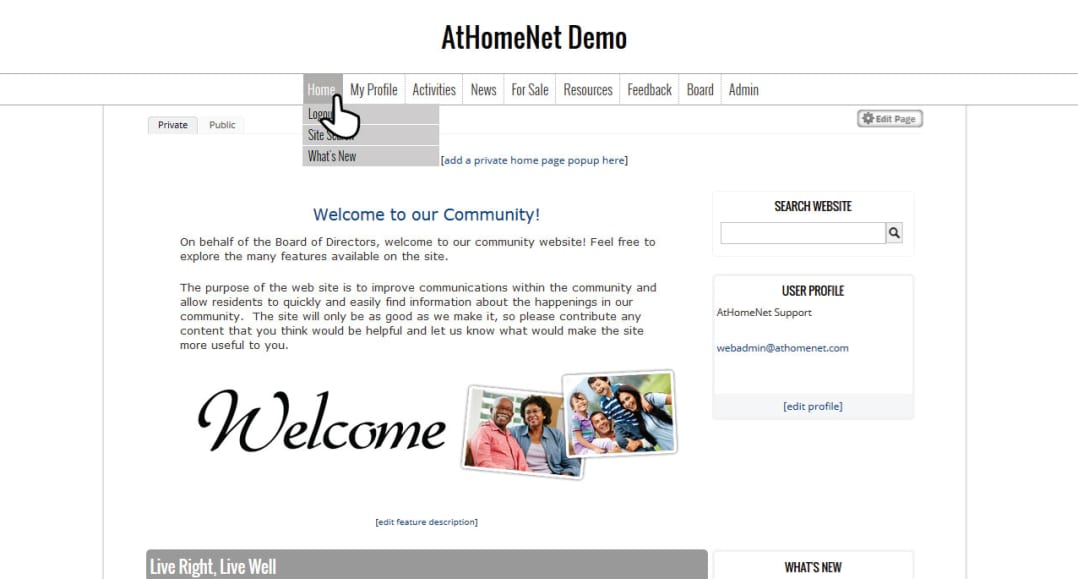
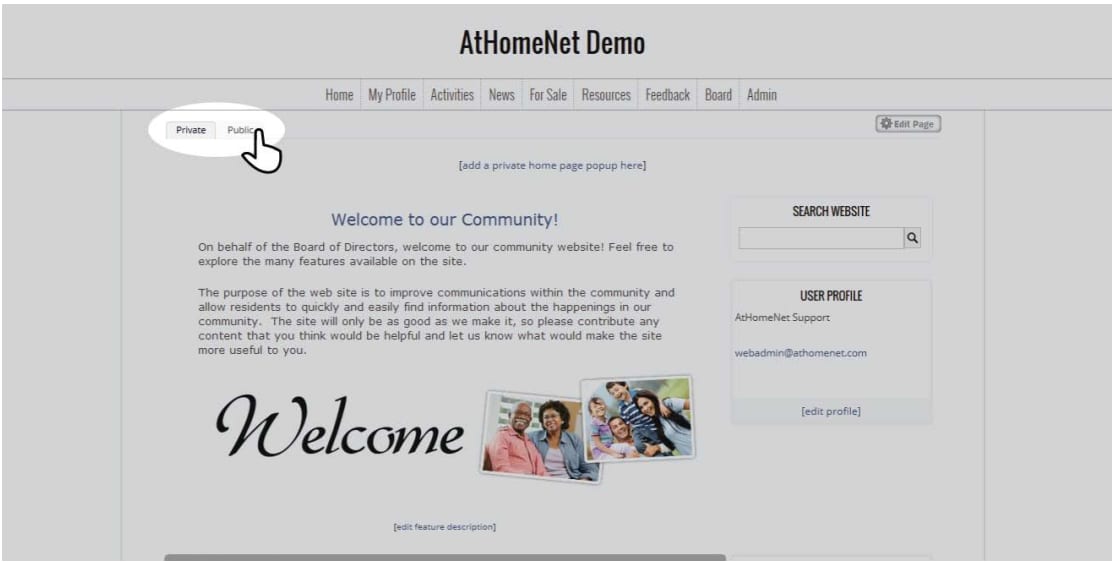
In the upper left corner of the content section of the page there should be private/public tabs visible. Select "Public."
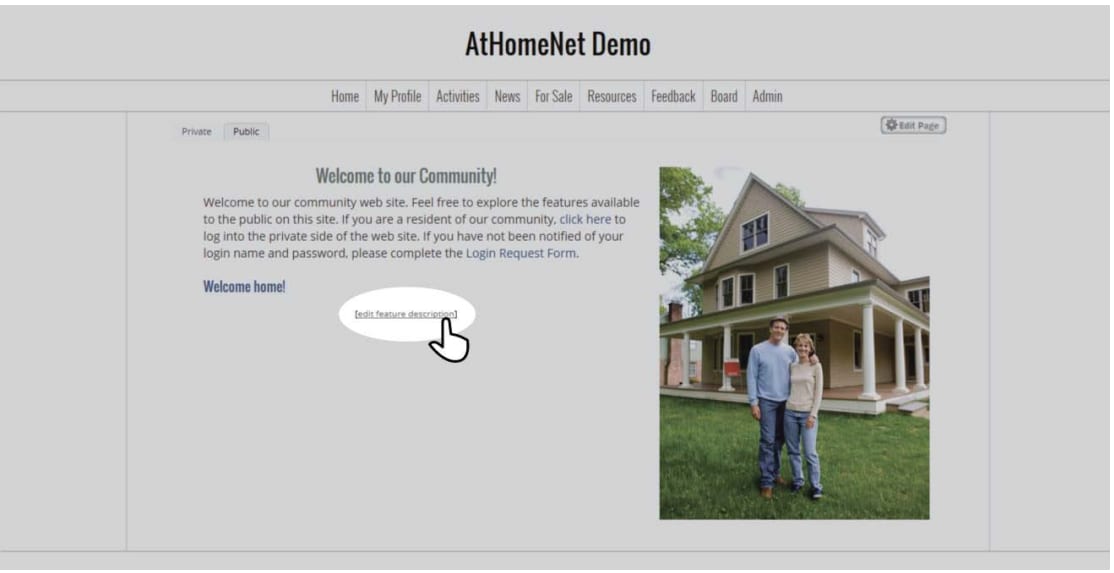
You should now be viewing the public homepage, however an extra button should be at the bottom of the content called "edit feature description." Select this button.
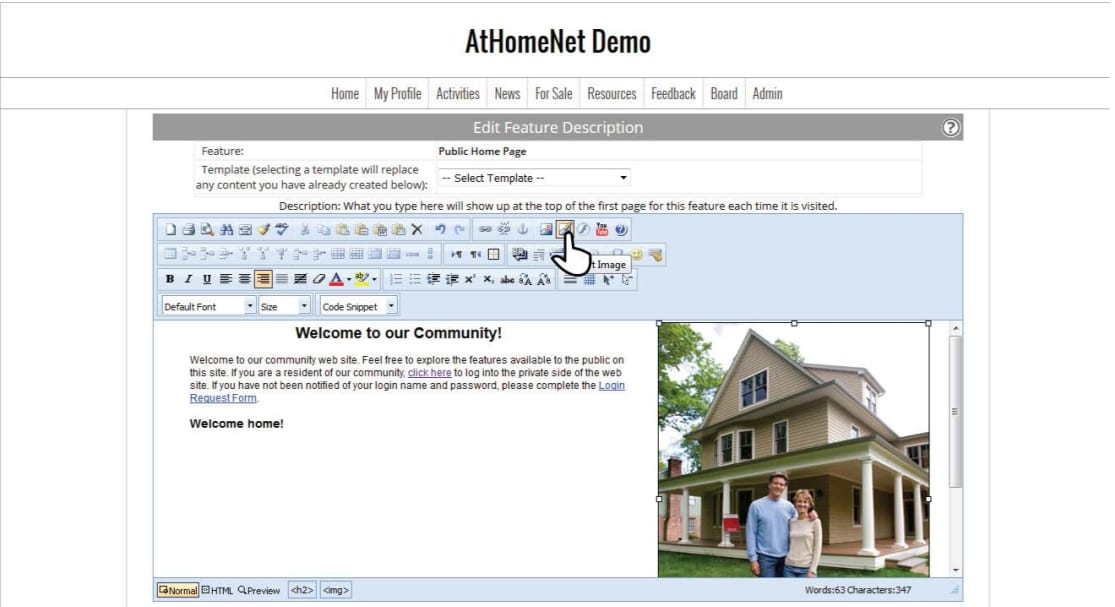
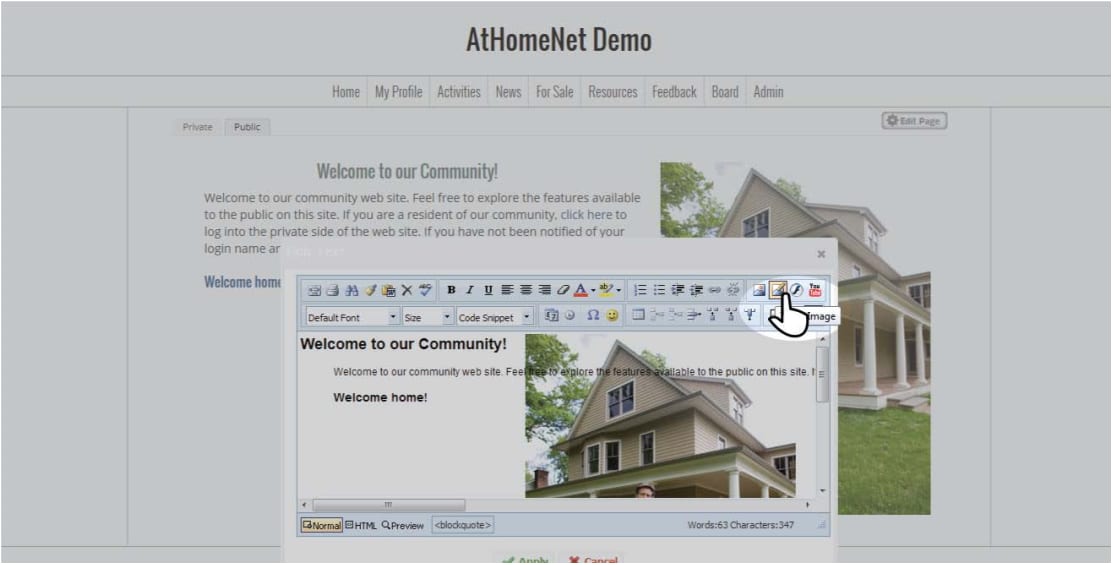
An editor box will have appeared where you can add, change, edit, and delete images. To add an image select the add image button in the upper right corner of the editor.
This will open up another box that displays all the images that been uploaded to your website. You can select any of the images already uploaded. You can also upload a new file by selecting the "upload files" button.
Make sure than any images uploaded have no spaces in the title and are under 1900k file size or they will not be accepted by our system.
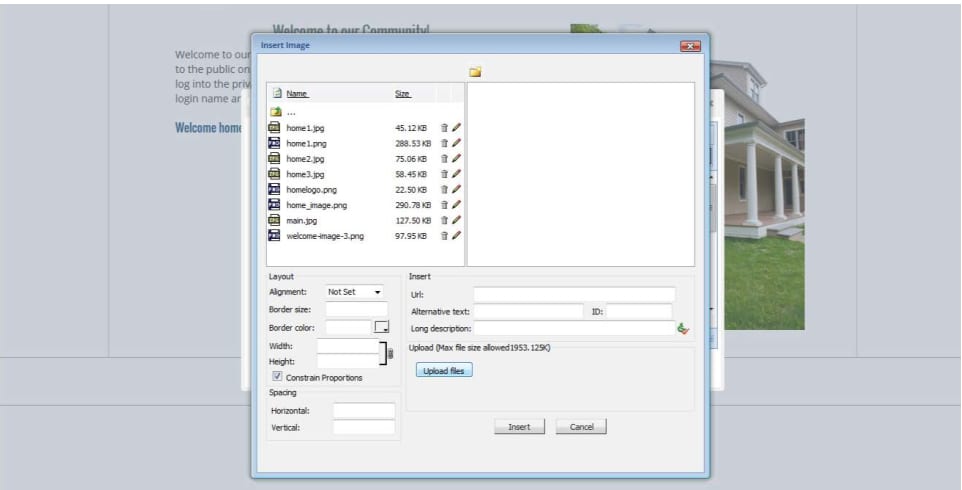
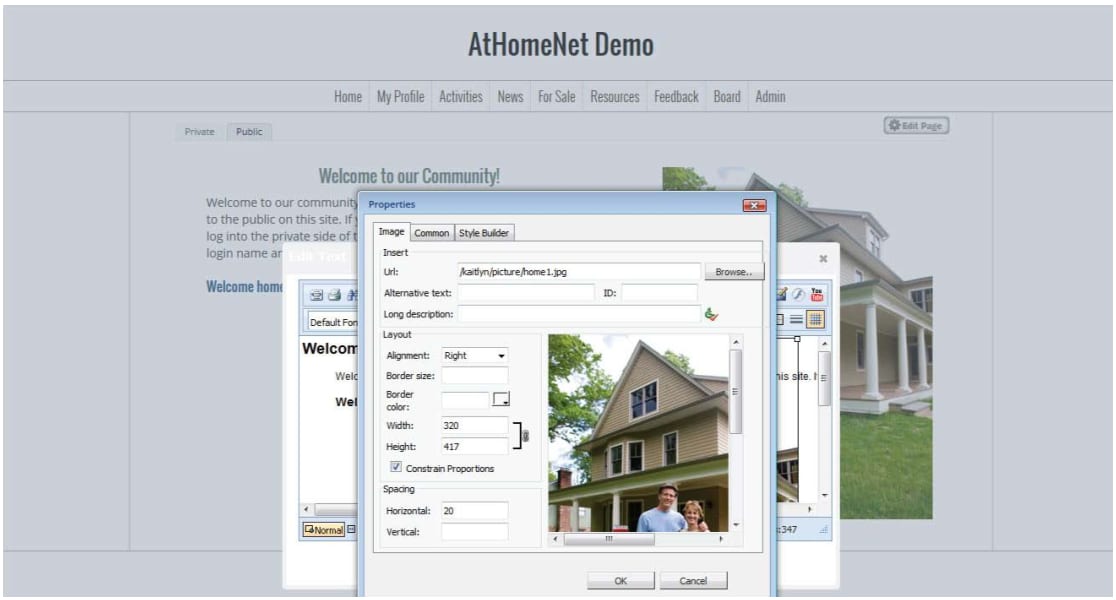
On this page you can also align the image to a side, change the width/height of the image and add spacing around the image.
Once added images can be moved around by dropping and dragging within the editor, however if an alignment is set the image will keep that alignment unless it is changed or turned off by double-clicking the image within the editor.
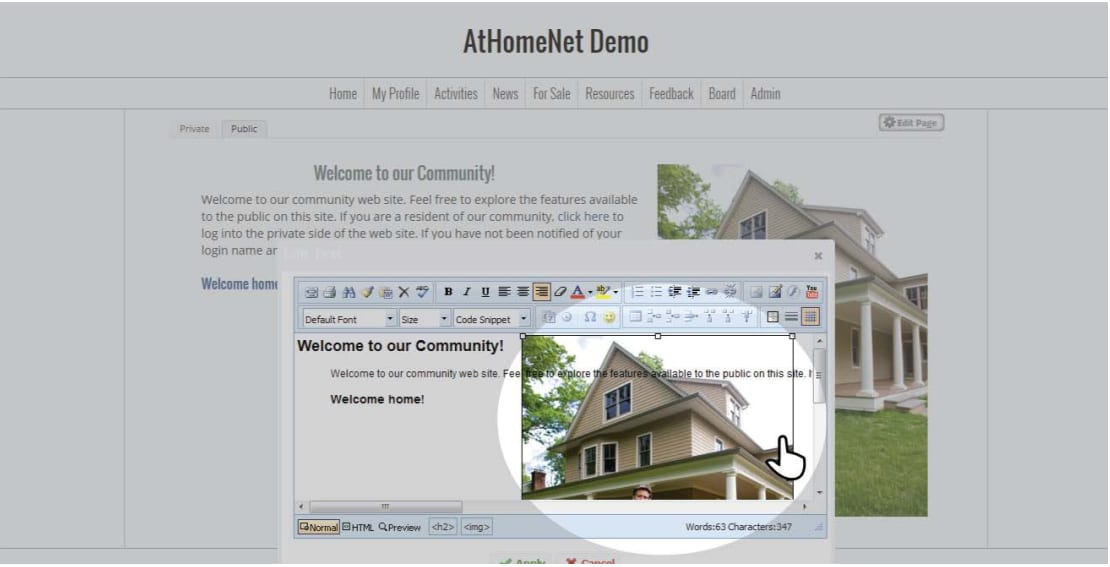
Once an image is double-clicked the same box will appear where you can change the information and style of the image.
Option 2
The alternative option for changing homepage images.
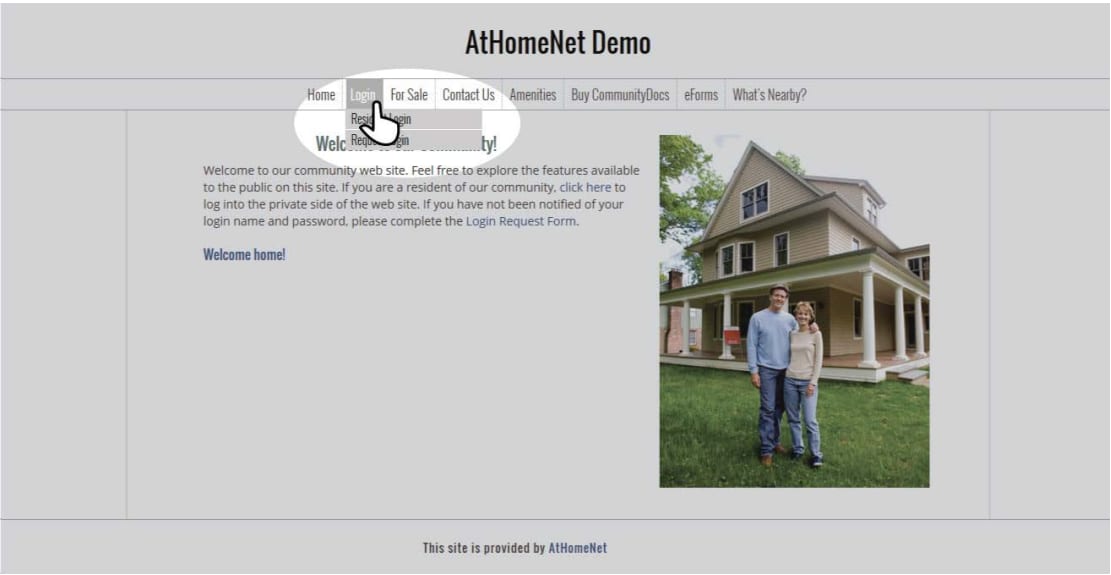
The second way to change the homepage image also starts with logging in.
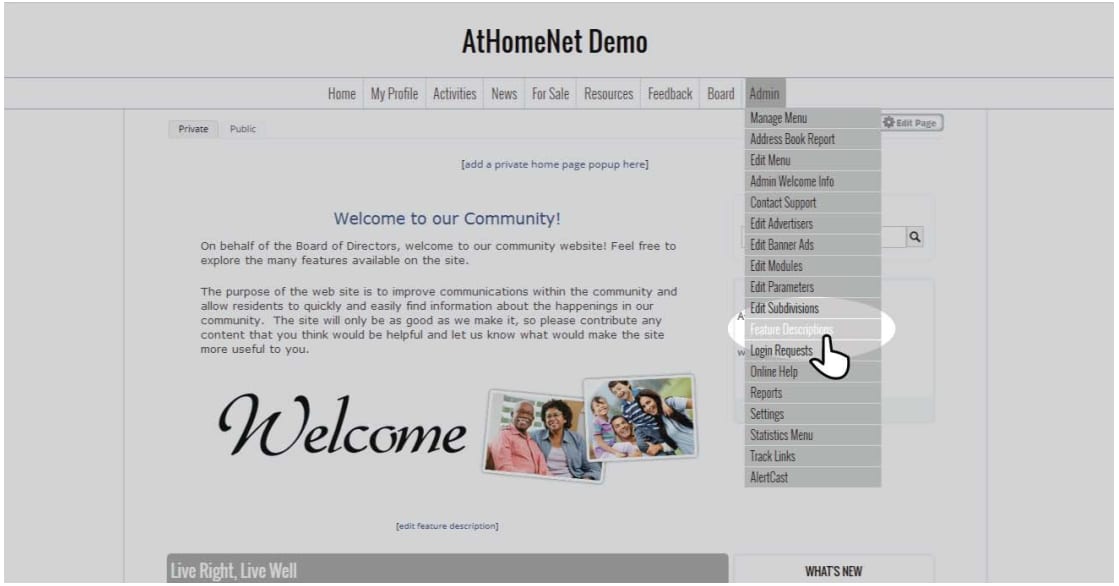
Under the admin tab find "Feature Descriptions" and select it.
Once the page loads you will see a long list of different feature descriptions that can be edited. To change the information and images on the public home page select "Public Home Page" from the list and select the "Edit" button at the bottom of the page.
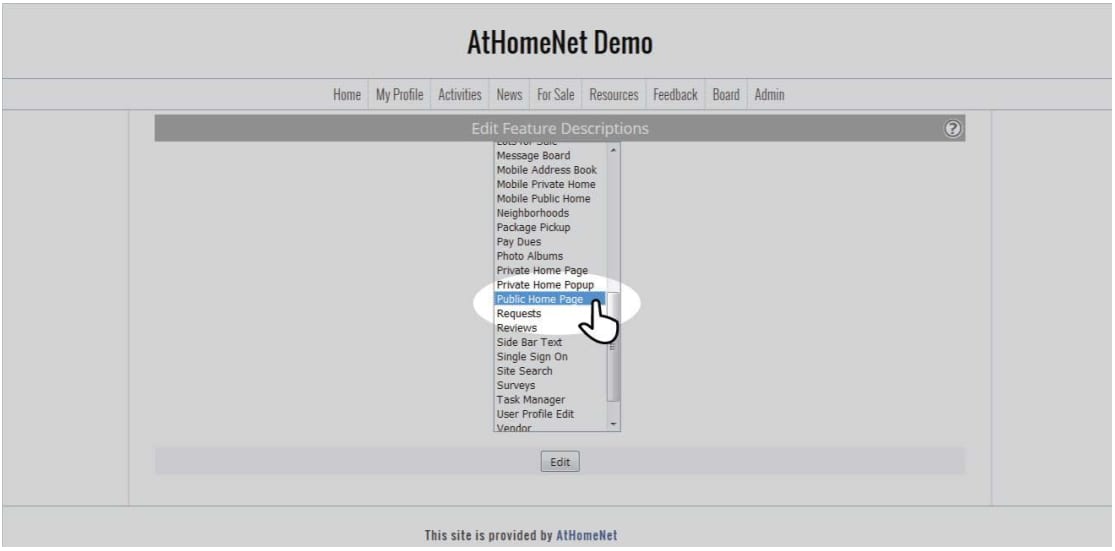
You will be taken to a new page which has the same editor.