
Site Admin - Messenger Service Plus Overview
Messenger Service Plus (MSP) allows communities to send messages to residents via a text or voice message.
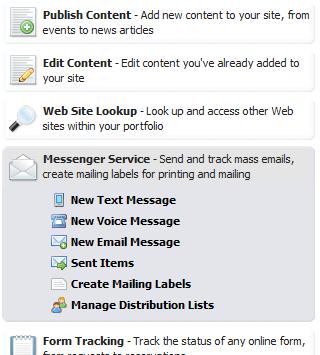
The MSP options can be accessed on you Publish Menu under the Messenger Service Menu Item Communities can send unlimited messages to residents.
By default, residents will receive the voice message. They will have to opt-in to receive a text message and agree to the Text Messaging Terms of Service. This is located under the “How to keep in touch” section on their Directory Information page
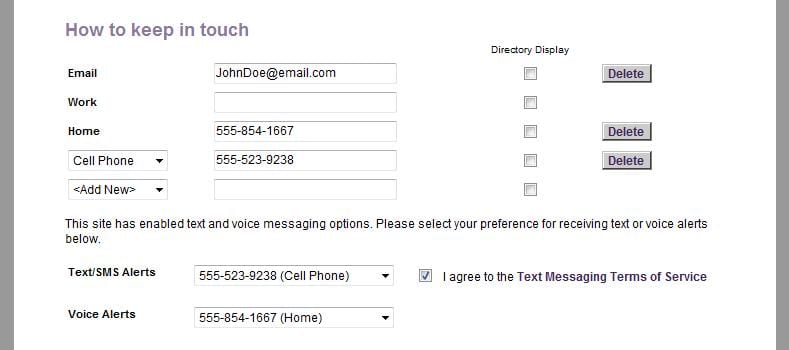
The text message will default to a resident’s cell phone number (if listed as such in the directory), but members can select the number at which they preferred to be reached by clicking on the drop-down arrow to the right of the number and selecting a different one.
To Send a Text Message:
- From the Publish Menu, select the New Text Message option from under the Messenger Service menu item
- The following window will pop up:
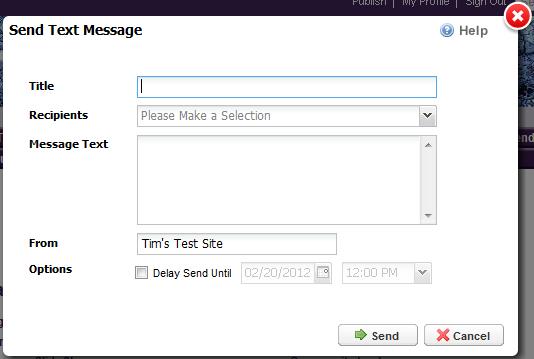
- Complete all fields
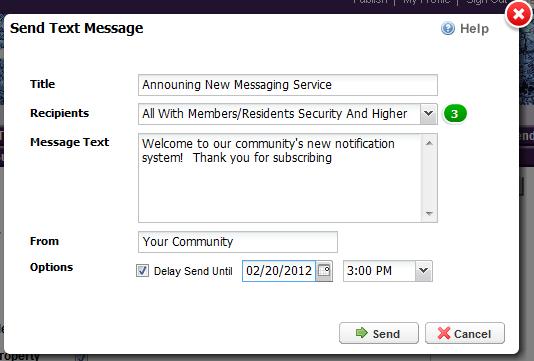
- a. Title of message
- b. Select group to receive message from the drop down list. The green bubble shows the number of recipients who have opted-in to receive a text message
- c. Type message
- d. Note who is sending the message (Default listing is the community/management company name). This displays in the caller ID.
- e. You can opt to send the message at a later date/time
- Click Send
To Send a Voice Message:
- From the Publish Menu, select the New Voice Message option from under the Messenger Service menu item
- The following window will pop up:
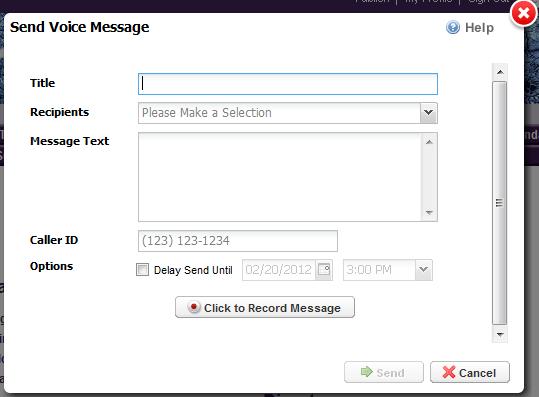
- Complete all fields
- a. Title of message
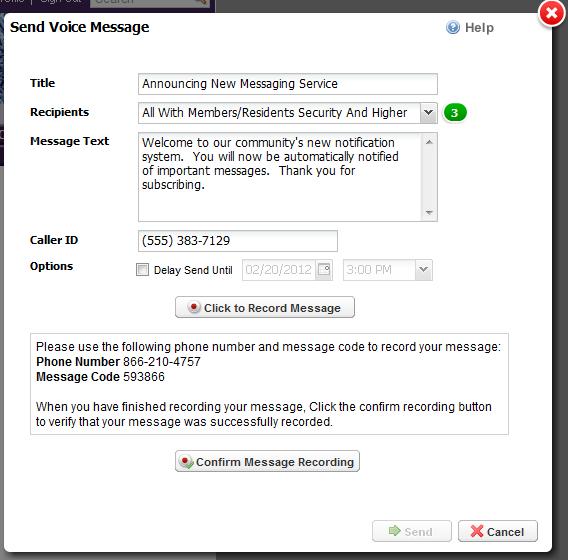
- b. Select group to receive message from drop down list. The green bubble shows the number of recipients to which the message will be sent
- c. Type message
- d. Note the phone number that will appear on the Caller ID
- e. You can opt to send the message at a later date/time
- f. Click the “Click to Record Message” button and follow the prompts to record message
- g. Click “Confirm Message Recording”
- h. Click send
Historical Records:
The Sent Items option will include Text and Voice messages details for future reference.