1099 and 1096 Output
Introduction
Before generating 1099 and 1096 forms, there are a few Vendor Management set up items to keep in mind:
▪ Only Vendors marked for a 1099 will receive them within Caliber (Vendor Management > 1099 Required).
▪ Other Payees need to be converted to a Vendor if you are sending them a 1099 (Vendors toolbox > Other Payees > Convert to Vendor).
▪ All Vendors will require a Tax ID number and/or Social Security number. Make sure that these are in the appropriate field for each vendor (Vendor Management > Accounting tab).
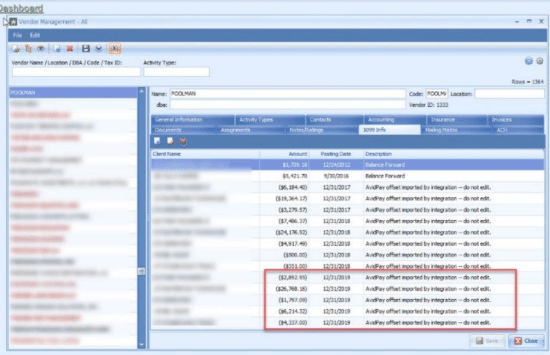
▪ Invoices paid outside of Caliber may be entered as a Balance Forward Record or if an adjustment amount needs to be made (Vendor Management > 1099 Info tab).
▪ You may want to run one of the three (3) 1099 reports to verify your vendor information is correct. These reports are only available under Output 1099’s.
2020 Tax Form Updates
Beginning with tax year 2020, Form 1099-NEC is used to report nonemployee compensation. Due to the creation of Form 1099-NEC, the IRS has revised Form 1099-MISC and rearranged box numbers for reporting certain income. Within Vendor Management, we have updated the payment types available for Vendors. Nothing needs to be changed for your current Vendors, as we have mapped over the appropriate fields. To view these updates in Vendor Management, click Accounting > AP > Manage Vendors > Accounting tab > Box dropdown.
Updated payment types included are:
• 1 - Rents [1099-MISC]
• 3 - Other Income [1099-MISC]
• 1 - Nonemployee Compensation [1099-NEC]
• 10 - Gross Proceeds Paid to an Attorney [1099-MISC]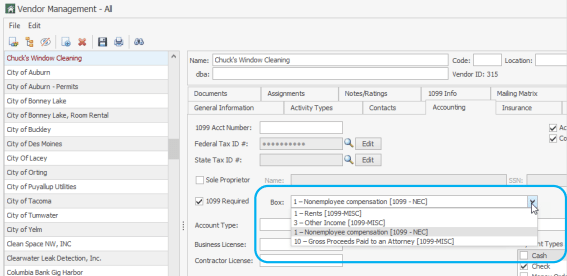
Configuring 1099 Print Settings
he 1099 Layout window is used to adjust the user’s printer settings in preparation for printing tax forms. The tax form displayed in the window below is a preview of the paper stock that the user will physically load into their printer. Users adjust the print settings at the bottom of the window to ensure data will be printed neatly into the correct boxes of the form.
This functionality has always been available in Caliber for 1099-MISC forms. With the introduction of the 1099- NEC form, we have added two options at the bottom of the form, 1099-MISC and 1099-NEC, to toggle between print settings for the separate forms.
There is no guarantee that the physical forms will be aligned the exact same way, so print settings must be configured for each computer-printer setup that will print the forms. Stock ordered from different providers may also vary slightly, so print settings must be adjusted.
1. From the Top Ribbon, click Accounting > AP > 1099 Output > Configure 1099 Print Settings.
2. Use the Form options at the bottom of the window to toggle between the 1099-MISC and 1099-NEC forms.
3. Under Adjustments, select the Printer that will be used.
4. Click Print Test Form.
5. Make any adjustments necessary using the Up/Down or Right/Left options.
6. Click Save Adjustments when complete.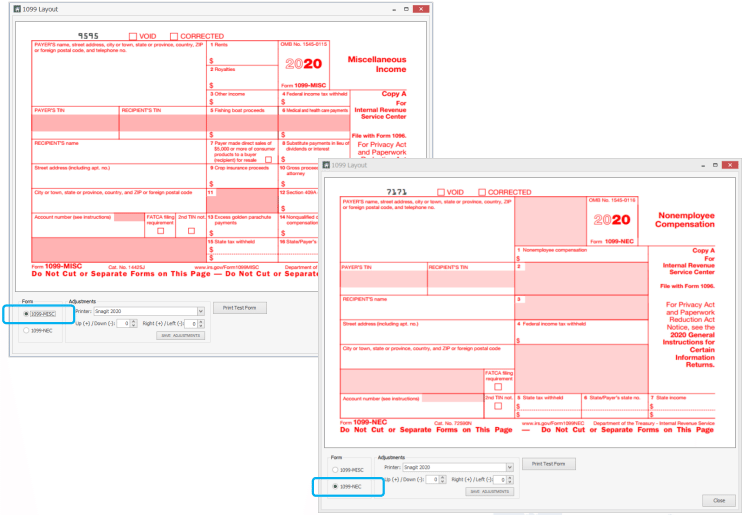
Printing 1099’s
From the Top Ribbon, select Accounting > AP > 1099 Output > Output 1099’s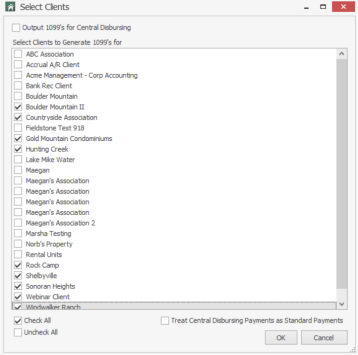
1. Output 1099’s for Central Disbursing - Only use this function if you know that your management company utilizes this method (not commonly used).
2. Select Clients to Generate 1099’s for - In the lower left-hand corner, you may use the Check All/Uncheck All.
3. Select OK.
Next, select the date range that the 1099’s need to be run for:
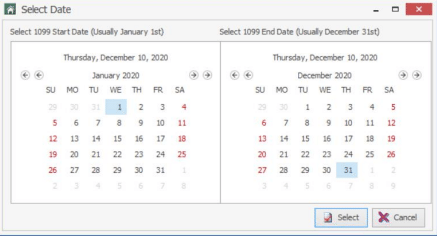
4. Select 1099 Start Date - Caliber defaults to January 1st of that year.
5. Select 1099 End Date - Caliber defaults to December 31st of that year.
6. Click Select.
From the 1099 Preview window, several options are available: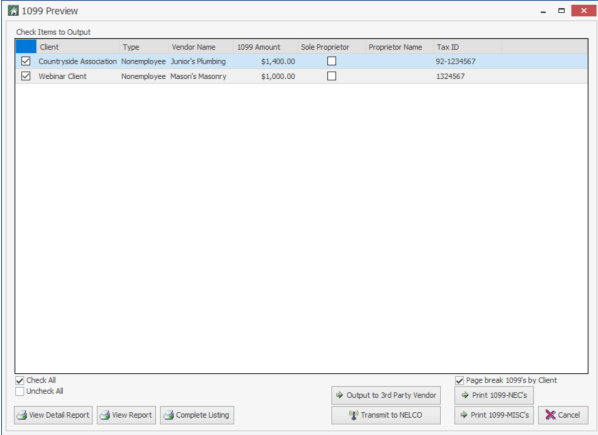
7. All Vendors that qualify for a 1099 will appear within this window.
8. You have the ability to Check All/Uncheck All.
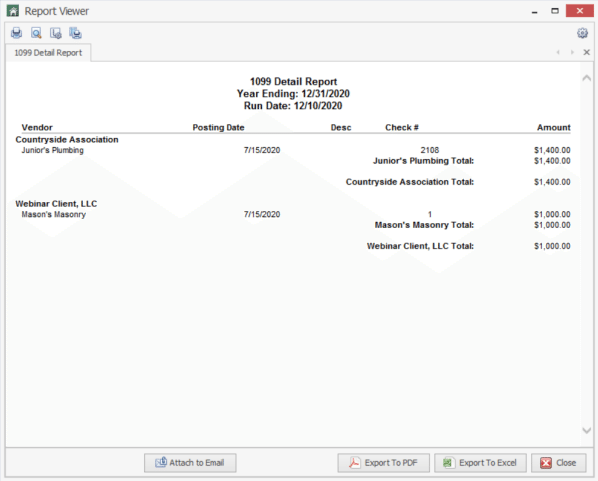
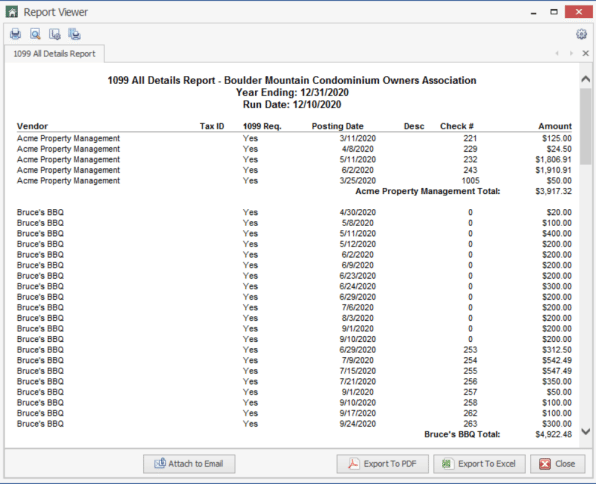
9. View Detail Report - This report provides you with Vendor, Posting Date, Description, Check # and Amount. You may export to PDF, Excel, and/or attach to email.
10. View Report - This report provides you with Client, Type, Vendor Name, 1099 Amount, Sole Proprietor, Proprietor Name, and Tax ID. The Type column has been updated to display Box Name. You may export to PDF, Excel, and/or attach to email.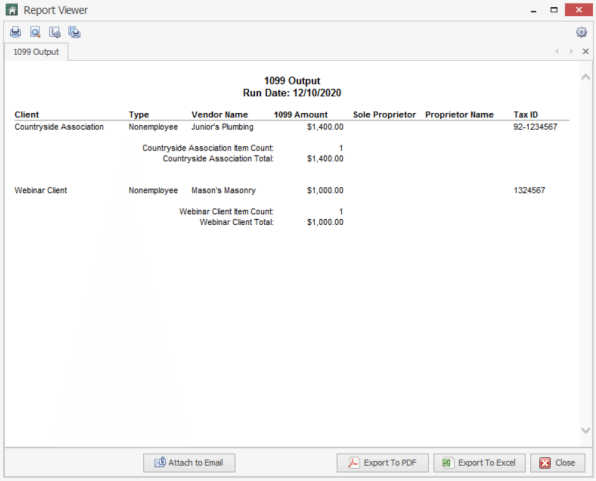
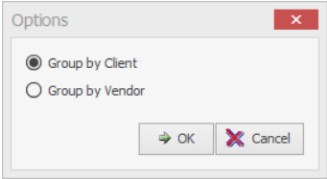
11. Complete Listing - This report allows you to choose Group by Client or Vendor. The report provides you with Total amounts. You may export to PDF, Excel, and/or attach to email. This report reflects all Vendors regardless if they are to not receive a 1099.
12. Output to 3rd Party Vendor - You will be asked for a location to save the .CSV file that you will upload to your 3rd party company.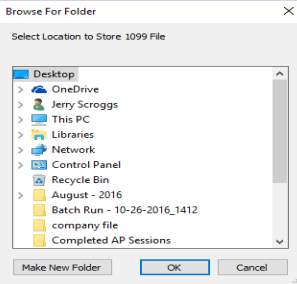
13. The Transmit to NELCO button will allow you to send your 1099 data electronically to NELCO. NELCO is a third party that Caliber has integrated with that gives you the ability to transmit 1099 data from Caliber directly to NELCO. Once they have received your data, they will take care of the mailing and filing of your 1099’s. To get more information and register to use this service, visit their website at https://calibersoftware.nelcoportal.com. Pricing for this service can be found on the ‘How It Works’ tab on the website.
14. The Page break 1099’s by client defaults to being checked. If you uncheck this box you could have the same client or two different clients on the same 1099 form. If you leave the Page break 1099’s by client check you will have one client per 1099 form. This is if you use the 1099 stock that has two (top and Bottom) 1099’s.
Configuring 1096 Print Settings
From the Top Ribbon, select Accounting > AP > 1099 Output > Configure 1096 Print Settings.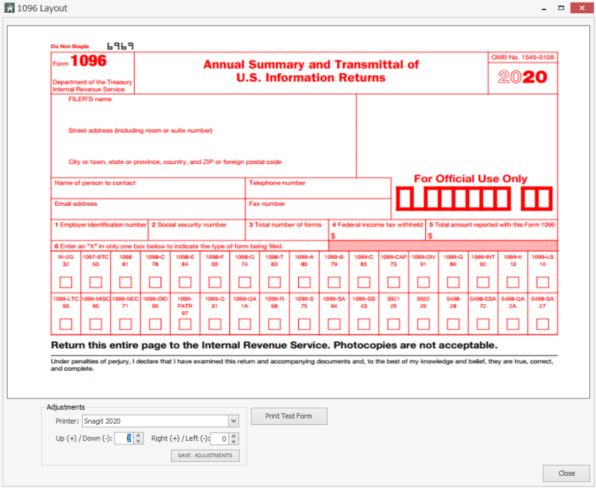
1. Under Adjustments, select the printer that you will be using from the pull-down menu.
2. Select Print Test Form.
3. Make any adjustments needed by using the Up/Down or Right/Left options.
4. Once you have made your adjustments, select Save Adjustments.
Printing 1096’s
From the Top Ribbon, select Accounting > AP > 1096 Output > Output 1096’s.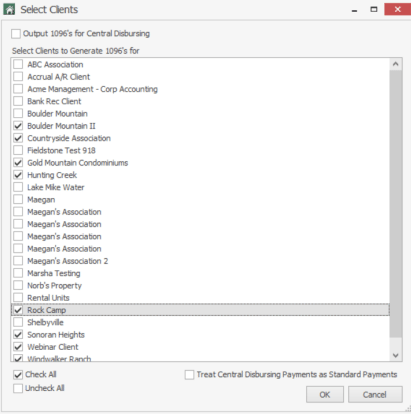
1. Output 1096’s for Central Disbursing - Only use this function if you know that your management company utilizes this method (not commonly used).
2. Select Clients to Generate 1096’s for - In the lower left hand corner, you may use the Check All/Uncheck All.
3. Select OK.
Next, select the year end date that the 1096’s need to be run for: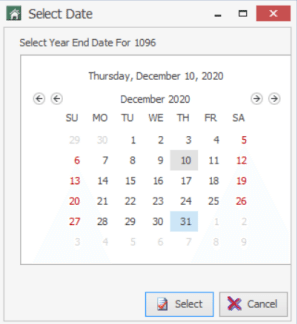
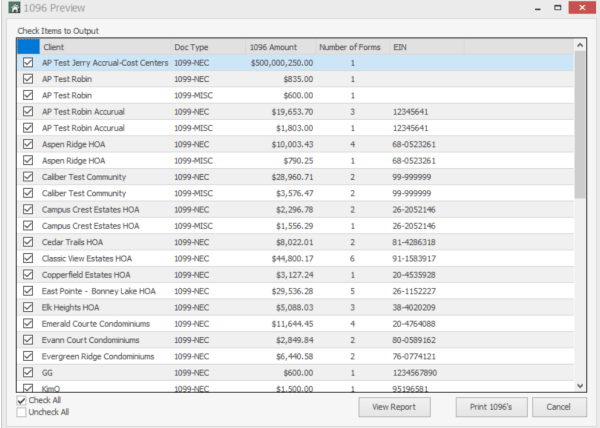
4. All Clients with Vendors that qualify for a 1096 will appear within the Check Items to Output
5. You have the capability to Check All/Uncheck All
6. View Report - This report provides you with Client, Doc Type, 1096 Amount, Number of Vendors receiving a 1099 Form, and the Client’s Tax ID#. You may export to PDF, Excel, and/or attach to email.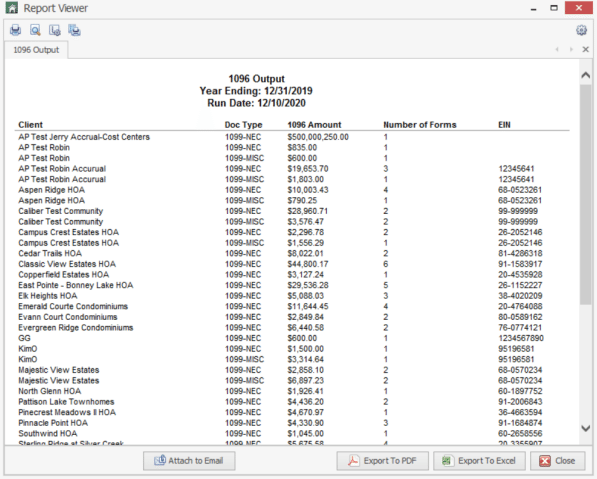
The 1096 forms do not create a .CSV file to upload to 3rd party companies. You may need to contact your provider to find out what other options you may have. If you are using NELCO to process your 1099 forms, be advised that NELCO will file your 1099 forms electronically with the appropriate government agencies. A 1096 form is only required if you are filing paper copies of 1099 forms.
Avid Pay/Strongroom Adjustment Notes
Per IRS regulations, certain kinds of electronic payments made by 3rd party processors to vendors are reported on a 1099-K form instead of the typical 1099-MISC form. The reporting of these payments is the responsibility of the processor that initiated the payment, which in this situation would be Avid Pay, and NOT the Management Company.
To avoid reporting these payments multiple times, Avid Pay passes 1099 adjustments into Caliber at the end of the calendar year via the API for the appropriate amounts for each vendor. The adjustment will net against the total of all payments made to each vendor, reducing the 1099 balance in Caliber for the vendor.
These adjustments can be viewed by going to the 1099 Info tab for the vendors in the Vendor Management Toolbox.
This adjustment should not be edited or removed from Caliber. Since it is not passed into Caliber until the end of the year, Caliber 1099 reports that are run prior to this adjustment will have different balances when compared to one run after the adjustment. This is the expected behavior and is not an error.
The net amount after the adjustment is the amount that the management company is responsible for reporting and is the amount that Caliber will generate a 1099-MISC form for. The Caliber generated 1096 forms will also reflect the adjustments.
If you have questions on this matter, contact Avid Pay/Strongroom for assistance.
See the example below: